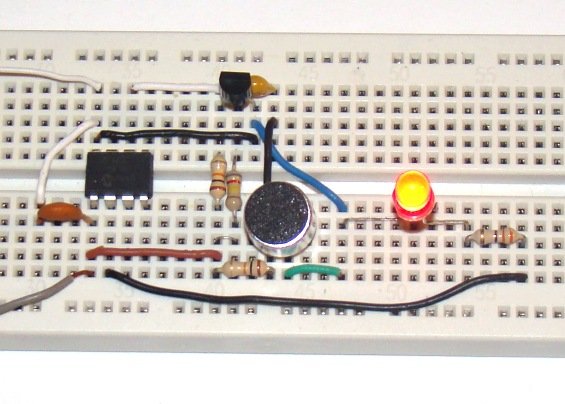
Quantcast
Channel: LED Projects - PIC Microcontroller
Viewing all 387 articles
Browse latest View live

Q-matic Circuit Application of PIC16F877 Microcontroller

$
0
0

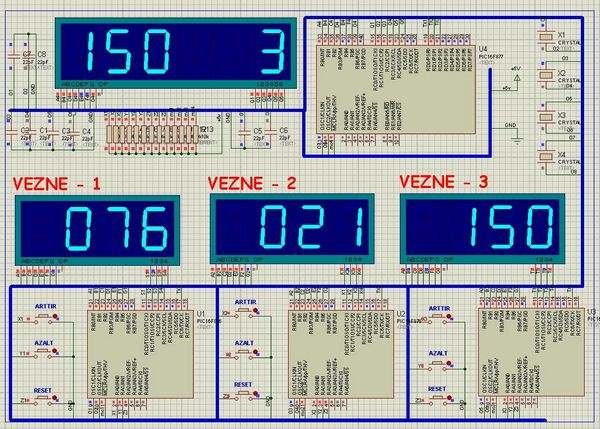
In this article I used in banks and hospitals will give information about the Q-matic s. I’ve done a routing circuit board (main board) and consists of three separate teller. Routing PIC16F877 on board, if the teller did not use pic16f876 in each. Teller as the officer may increase, decrease or can be reset. Every teller has been working with the same logic.Q-matic Circuit Application of PIC16F877 Microcontroller

Their value as a teller at regular intervals each orientation is sent to the board. Clipboard routing information from each teller overlook the ordinary. Each of the received data and also shows teller number of their displace. Each display is working with the logic scan.

PIC16F877 Q-matic Circuit Schematic

Each displace the software are as follows; a first rank value, tens and hundreds digit is determined. This value is shown in the display of the first one’s place and then later on they face, including the step sequence is shown, and this is very fast, is difficult to detect with the human eye. We’ll just see on the screen the entire sequence value. This scanning period will normally need to be 14ms. But I’ve adjusted according to the simulation program.Q-matic Circuit Application of PIC16F877 Microcontroller schematich

Q-matic Circuit Test

Author Ediz Ağarer – Micro-controller controlled the Q-matic application circuit schematic source code files: q-matic-circuit-application-of-pic16f877-microcontroller.ZIP


For more detail: Q-matic Circuit Application of PIC16F877 Microcontroller

The post Q-matic Circuit Application of PIC16F877 Microcontroller appeared first on PIC Microcontroller.


Rainbow LED Chaser

$
0
0

I was bored this past sunday, and needed something to ease my racing brain … so I picked an easy project with lots of flash.

The parts list:

Eight Tri-Color or RGB leds … each led package contains three LEDs
Three 74HC595 Shift Registers … serial load, latching. other varieties would probably work too.
One Microcontroller … doesn’t matter what it is, I used a pic18f252 since it was handy.
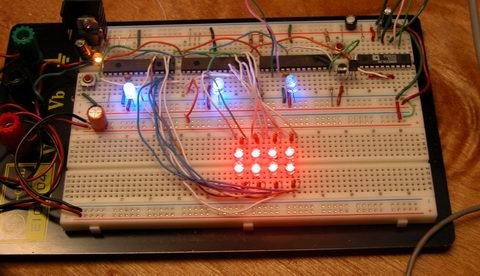
Twenty-Four Resistors … I used 150 ohm to set my led current at 20mA, but use anything from 56-220 ohmsRainbow LED Chaser

The tri-color leds I used are wired as common anode LEDs … each led inside the package has its own cathode pin and shares a common anode pin. So, all my anode pins connect to the postive rail on the breadboard. There’s no reason a person couldn’t use twenty-four discrete LEDs, or eight common cathode leds. Since my leds are “active low”, outputting a 0 turns them on, outputting a 1 turns them off… if you used common cathode leds, they would be “active high”, a 1 would turn them on and a 0 off. If you used discrete leds, well, hook ‘em all up one way or the other.

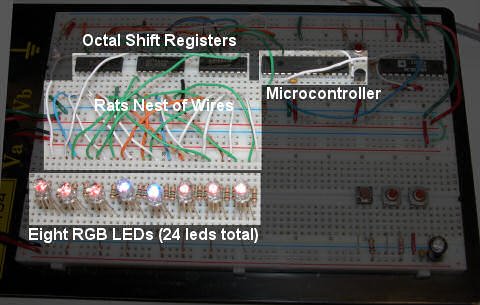
Next comes the connections to the shift registers. Think of each register as a chip containing eight switches you can turn on or off remotely. Each of the 24 LEDs gets connected to an output on the register, and they need to be grouped by color and kept in order. So looking at the picture below, working left to right, I connected all the red leds to the first register, all the blue to the second, all the green to the third. This resulted in the rats nest of wires you see between the chips and the leds. Concerning the registers themselves, they have three connections of up-most importance. Pin seven is the ground connection, pin fourteen is the +5v connection, and pin thirteen is the enable or tri-state pin. The tri-state pin must be tied to ground in order for the outputs on the register to work. Next up is the data connections. The 595 offers a nifty feature of serial pass-through. Using this feature, you can chain a bunch of them together, and treat them as a large number (in the programming). This is done with the QH* and SER pins. QH* connects to SER on the next ic ‘down stream’. On the first IC (the rightmost in my picture), SER connects to the microcontroller. Now in order to ‘load’ the chips with serial data, the microcontroller has generate a ‘clock’ for all the chips to sync to. This clock signal is transmitted on the SCK (serial clock) line. All three SCK lines are wired in parallel to the microcontroller. Last, since we want the data to be retained by the registers, even if the pic stops transmitting, we need to latch the data. This is controlled by the last data line, RCK. When the microcontroller is finished transmitting data, it needs to pulse the latch clock RCK high briefly. Upon receiving this signal, the registers display the data which they just received, and continue to display it until told otherwise. I have some other lines connected, but don’t use them… they are the SCLR line, which clears the data from the buffers, and the enable line. The microcontroller keeps the enable line high (disabling the registers outputs) until it is read to start sending commands… this prevents the registers from powering up with weird random data being displayed.

That’s it for the hardware side … really simple. All the magic happens in software… which I will write about in part two (yes, I’ll post the code too). As a spoiler, all the software does is boolean math, shifting and inverting 8-bit words of 1′s and 0′s around.

Here is the breadboard:Rainbow LED Chaser schematich

The parts in the grayed out areas are just stuff left over on the breadboard from an earlier project, or support components for the microcontroller.

Here are some videos:
Initial Test Program:

UPDATE:
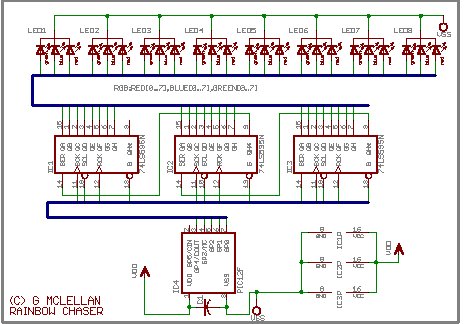
Due to all the connections (24 of them between the registers and the LEDs), drawing a schematic can get messy. I chose to avoid this mess by using Eagle “BUS” feature, which allows a large number of signals to be combined into one wire. The schematic below is drawn using a much less expensive and smaller PIC than the one pictured in the breadboard … however the idea is still the same.


For more detail: Rainbow LED Chaser

The post Rainbow LED Chaser appeared first on PIC Microcontroller.

Door lock opener

$
0
0

description

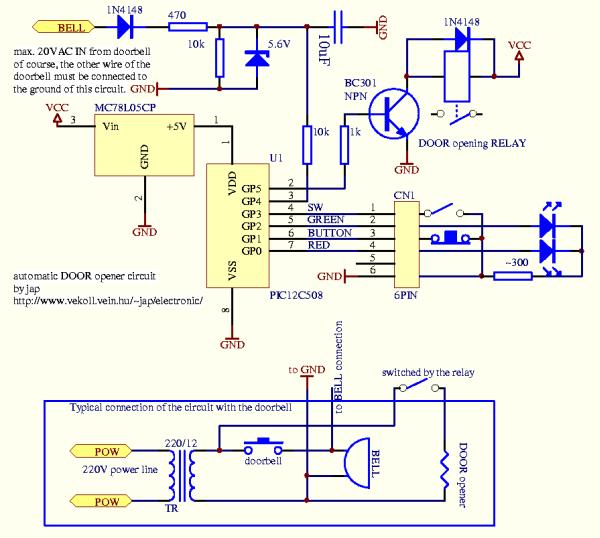
This circuit can be used to operate an electric strike or an electromagnetic lock on a door. It is not the door being opened/closed, but a small electromagnetic strike which unlocks the door. The opener has the following features currently programmed in software:

Door lock opener

  • automatic operation when a guest pushes the doorbell, the strike is operated immediately – can be set by a switch (SW)
  • manual remote operation – by pushing a button (BUTTON), the strike is operated immediately
  • timer delayed operation by pushing the same button longer than 500 ms – the strike is operated after a pre-set time
  • programmable timer delays for relay operating time and delay before timer opening
  • two-color LED display shows current state

usage

After power-on the circuit will be operating and the display LED will be constant RED when the auto switch is in OFF state and will be slowly changing between red and green when the switch is in AUTO state. Shortly pushing the BUTTON will operate the door relay for about 3 seconds (this delay can be reprogrammed). Holding down the PUSH button for a bit longer will operate the door relay after about 20 seconds. This timer delay is also reprogrammable. The display LED lights in constant YELLOW while the delay timer is running.

delay programming

WARNING: entering inappropriate codes for the timers will result in strange operation (too long/short delays) and you may have to break the power for the device to reset and start again.

To enter the delay programming mode, hold down the BUTTON and change the state of the SWITCH. The LED display will turn OFF until the release of the BUTTON. In this mode the software reads the values for the two timers in the form of 4 hex numbers. The first two numbers make up an 8-bit value for the timer of the door opening time and the second two numbers make up an 8-bit value for the delay timer. The values are given in a rough 10 ms unit.


For more detail: Door lock opener

Current Project / Post can also be found using:

  • pic16f877a projects with led

The post Door lock opener appeared first on PIC Microcontroller.

Right-left scrolling LEDs

$
0
0

Project description:

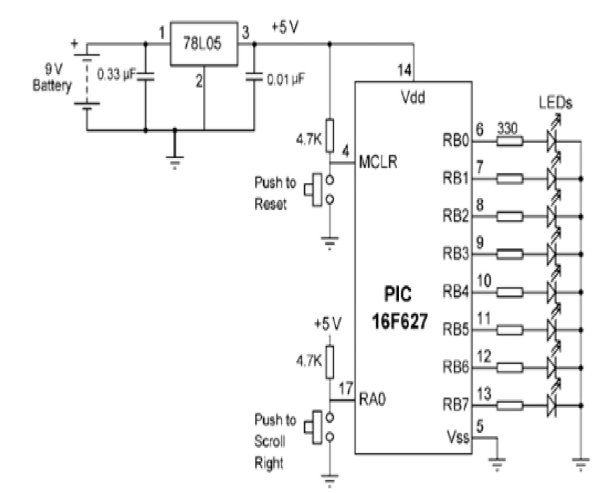
 In this project, 8 LEDs are connected to PORT B of a PIC microcontroller. Also a push-button switch is connected to bit 0 of PORT A using a pull-up resistor.. When the switch is pressed the LEDs scroll to the right.

Hardware:

The circuit diagram of the project is shown in Figure 1. The circuit in this project additionally a switch is connected to bit 0 of PORTA to control the direction of scrolling. A PIC16F627 model PIC micro controller is used and the micro controller is operated from its 4 MHz internal clock. The LEDs are connected to 8 pins of PORT B using 330_ current-limiting resistors. An external reset button is connected to MCLR input of the microcontroller.Right-left scrolling LEDs

Flow diagram:

The flow diagram of the project is shown in Figure 2. At the beginning of the program the I/O direction is specified. A byte variable called Cnt is used as the loop variable. The program consists of an indefinite loop and at the beginning of the loop the switch is tested. If the switch is logic 1 (i.e. switch is not pressed) then the scrolling is to the left and if the switch is pressed the switch is at logic 0 and scrolling is to the right. A 250 ms delay is used between each output.

Software: Pic Basic

The software for PicBasic language is given in Figure 3. At the beginning of the program PORTA, PORTB, TRISA, TRISB, and CMCON register addresses are defined. TRISA is set to 1 so that bit 0 of PORTA is configured as an input port. Similarly, TRISB is cleared to 0 so that all bits of PORTB are configured as outputs. Push-button switch is connected to bit 0 of PORTA (RA0). Normally this pin is pulled high to logic 1 by using a resistor. When the switch is pressed the pin goes down to logic 0. PORTA pins on the PIC16F627 microcontroller have dual functions and they can either be used as analog comparator inputs, or as digital I/O ports. CMCON register is used to control the function of these pins. Setting CMCON to 7

configures PORTA pins as digital I/O ports. Inside the LOOP, the value of Cnt is sent to PORTB and the PEEK instruction is used to read the switch setting. “Bit0” refers to bit 0 of variable “B0” which is where the switch is connected. When the switch is pressed the program jumps to label PRESSED where the LEDs are scrolled right. When the switch is not pressed the LEDs are scrolled left. This loop is repeated forever with 250 ms delay between each output. Set port directions

‘*************************************************************************

‘ RIGHT-LEFT SCROLLING LEDS

‘ =========================

‘ 8 LEDs are connected to PORTB of a PIC microcontroller. This program

‘ scrolls the LEDs to the right or left depending on a switch setting. The switch

‘ is connected to bit 0 of PORT A. If the switch is not pressed the switch

‘ output is at logic 1 and the LEDs scroll to the left. When the switch is

‘ pressed the LEDs scroll to the right. A 250ms delay is used between each

‘ output.

‘*************************************************************************

Right-left scrolling LEDs schematich‘ SYMBOLS

Symbol TRISA = $85                                              ‘ TRISA address

Symbol TRISB = $86                                              ‘ TRISB address

Symbol PORTA = $05                                             ‘ PORTA address

Symbol PORTB = $06                                            ‘ PORTB address

Symbol CMCON = $1F                                          ‘ CMCON address

Symbol Cnt = B1                                                    ‘ Cnt is a byte variable

Symbol Switch = B0                                                 ‘ Switch is a byte variable

‘ START OF MAIN PROGRAM

POKE CMCON, 7                                                  ‘ RA0-RA3 are digital I/O

POKE TRISA, 1                                                    ‘ Set PORTA bit 0 as input

POKE TRISB, 0                                                    ‘ Set all PORTB pins as outputs


For more detail: Right-left scrolling LEDs

The post Right-left scrolling LEDs appeared first on PIC Microcontroller.

Aurora 9 bar – The Essence of Aurora using PIC24F08KA microcontroller

$
0
0

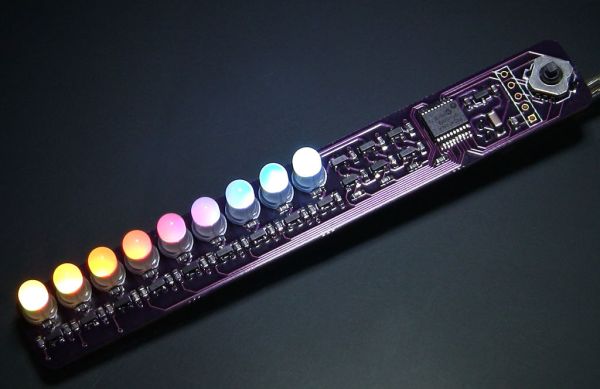
Aurora 9 bar – The Essence of Aurora

Since the introduction of Aurora 9×18, I received many requests for the kits and PCBs. I’m still quite undecided about making those available for a few reasons. However I really want other LED lovers (ok that might sound too much to be able to build one themselves.

The Essence of Aurora

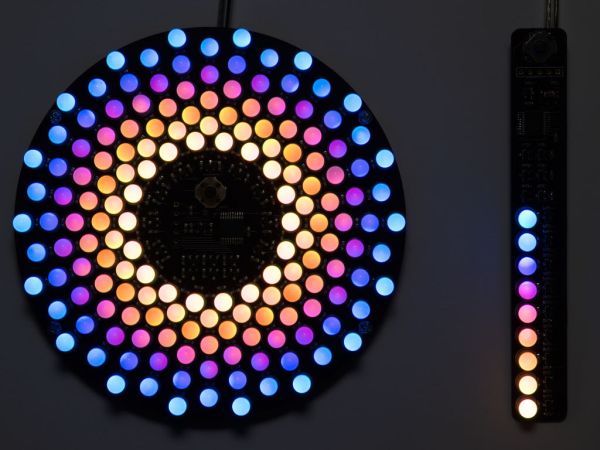
So I came up with Aurora 9 bar. It’s a bare essential version of Aurora 9×18. In fact the circuit is almost exactly the same (with a lot less number of LEDs of course). Even the firmware is essentially the same. So it has the same super smooth color fades as Aurora 9×18.

Step 1

Concept & Circuit

Aurora 9 bar’s circuit operates in the same exact way Aurora 9×18’s does. Same PWM theme, same refresh rate, etc. Please refer to my Aurora 9×18 Instructable for the details.

Aurora 9 bar took one LED out from each of Aurora 9×18’s 9 circles. Only difference in the circuit is that it uses BJTs instead of MOSFETs for the high-side switch (to save cost). Because there are only 9 LEDs total, the current requirement for the bus controllers is much lower.
Everything else is the same. So if you somehow manage to hook up more LEDs to Aurora 9 bar, it will look like Aurora 9×18.

Step 2

PCB

Aurora 9 bar uses surface-mount technology (SMT). If you’ve never built anything with SMT, this might be a good opportunity to try out. You will most likely realize that there’s nothing to fear about SMT.

The high-quality, custom made PCBs, as well as kits are available at reasonable prices. Please view the details at “Kits” section of the forums.

Step 3

Parts

Here are the list of parts, or BOM. All except two items (LED and switch) are available at Digi-Key (digikey.com), and the rest are at SparkFun Electronics (sparkfun.com).
You can download BOM files that can be uploaded to Digi-Key for quick ordering.
  • 16x 120 Ohm (0603)
  • 21x 1k Ohm (0603)
  • 1x 10k Ohm (0603)
  • 2x 1uF (0603)
  • 1x 10uF (1206)
  • 1x AP7333-33 or AP7313-33 (3.3V linear voltage regulator)
  • 3x MMBT2907A or equivalent PNP transistor
  • 12x MMBT2222A or equivalent NPN transistor
  • 1x PIC24F08KA101 (SSOP)
  • 9x 5mm Tricolor LED (common-cathode) (SparkFun COM-09264 should be identical)
  • 1x 5-way Tactile Switch: COM-10063 (Available at SparkFun Electronics)
  • 1x 5V regulated power supply, 4 NiMH batteries & case, or USB cable
  • 1x 2 pin Molex header (right-angle recommended) (optional)
  • 1x 2 pin Molex connector with corresponding terminals (optional)

There are many places to purchase LEDs. I source LEDs directly from China via AliExpress. Takes a few days for delivery, but the prices are great. (If you are purchasing a lot of LEDs.)

You can substitute transistors if you have something compatible.

The kits are available at a reasonable price as well. Please view the details at “Kits” section of the forums.

Step 4

Tools & Supply

  • Tweezers
  • Soldering iron
  • Solder (flux core. go for the highest quality solder you can afford.)
  • Soldering flux (Use high quality flux. Low quality flux causes problems! ChipQuick brand recommended.)
  • Wire cutter (I recommend this one.)
  • Microchip PIC programmer (supports PIC24F08KA and capable of In-circuit programming through a standard 6-pin ICSP connector, such as PICKit, ICD 2, ICD 3)
  • Computer running Windows
  • Magnifier visor or other visual aid device (optional, but highly recommended)
  • Molex crimper (to make your own power supply connector cables)

Step 5

Notes on SMT

The Essence of Aurora1

If you are already familiar with SMT, you can skip this step.
There’s no need to use reflow method (solder paste & bake) to build the SMT version of Aurora 9 bar. Since there are only a few components to solder, it’s quicker to just hand solder everything.
It’s very helpful to use high quality flux when you solder SMT components. I’d say it’s the key to successful hand soldering of SMD. Apply a small amount of flux to the PCB pads before placing the device, then solder. If you haven’t done this before, you’ll feel like your solder skill has suddenly improved 🙂

For more detail: Aurora 9 bar – The Essence of Aurora using PIC24F08KA microcontroller

The post Aurora 9 bar – The Essence of Aurora using PIC24F08KA microcontroller appeared first on PIC Microcontroller.

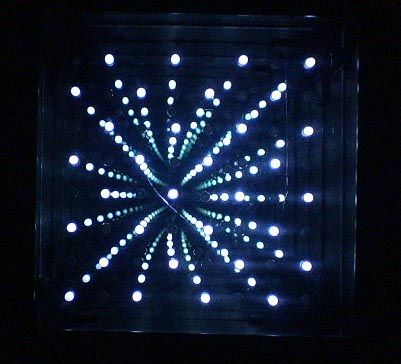
8×8 LED Array Multiplexed Infinity Mirror using PIC18F1320

$
0
0

8×8 LED Array Multiplexed Infinity Mirror

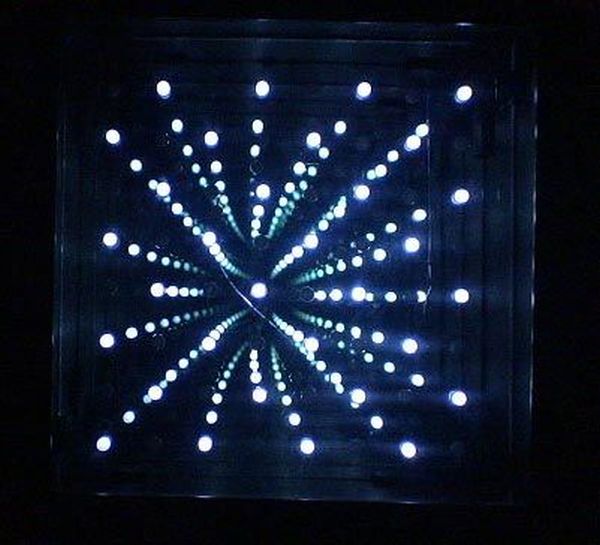
A little bit different than your regular Infinity Mirror. Using a piece of mirrored acrylic for the back mirror, 8 rows of 8 holes are drilled into in a grid pattern. A LED is then placed in each hole and wired up so that i can be multiplexed through a controller.

The frame I built for this project is very similar to my 8×8 Infinity Mirror, but instead of having glass for the rear mirror, I used mirrored acrylic which is easily drilled. And there are no LEDS around the outside. All the LEDs are in the back mirror and appear to be floating within it.

I got the idea after making an octagon mirror with a inner ring of LEDs, the effect of the LEDs floating in there is quite appealing, so I decided to do a small/simple project to demonstrate.

Building the actual frame will not be covered in detail here, but plans are in the ZIP. For detailed instructions on building the frame please see my other Instructable – 32 LED Infinity Mirror

The firmware is written in C18 for the PIC18F1320 and the TPIC6C596 high power shift register. Its a very basic program, with just 4 patterns to display, 2 switches change the pattern and the speed.
LED Infinity Mirror
UPDATE: Kits are now available for this project, the LED controller is not being offered, but there are many different 8×8 array controllers out there to choose from. Quality glass 2-way mirror on the front and mirrored acrylic for the back, drilled and ready to use. Link

Check Out my Infinity Mirror Gallery


Step 1: Supplies

Get a Kit including the Frame Parts, front and back mirror, drilled and ready. LED Controller is not being offered.

Electronics:
– PIC18F1320
– 18pin socket
– TPIC6C596 shift register
– 16 pin socket
– x64 5mm LEDs, whatever color, I used white.
– x3 10kohm 1/4w resistors
– x8 220 ohm resistors, may be different based on color
*Used high value resistors because they LEDs shouldn’t be to bright inside an infinity mirror or it won’t        work as well.
– 1 uF capacitor
– 0.1uF capacitor
– x2 momentary pushbuttons
– 5v @ ~1A power supply with DC Jack Get One

Circuit Board:
– Solid strand wire
– Perfboard

Frame:
– Plans are on the next page or in my 32 LED Infinity Mirror
– I use 100mil Polystyrene, but acrylic or 1/8th masonite would work as well

Tools:
– Soldering Iron
– Hotglue gun
– drill and bits, for button hole
– 5mm drill bit for LEDs
– Utility Knife

I could put a kit together for everything or just certain parts, Contact Me to find out

Build the Frame

Schematic LED Infinity Mirror
I am not going to cover building the frame to much here as it is the same process and nearly the same size as my 32 LED Infinity Mirror. Only difference is the inner walls do not have any holes drilled in them and the outer walls should be a 1/4″-1/2″ wider to accommodated the LED array.The plans in the image below is for the 32 LED mirror. Rest are for this projects mirror frame.Find where you will want the DC Jack and switches, I always choose a corner. Later the 2 switches will be soldered on some perfboard to be mounted in the holes. Take a look at your switches and find their spacing. With some masking or painters tape put some tape in the area of the holes and mark your layout on the tape.

Drill the holes for the 2 switches, I used a 5/16″ bit to drill them out then a utility knife to cut them more square. They will later get a black decal over them to hide the switches nearly completely.

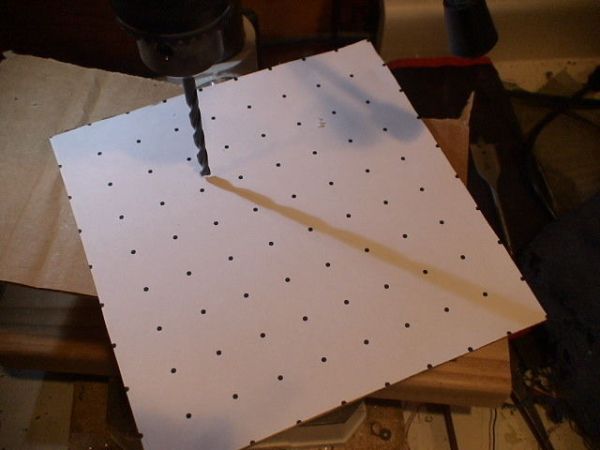
Drill the Rear Mirror

*Leave the protective film on the acrylic until later.- Printout the drill pattern.- Align it and tape it to the back of acrylic mirror.

– Place it on some wood or work surface that you can drill into that supports the acrylic. Ensure there is no particles that could scratch the face of the mirror.

– Using a 5mm drill bit or the closest standard one they sell, I found close enough to 5mm at Home Depot.

– A drill press works best, but otherwise go very slow and steady drill out all the holes.

The post 8×8 LED Array Multiplexed Infinity Mirror using PIC18F1320 appeared first on PIC Microcontroller.

8×8 LED Array Multiplexed Infinity Mirror using PIC18F1320 microcontroller

$
0
0

8×8 LED Array Multiplexed Infinity Mirror

LED Array Multiplexed
A little bit different than your regular Infinity Mirror. Using a piece of mirrored acrylic for the back mirror, 8 rows of 8 holes are drilled into in a grid pattern. A LED is then placed in each hole and wired up so that i can be multiplexed through a controller.

The frame I built for this project is very similar to my 8×8 Infinity Mirror, but instead of having glass for the rear mirror, I used mirrored acrylic which is easily drilled. And there are no LEDS around the outside. All the LEDs are in the back mirror and appear to be floating within it.

I got the idea after making an octagon mirror with a inner ring of LEDs, the effect of the LEDs floating in there is quite appealing, so I decided to do a small/simple project to demonstrate.

Building the actual frame will not be covered in detail here, but plans are in the ZIP. For detailed instructions on building the frame please see my other Instructable – 32 LED Infinity Mirror

The firmware is written in C18 for the PIC18F1320 and the TPIC6C596 high power shift register. Its a very basic program, with just 4 patterns to display, 2 switches change the pattern and the speed.

UPDATE: Kits are now available for this project, the LED controller is not being offered, but there are many different 8×8 array controllers out there to choose from. Quality glass 2-way mirror on the front and mirrored acrylic for the back, drilled and ready to use. Link

Check Out my Infinity Mirror Gallery

Step 1: Supplies

Get a Kit including the Frame Parts, front and back mirror, drilled and ready. LED Controller is not being offered.

Electronics:
– PIC18F1320
– 18pin socket
– TPIC6C596 shift register
– 16 pin socket
– x64 5mm LEDs, whatever color, I used white. Buy Some
– x3 10kohm 1/4w resistors
– x8 220 ohm resistors, may be different based on color
*Used high value resistors because they LEDs shouldn’t be to bright inside an infinity mirror or it won’t        work as well.
– 1 uF capacitor
– 0.1uF capacitor
– x2 momentary pushbuttons
– 5v @ ~1A power supply with DC Jack Get One

Circuit Board:
– Solid strand wire
– Perfboard

Frame:
– Plans are on the next page or in my 32 LED Infinity Mirror
– I use 100mil Polystyrene, but acrylic or 1/8th masonite would work as well

Tools:
– Soldering Iron
– Hotglue gun
– drill and bits, for button hole
– 5mm drill bit for LEDs
– Utility Knife

I could put a kit together for everything or just certain parts, Contact Me to find out

Step 2

Build the Frame

I am not going to cover building the frame to much here as it is the same process and nearly the same size as my 32 LED Infinity Mirror. Only difference is the inner walls do not have any holes drilled in them and the outer walls should be a 1/4″-1/2″ wider to accommodated the LED array.

The plans in the image below is for the 32 LED mirror. Rest are for this projects mirror frame.

Find where you will want the DC Jack and switches, I always choose a corner. Later the 2 switches will be soldered on some perfboard to be mounted in the holes. Take a look at your switches and find their spacing. With some masking or painters tape put some tape in the area of the holes and mark your layout on the tape.

Drill the holes for the 2 switches, I used a 5/16″ bit to drill them out then a utility knife to cut them more square. They will later get a black decal over them to hide the switches nearly completely.

Step 3

Drill the Rear Mirror

Drill the Rear Mirror
*Leave the protective film on the acrylic until later.

– Printout the drill pattern.

– Align it and tape it to the back of acrylic mirror.

– Place it on some wood or work surface that you can drill into that supports the acrylic. Ensure there is no particles that could scratch the face of the mirror.

– Using a 5mm drill bit or the closest standard one they sell, I found close enough to 5mm at Home Depot.

– A drill press works best, but otherwise go very slow and steady drill out all the holes.

Step 4

Place all the LEDs

Its now time to place all the LEDs into the acrylic from behind.

An 8×8 LED grid is controlled with Multiplexing which basically is to have all the LEDs cathodes(negative) all be bent over to the next one above it, so that a column of 8 LEDs will all have their cathodes in parallel, and be bent in way that the anode can be bent to the side and connect with the next LED in its row. So by sinking(allow path to ground) a column and sourcing(apply voltage) a row, a single LED can be controlled. Check the Internet for more detailed explanations.

This Instructable has good matrix directions.

– Check the images below and bend some LEDs, as shown

– You have to start from one side and work your way over like in the images. Or its hard to get at the solder points.

– As you work check to make sure the LEDs are bent suitably so they don’t touch anywhere.

Normally diffused LEDs are preferred in Infinity Mirrors, but if using clear lens ones like I am, because thats what I had on hand, before removing the protective film on the acrylic I sprayed my LEDs with a Frosted Glass spray paint to diffuse the light.
For more detail: 8×8 LED Array Multiplexed Infinity Mirror using PIC18F1320 microcontroller

The post 8×8 LED Array Multiplexed Infinity Mirror using PIC18F1320 microcontroller appeared first on PIC Microcontroller.

Aurora 9×18 RGB LED art using PIC24F08KA101 microcontroller

$
0
0

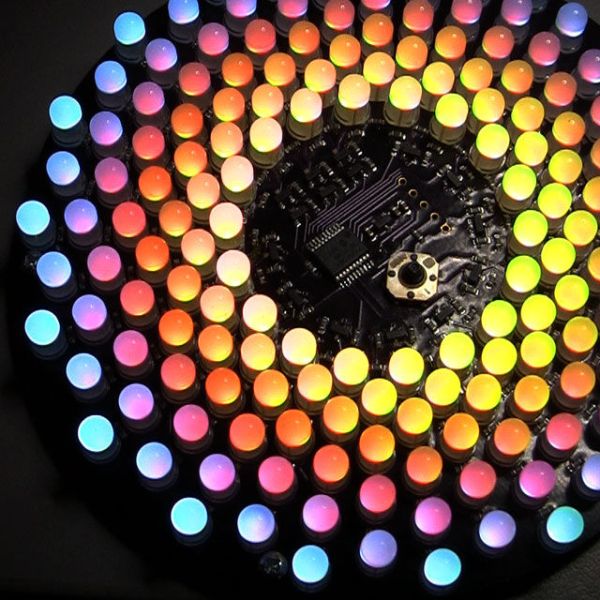
Aurora 9×18 RGB LED art

*** Check out my blog for updated version of this project and more! ***

My obsession of LEDs has led me to this. Aurora 9×18 is a thing of beauty (if I can say so myself) – has 162 RGB-LEDs in a circular configuration. The color of each circle is controlled by a microcontroller using a twisted form of PWM.

Aurora 9x18 RGB LED art

The microcontroller (PIC24F08KA101) only has one PWM module, yet Aurora is capable of 27 (9xR,G,B) independent brightness control. This Instructable reveals the inner-working of Aurora 9×18 through the building process.

Step 1

Concept

A RGB LED is nothing more than a LED that actually encases 3 small LEDs of primary colors inside. RGB LEDs can create wide range of colors by combining 3 primary colors – Red, Green, and Blue. By changing the ratio between the 3 colors, you get many in-between colors. RGB LEDs are often called full-color LEDs.

Most of brightness controlling circuit utilizes the method called PWM. Many of microcontrollers today have a PWM controller or more built in, however there are usually less than 4 or 5 of them in a controller. So if I were to control 9 LEDs, I needed to use multiple controllers or external circuits. If those 9 LEDs were RGB LEDs, then there would be 27 PWM controllers needed.

I’ve gone through a few approaches – multiple microcontrollers working together in various configurations – some are complex and exotic. I was trying to solve more than just the number of LEDs that I can control – I wanted to make the fades in/out of brightness as smooth as possible. Turned out, 8 to 10 bit PWM resolution that most PIC microcontrollers provide was not good enough to create smooth transition in the darker/dimmer part of the brightness change. When the brightness is low, the transitions look more like steps than fading. Due to human eye’s non-linear or exponential response to light intensity necessitates gamma correction of the brightness change curve, which requires at least 12 bits of PWM resolution to give smooth fades (in my conclusion).

If I simply design a circuit where each LED is controlled by it’s own PWM controller having 12 bit or more resolution, I’d have to use a speciality LED controller IC. While this solves the problem, the added cost and size to the final product did not appeal to me. (Those LED controller IC are not very small or cheap.)

So I came up with an idea of combining PWM with multiplex drive. I further broke up each PWM cycle into multiple pulses, so that multiple LEDs were lit multiple times within one PWM cycle. (Kind of hybrid between PWM and PDM, I guess.) This way, the average output of LEDs are the sum of the many pulses within the short period. By combining more than one PWM pulses increases effective PWM resolution.
This technique also helpes reduce the perceived flicker of the light out of LEDs. Aurora 9×18’s LED refresh rate is about 246 Hz, but LEDs blink a lot more often. This creates the illusion of much higher refresh rate.

Take a look at the timing chart. I picked 7 LEDs and R/G/B bus signals to present the concept.
As you can see, R/G/B buses go up momentarily, taking turns. These pulses control the actual duration that LEDs light up. Each common lead of the LEDs controls whether that LED will light during the period that R/G/B buses go high. The actual timing that LEDs light up are marked with the color on the chart.

The condition here is:
LED 1 is on level 1 red (the lowest brightness).
LED 2 is on level 2 green.
LED 3 is on level 3 blue.
LED 4 is on level 3 yellow (red + green).
LED 5 is on level 3 purple (red + blue).
LED 6 is on level 3 turquoise (green + blue).
LED 7 is on level 255 (maximum brightness) white.
* time scale is about 8.1 ms for the entire width of the chart.

Hope this explains the way Aurora controls the brightness/colors of LEDs.

References
PWM on wiki
PDM on wiki

Correction
LED refresh rate originally stated was wrong – it’s 246 Hz not 123 Hz.

Step 2

Circuit

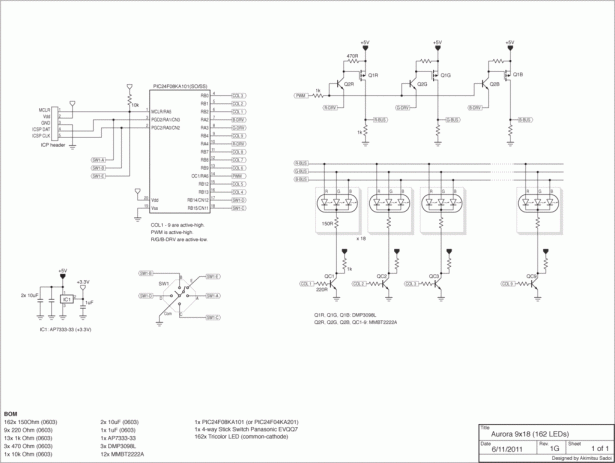
schematics of Aurora 9x18 RGB LED art

Aurora 9×18 has 18 RGB-LEDs in each of 9 circles, total of 162 LEDs. Each circle is LEDs are connected in parallel, so there are 9 LED circuits (x3 because they are RGB) to control.

I chose PIC24F08KA101 as the controller. It needed to be powerful enough (16 bit), and requires minimum of external parts (no crystal needed to run at the max speed of 32 MHz) to save space.

The circuit itself is quite simple. The microcontroller is connected to a joystick like switch (5 switches in it) and there are 3 MOSFETs and 12 BJTs controlling the current that goes into LEDs. There’s a 3.3V linear voltage regulator to supply for the PIC as well. (The LED circuit is driven by 5V power.)

If you look at this circuit you might realize that it’s just like 9×3 matrix circuit, but instead 3 rows are replaced with 3 primary colors of RGB LEDs. So now you know that RGB channels are multiplexed – in other words those 3 colors turn on one by one, not together at the same time. In general I don’t like multiplexing, but I needed to compromise in favor for the simplicity and physical space.

Given that this microcontroller only has one PWM module (to control the brightness of LEDs), I had to come up with a way of extending that PWM signal into 3. I’m doing that with a simple “AND” logic utilizing the lower part of the R/G/B bus driving circuit. In short, R-BUS only turns on when PWM signal is high and R-DRV signal is low. For G-BUS, PWM -> high and G-DRV -> low, and so on. This circuit works remarkably well, saving my precious space on the board and a few dimes.
I’m using MOSFET on the high-side switch simply because BJTs that I can find in the small package do not handle the current drawn by 162 LEDs in parallel (about 3 A peak!). This MOSFET (DMP3098L) has a remarkable current handling capability. Highly recommended.

Low-side (column, or each LED) driver/switch circuit is very straight forward. NPN BJT in common emitter configuration.

There are 1k Ohm resistors connected to the output of each driver, which some of you wonder as to why. Those resistors help the transistors turn off quicker when there are no LEDs conducting (transistors turn off quicker when there is current going through drain or collector). Those transistors are switching at the timing in the order of nanoseconds, so turn on/off speed becomes critical.
In a nutshell, those resistors allow PWM to run at a higher speed (less visible flicker).

References
PIC24F08KA101 datasheet
DMP3098L datasheet

Step 3

PCB

I wanted to make this object as small as possible, so designing the PCB took some work. In reality, I went back & forth between the circuit design and PCB design, trying to reduce part count to the minimum.

I had the PCB fabricated by DorkbotPDX. They have a community based PCB program (kind of like BatchPCB) that I like. As you can see, the boards are beautifully manufactured (in the USA :). The solder mask is dark purple.

Links
DorkbotPDX PCB Order

For more detail: Aurora 9×18 RGB LED art using PIC24F08KA101 microcontroller

The post Aurora 9×18 RGB LED art using PIC24F08KA101 microcontroller appeared first on PIC Microcontroller.


Teddy nightlight multicolor using PIC16F84A microcontroller

$
0
0

Teddy nightlight multicolor

A nice night light multicolor, ideal for baby’s room.
For the realization I used:
– Out of a pack of bubble bath for children in the shape of teddy bear
– a nightlight with positive economic pressure
– Complete circuit with a PIC16F84A (I was at home, but you can use any programmable microcontroller)
– LED multicolor
I started preparing the teddy bear, all the markings on the package, such as the make and range indications, I canceled with the nail polish remover.
Then I drilled the base so that it gets wedged perfectly on the spherical part of the nightlight I drilled (enlarged the hole) also the upper part so as to pass light well.
multicolor
Then I switched to accommodate nightlight, I removed the original LED and resistor, and I drilled the top of the ball so as to pass the led.

The post Teddy nightlight multicolor using PIC16F84A microcontroller appeared first on PIC Microcontroller.

Interfacing 7 segment display with pic16f877 microcontroller

$
0
0

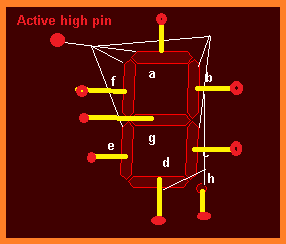
This post will describe that how easily we can do Interfacing 7 segment display with pic16f877 microcontroller. 7 segment display is a basically array of 7 leds with some proper arrangement. From this fig it can be seen that 7 leds arranged with an array starting from a, b, c, d, e, f, g, and h. So from every LED we get one pin and another Pin for providing active high voltage to every pin. Now whatever LEDs we have to glow we have to send active low on corresponding LED pin.

Interfacing 7 segment display with pic16f877 microcontroller

Now let take an example to clear all, suppose we have to display 5 at 7segment display then what should be our bit pattern? For display5 we have to glow a, f, g, c and d LEDs and off rest. As I discuss earlier, whatever LEDs we have to glow we have to send active low on corresponding LED pin because all others pin of LED got active high signal. So in our case we have to send bit pattern like

Project description:

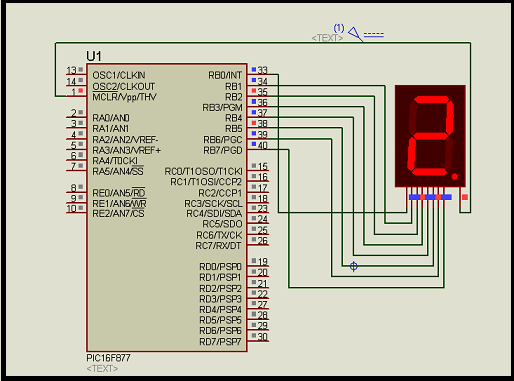
Interfacing 7 segment display with pic16f877 microcontroller schematic

Now in my project to make you easily understandable the process, Interfacing 7 segment display with pic16f877 microcontroller, I made a counter which will count 0-5 and repeat. For that I used port B of microcontroller pic16f877 as an out port send different bit pattern for different digit to display at 7 segment display. So to display 0-5 we have to create exact bit pattern for every digit which are given bellow .

For 0 = 01000000.
For 1 = 01111001.
For 2 = 00100100.
For 3 = 00110000.
For 4 = 00011001.
For 5 = 00010010.

Here I give you the Proteus simulation circuit and see how I connect the 7 segment display pin with port B of microcontroller pic16f877.

In bellow you will find complete embedded C code on PIC Micro C Pro. From this code you will understand how i send particular bit pattern for individual digit.


For more detail: Interfacing 7 segment display with pic16f877 microcontroller

Current Project / Post can also be found using:

  • a code for one sw four leds pressing a sw will on leds differently using pic ucontroller
  • led jute pic

The post Interfacing 7 segment display with pic16f877 microcontroller appeared first on PIC Microcontroller.

A discussion on the drive-current for the outputs of a PIC12C508A microcontroller

$
0
0

Each of the output lines of a ‘508A microcontroller can deliver a maximum of 25mA.
What does this mean?
It means any device connected to the line must take 25mA or less.
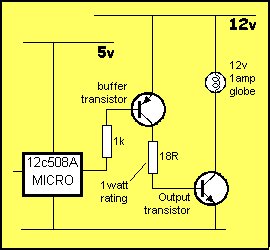
If it takes more than 25mA a buffer transistor (also called an amplifying transistor) must be used and this will be discussed in a moment.
However, if it operates on less than 5v, and requires less than 25mA, a current-limiting resistor must be included.
A typical device that requires less than 5v and draws less than 25mA is an LED.
A LED must be supplied with an exact voltage for it to operate correctly. Because it requires LESS than 5v, a dropper resistor (current limiting resistor) must be included in series to “take-up” or “absorb” or “interface” the LED to the output line.  Working out the value of the current-limiting resistor requires some mathematics but this is very easy when you know how.  A discussion on the drive-current for the outputs of a PIC12C508A microcontroller

 25mA

The current taken by a device is called the LOAD CURRENT. Twenty-five milli-amp is not very much in electrical terms but in electronic terms, it is amazing what can be driven.  25mA is 0.025Amp and this is not sufficient to drive a motor or globe but there are a number of devices that can be driven.
1. LEDs (Light Emitting Diodes) require up to about 25mA for full illumination.
2. Piezo diaphragms require very little current and can be driven directly from an output line.
3. Low-current relays can be driven directly provided they operate at 25mA and 5v. If more than 25mA is required, a driver transistor  (also called a buffer transistor or buffer stage) will be needed. The specification for an output line is 25mA @ 5v. In other words the output line has an output voltage of 5v and the maximum current that can be delivered by it is 25mA.The output line will, in theory, deliver more than 25mA but the transistor (in the chip) delivering the current may be damaged (overheated) if a higher current flows. The current delivered by the output line is determined by the resistance of the device (or devices), connected to the line.
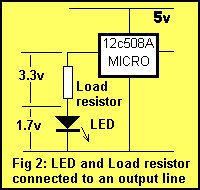
The simplest device is a resistor as shown in fig: 1.

If the resistance of the resistor is too low, more than 25mA will flow. If the resistance is high, less than 25mA will flow. The current flow is not determined by the chip but by the value of the resistor. The resistor is called the LOAD RESISTOR or simply the LOAD.

THE VALUE  OF THE  LOAD RESISTOR

The resistance of the load resistor is worked out using Ohm’s Law. We know the voltage on the output line is 5v.   This is V in the formula.    The max current available is 0.025A = I in the formula. Ohms Law states:   I = V/R (Current equals volts divided by resistance).  This equation can be re-arranged as:
R = V/I
Putting the two values into the equation produces:
R = 5/.025
= 200
=  200ohms. A 200 ohm resistor connected to an output line will allow 25mA to flow when the output is HIGH. This is only a theoretical explanation as a resistor on an output line will not perform any function! It won’t do anything by itself except get slightly hot. But a resistor will perform more than 20 different functions, depending on where it is placed in a circuit and the value of the components around it. In our first example below, a resistor is added in series with a LED so that the LED will take a maximum of 25mA. The purpose of the resistor is two-fold. Firstly it allows the LED to create a characteristic voltage across it of 1.7v (for a red LED) and secondly it has a value so that 25mA flows through the LED. The resistor will have 5v on one end and 1.7v on the other. These voltage are provided by the chip and the LED and the resistor has nothing to do with creating them. The resistor simply allows a certain amount of current to flow, depending on its value, (25mA) and that’s the value worked out above.
A point to note: The ‘508 has 5 output lines and if all the outputs are delivering 25mA, the total output for the chip will be 125mA. This is slightly above the allowable maximum current of 100mA for the chip but will not be a problem.

Let’s go to a practical situation:

CONNECTING A LED

If a LED is connected to one of the outputs as shown in fig: 2, a voltage is dropped across it according to the colour of the LED. This is called the CHARACTERISTIC voltage or the characteristic voltage
drop of the LED. This voltage is content, no matter how bright the LED is illuminated.  This is completely different to the characteristics of a globe and that’s why LEDs and globes must be treated differently when working out their operating requirements.

For a red LED the “characteristic voltage” is 1.7v.
For an orange LED the “characteristic voltage” is 1.9v.
For a green LED the “characteristic voltage” is 2.1v.
LEDs cannot be connected directly to the output of a drive-line without a voltage-dropping resistor. The reason is very technical but basically a red LED, for example, does not turn on at all until exactly 1.7v http://users.tpg.com.au/users/talking/25mA.html
is placed across it and if the voltage tries to rise above 1.7v, the LED will glow brighter, allow a very high current to flow and will be damaged when the current flow is greater than 40mA.
It is virtually impossible to provide a constant 1.7v and the simplest way to prevent damaging the LED is to connect a resistor in series. If the value of the resistance is worked out via a formula (we will
give in a moment), an accurate current can be delivered to the LED and everything will be ok. The LED will last 100 years or more!
Suppose we want to deliver 25mA to a LED.
If we take a red LED, the value of resistance can be worked out by Ohms law. The voltage across the resistor is determined by:
5v – 1.7v = 3.3v  (The voltage across the LED is the 5v supply voltage minus the 1.7v dropped across the LED due to the characteristic voltage drop mentioned above).<N>This is the value for V.
I = V/R
0.025 = 3.3/R
R = 132       Use 130 ohm resistor.
An orange LED has a higher characteristic voltage of 1.9v and thus a lower value dropper-resistor will be required for 25mA. Use 120R.
For a green LED,  use 100R. High-bright LEDs are available in all colours and although they are rated at 25mA, they will produce very good brightness at 5mA to 15mA.
For battery operated projects, LED current can be reduced to as low as 1mA, and this will increase the life of the battery enormously.


For more detail: A discussion on the drive-current for the outputs of a PIC12C508A microcontroller

The post A discussion on the drive-current for the outputs of a PIC12C508A microcontroller appeared first on PIC Microcontroller.

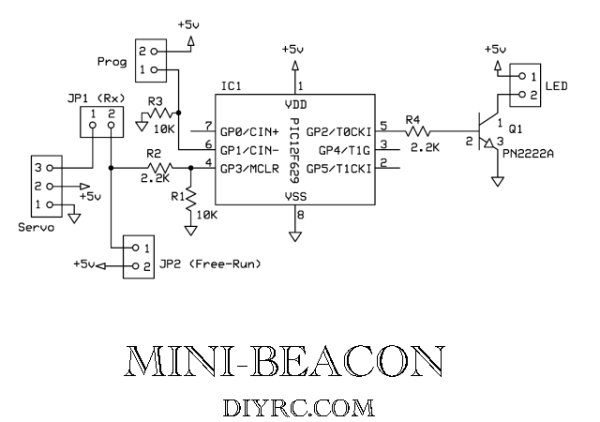
“Mini-Beacon” miniature programmable LED Flasher that is based around a PIC12F629 microcontroller

$
0
0
This project, called “Mini-Beacon”, is a miniature programmable LED Flasher that is based around the PIC microcontroller.  This project grew out of an idea and recommendation posted on RunRyder.com.  The Mini-Beacon basically simulates the light emitted from a rotating light beacon such as those used in older police cars and fire engines.  As seen from the observer’s perspective, as a real rotating beacon revolves, a dim light slowly ramps up brighter and brighter until a flash is seen (light facing directly toward observer), then as it continues rotating, the light slowly dims out and a pause is observed until it repeats over and over again.Mini-Beacon miniature programmable LED Flasher that is based around a PIC12F629 microcontroller  Well, the “Mini-Beacon” simulates this exact effect!  The user can also choose 1 of 12 different flash patterns to be repeatedly displayed.  These patterns include slow, medium and fast rotational beacons (ramp-up & ramp-down speeds), and 3 different selectable flash patterns (single, double and triple flash).  This selection is made by simply shorting a small jumper on the driver board.  This setting is retained in memory so that every time the “Mini-Beacon” is powered up, it will display this pattern.
If this was not enough, the “Mini-Beacon” also allows you to run it in “free-running” mode (connect battery and it repeatedly flashes), or you can control it (on/off) using a spare receiver channel on your R/C receiver (you can use a transmitter stick or switch).   The setting is accomplished using two small jumpers on the board and is described below in detail.  Additionally, and most likely most important… you can also control the Mini-Beacon using a “Mini-Flash” Controller by simply plugging them together!
Design Criteria Summary:
1) Design a simple, cheap but effective “Rotating Beacon” simulator/driver
2) Design so user can easily choose 1 of 12 flash patterns
3) Lightweight and simple to build (DIY)
4) Circuit powers off of existing R/C servo connector
5) Use servo signal to turn on or off the flashing Beacon effect
6) Powers a bright LED (around 600mA max… a one (1) watt Luxeon looks great!)
7) Listen to customers and their needs!   🙂

Parts & Tools List …

1) One (1) PIC 12F629 Chip (preprogrammed with Mini-Beacon code)
2) Two (2) 10K ohm resistors
3) Two (2) 2.2K resistors
4) One (1) Servo Lead/Pigtail wire for Mini-Beacon
5) Four (4) 2 pin header (male) – 3 for Jumpers, 1 for LED/output connector
6) One (1) 2N2222 or PN2222A NPN Transistor
11) One (1) two-row header (mating connector for Mini-Beacon output pins)
12) One (1) piece of heat shrink tubing for assembly
13) Two (2) Shorting Jumpers (one for run mode and the other for programming)

Building Instructions…
Testing and Operation Instructions…

Download the Mini-Beacon User’s Manual below (in PDF format… Adobe reader is required)

The Mini-Beacon controller has a servo cable which can either be plugged into a spare channel on your Radio Control receiver (Rx) or it can simply be connected to a 5-6 volt power source.  Opposite of this servo cable lies a two pin connector (inline with board) that is used to connect your beacon LED.  The onboard output driver/transistor is capable of providing around 600mA to a connected load.  A typical 5mm LED draws 20mA while a 1 watt Luxeon emitter draws an average of 350mA.  3 sets of jumpers/pins located on the Mini-Beacon are used to either set the flash pattern (1 of 12), set the servo control function, or allow the controller to free-run.  First thing you will obviously need to do is connect an LED to the Beacon output pins (see picture above, observe polarity).  Be sure to use the proper series current limiting resistor inline (series) with one of the LED leads (typically 56-120 ohms).Mini-Beacon miniature programmable LED Flasher that is based around a PIC12F629 microcontroller schematich
There are two ways you can operate the Mini-Beacon controller.  You can either set it up so it’s in “free-running” mode (apply power, and it flashes continuously until power is removed), or you can connect it up to a spare R/C receiver servo channel and control (on/off) the flashing pattern of the beacon using a stick, slider or switch on your transmitter (aka Servo Control Mode).  The Mini-Beacon has two jumpers that allow you to set these two functions (labeled “Servo Jumper” and “Free-Run” on the picture above.  Only one of these jumpers should be connected at one time.


The post “Mini-Beacon” miniature programmable LED Flasher that is based around a PIC12F629 microcontroller appeared first on PIC Microcontroller.

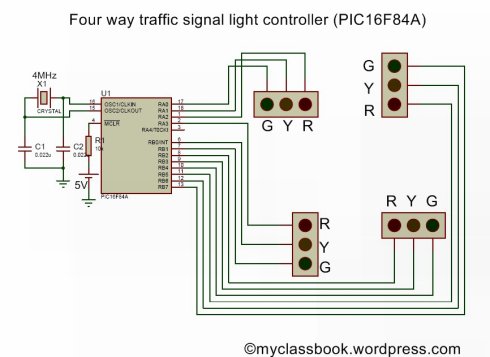
Four way traffic light signal using PIC16F84A microcontroller:

$
0
0

Hi friends, today we are going to make a four way traffic light controller using a PIC16F84 microcontroller. In this project we will operate three LEDs (RED, YELLOW, and GREEN) according to the traffic rules.

  • Illumination of the green light allows traffic to proceed in the direction denoted,
  • Illumination of the yellow light denoting, if safe to do so, prepare to stop short of the intersection, and
  • Illumination of the red signal prohibits any traffic from proceeding.Four way traffic light signal using PIC16F84A microcontroller

four way traffic contoll using PIC16F84A microcontroller

four way traffic contoll using PIC16F84A microcontroller

Components:

1)      Four set of Red-Green-Blue LEDs

2)      PIC16F84A microcontroller

3)      22uF capacitor – 2 no.

4)      Crystal oscillator 4MHz

5)      10KΩ resistor, 330Ω resistors

6)      5V battery

Description:

1)      In this project we are going to operate (control) a four way traffic light signal using PIC16F84A microcontroller. First thing we have to do is , simply connect four set of Red-Green-Yellow LEDs to respective pins of  PIC16F84A microcontroller as shown in circuit diagram(you can also use separate LEDs just connect all common terminals (negative) to ground with 330Ω resistor in series with each LED).Four way traffic light signal using PIC16F84A microcontroller schematic

2)      5V supply to the pin number 14.

3)      Ground pin number 5.

4)      Connect two 22uF capacitors in parallel with two terminals of crystal oscillator.

5)      Make all the remaining connection as shown in figure.

Click below link to download .C and .HEX files for this project


For more detail: Four way traffic light signal using PIC16F84A microcontroller:

The post Four way traffic light signal using PIC16F84A microcontroller: appeared first on PIC Microcontroller.

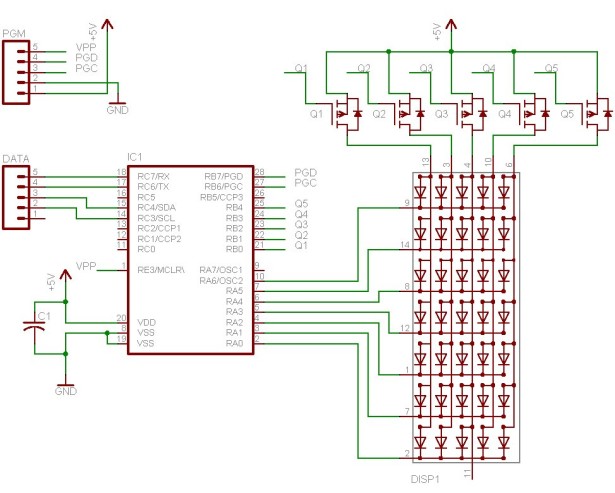
LED Matrix Backpack

$
0
0

I had purchased some huge (2″) 5×7 matrix a while ago, as part of my led sensor research. They’ve basically been banging around the lab since, getting pins bent and such. So this past weekend, I decided to put them to some other use. Their pin layout is sort of weird, it doesn’t match up with a breadboard at all (one of the reasons they never made it into the led research). So, I decided to make up some back-packs for them, or is it a carrier board? Anyway, the board features one 5×7 matrix, one pic 16f737, a few transistors and some data connectors. The board provides two means of serial communication; asynchronous rs232 at 19200 bps, or synchronous i2c at 100kbps. A second connector provides power and ICSP pins.LED Matrix Backpack

This project has no practical application as of yet. The main reason I made it was to improve on my double-sided pcb fab techniques. This time I found using point to point traces instead of a large “pour” made things work a lot smoother. I used the ‘sandwich’ method with press ‘n’ peel blue. Roughly 1.5 min per side.

One thing I had to keep in mind while doing this layout was accessibility to solder both sides, since I can’t through plate my own vias. So things had to be laid down in specific order. I soldered the vias first, using some cheap resistors with very fine leads as my conductors. The method involved sticking the resistor into the via, with just a bit poking out the other side, then bending the resistor 90 degrees and holding it to the board. Then a quick dab of solder onto each joint set them in place. Next, straighten out the resistor leads, and trim them off. Another quick few dabs with the soldering iron and each one was fully connected. Next came the smt parts. The switches were rather easy, but those blasted little 0603 capacitors always give me grief. I tin both pads, then apply a bit more flux as “glue”, then try to reheat one of the pads, to reflow the solder onto the part. It works great with 0805 and larger parts, but the little 0603 usually gets sucked onto the tip of the iron by the surface tension of the solder.

One hard choice I had to make was whether to solder the chip straight into the board, or use a socket. I opted for a socket, which meant a harder time soldering the “top” layer. Luckily, I was able to dig up some 14 pin machine pin sockets, and thanks to the machine pin itself, they stand proud of the board a little, just enough to sneak in with the soldering iron.LED Matrix Backpack schematic

For whatever reason, I decided to solder the led display next, leaving the connectors for last. I partly wanted to see which side of the board the connectors would look better on… I think next revision, they’re going on the bottom. During assembly of the connectors, I nicked the display a couple times with the iron, oh well!

Right now, the display is flashing my initials. Oh, here is the schematic, nothing exciting really!


For more detail: LED Matrix Backpack

The post LED Matrix Backpack appeared first on PIC Microcontroller.

LED Sensors

$
0
0

Things are moving along … With my new understanding of I2C master/slave communications, I’ve started work on larger arrays and finding the best way to manage the array and communicate the data to the host PC.

Above is the latest iteration of the project… and here is a lengthy description of what you’re seeing:

Along the top row you see six ICs, from left to right they are:

(hehe, I bet you’re thinking, I only see four ICs … well, there are six, trust me)

#1
Power Supply – 7805 – This is a regulated 5 volt power supply, with some filter caps, buffering caps and a power-on led. The 7805 is infact an integerated circuit, just disguised as a transistor.LED Sensors

#2
“SlaveA” – PIC16F876A – This is one of my slave microcontrollers … it autonomously scans its row (the bottom row) in the array with blistering speed, approx 500 uSec per pixel in the array, so 2 mSec total – which is kind of slow actually, as I add more lights to the array, the responsiveness of the array grows … I can probably shorten my sample time now. The blue LED indicates the slave is operational and the program is running.

#3
“SlaveB” – PIC16F876A – This is the second slave microcontroller, which scans the top row of leds. It is running the same program as SlaveA, but with a different slave address.

#4
“Master” – PIC18F252 – This is the third microcontroller, playing the master roll. It polls the slaves every 100msec for an update, and feeds that data to the host PC. This microcontroller is severe overkill for the job its doing, but these are the PICs i had on hand, so thats how the chips fell (har har har). The blue led indicates the master is polling a slave (in real-time, the led blinks very fast)

#5
“Clock” – DS1065T-060 – This is a digital clock generator from Dallas. It is programmed to generate any clock frequency I want, currently provideing a 20mHz clock that is used by all three pics. Although not as accurate as a crystal, it does provide better temperature stability … the only reason I am using it is to save board space (and the fact I obtained a sample of one from Maxim a long time ago but never used it) … three separate crystals and their associated load capacitors would have taken up way too much board space. The DS1065 is the first TO-92 package (on the left). Next to it is a regular 2n2222 transistor which controls the MCLR (reset) line on the slaves)

#6
“Interface” – MAX233 – This is a Maxim RS232 line driver IC … The MAX233 is very similar to the popular MAX232 except it requires no external capacitors for its voltage doubler circuit, again to save board space. This chip boosts the cmos level serial data from the “master” pic to TTL level for transmission to the host pc.

Operation of the slaves:

Each slave normally runs in a infinite loop, sampling the LED sensors as fast as it can and storing their values in a memory buffer. When a polling request is received from the master, an interrupt is generated which branches out of the sampling loop. I2C commands are pretty complex on paper, but merely a matter of setting and clearing bits in the digital world, so at 20mHz the pic handles them with lightning speed. Here is the blow by blow of the most complex series of commands, a multi-byte read

1) Master sets a “start condition” which basicly places a certain state on the bus

2) Master sends the slave address onto the bus with the read flag cleared… a slave address is the seven most significant bits of a byte (7:1), with the least signifcant bit (0) reserved for a read flag.

3) The I2C hardware in the slaves simultaniously receive this address, and compare it to their internally programmed addresses. The slave matching the address then sends an acknowledge bit on the bus.

4) Master receives the acknowledge bit and sends a command byte. Since the start condition is still present, the last slave addressed acknowledges receipt of the byte by sending an ack bit. This command byte is $04 in my application.

5) Slave receives the command, executes it and sends an acknowledge. The command $04 tells the slave to copy the ADC buffer to the transmit buffer.

5) Master receives the ack and sets a “restart condition”, which causes all the slaves to actively watch the bus for a slave address.

6) Master sends the slave address this time with the read flag set.

7) Slave matching the address sends an acknowledge. It then sends the first byte of the transmit buffer, without further prompting from the master.

8) Master receives the first data byte, and stores it in the receive buffer. The master sends an acknowledge.

9) The slave last addressed (since bus state is still START) sends the second byte in its transmit buffer.

10) Master receives the byte, stores it in its buffer, and sends an ack.

11) steps 9 and 10 repeat until the master sends an NACK and sets the bus state to STOP. This tells the slave to stop sending bytes.

each of these steps takes a tiny fraction of a second … the entire transaction is comprised of a multitude of commands and data going both ways and is finished in the blink of an eye, indicated by a fast flashing of the masters’ status led, which blinks twice (once for each slave), but the blinking repeats so fast, it looks as if the led is solid on.LED Sensors schematic

If you’ve made it this far, congrats!

It is interesting to point out (not that I’ve seen any evidence of it on the host pc), that there is some lag introduced by the i2c routines in the ADC sampling process. Since i2c transactions are not just simple “one shot” commands, the slave is continuing to do ADC sampling while waiting for the next event from the master. This is acheived through the use of interrupts. whenever the slave is in the ADC loop, it gets pulled out to talk to the master, but since each time it talks to the master is only a very brief instant, its spending 99% of its time in the ADC loop. however, by me copying the ADC buffers to a transmit buffer only once during a transaction, the data in the buffer is ‘stale’ by the time it gets requested by the master. I’m going to look into ways of directly interfacing the i2c routines with the ADC buffers, which should let the master receive the freshest data possible. The problem here is, the ADC buffer is eight double-byte (word) values (only which four are actually used) but the transmit buffer is sixteen single-byte values, since the i2c protocol deals strictly with bytes. so the command to copy the adc buffer actually breaks the words into bytes to store in the transmit buffer. If I wanted to use the array to detect fast moving objects this would be important, but it responds to human interaction quite nicely now, even with the 100msec sampling delay imposed by visual basic. I think is due to the fact that the ‘missed’ samples are discarded instead of buffered, so the PC is still receiving real-time data from the array, just not very fast.


For more detail: LED Sensors

Current Project / Post can also be found using:

  • alchocol sensing in cars using pic16f887

The post LED Sensors appeared first on PIC Microcontroller.


Aurora 48 – 48 RGB LED Sequencer

$
0
0

Aurora 48 is a compact and thin profile full-color LED sequencer. It’s built entirely with surface mount components, so the profile is nice and clean.

 48 RGB LED Sequencer

Step 1: Features

  • Capable of individually controlling 48 Full color LEDs.
  • Each LED can be faded in 7 bit per channel – 2,097,152 colors.
  • Gamma corrected brightness curve for very smooth fades.
  • Simple, one button control.
  • 11 sequence pattern (as of firmware version 1.0).
  • Compact – 2.68 inch (68 mm) in diameter.
  • Thin profile construction (0.137 inch (3.5 mm) thick).
  • No leads sticking out on the back. Ideal for wearable projects.
  • Firmware is easily upgradable via 5 pin ICSP connection.

Step 2: Circuit

Aurora 48

Aurora 48 is capable of individually controlling 48 Full color LEDs using a 40 pin microcontroller. The principle of operation is based on my other “Aurora”s. (seeAurora 9×18)

The circuit is relatively simple and straightforward. If you’ve seen other LED matrix type circuit, this should look familier.

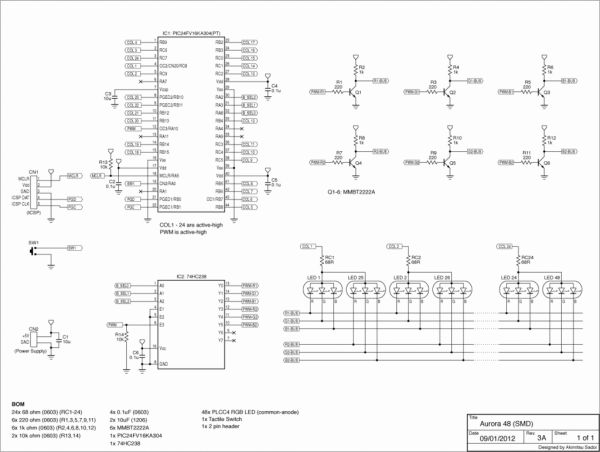
In a nutshell, the 48 RGB LEDs are divided in two groups, connected in a 6:1 multiplex fashion, taking R, G, and B as bus lines, and common pin of each LED as column lines. There are two pairs of R/G/B buses. Since there are only 3 PWM outputs available on the controller used, I used a binary decoder IC to multiplex the PWM signal, to drive 6 bus lines. 3 pins are used to select one of the 6 buses, and 24 pins are used to control LEDs’ common pins.

The controller activates one bus at a time, outputs a pulse to the LED that should be lit. The actual duration that a particular LED turns on is controlled by the PWM pulse that goes into the binary decoder, 74HC238. The controller sends PWM pulses as short as 62.5 ns to as long as 12,500 ns to control the brightness.

Step 3: Parts & PCB

Major Components in Project

Here’s the parts list.

  • 24x 68 ohm (0603) (RC1-24)
  • 6x 220 ohm (0603) (R1,3,5,7,9,11)
  • 6x 1k ohm (0603) (R2,4,6,8,10,12)
  • 2x 10k ohm (0603) (R13,14)
  • 4x 0.1uF (0603)
  • 2x 10uF (1206)
  • 6x MMBT2222A
  • 1x PIC24FV16KA304
  • 1x 74HC238
  • 48x PLCC4 RGB LED (common-anode)
  • 1x Tactile Switch

Step 4: Assembly

Assembly is very much straightforward, that is if you are familier with surface mount soldering. Please don’t be discouraged – surface mount soldering is not difficult and can be done without special equipment. There are many instructables and YouTube how-to videos showing how to solder SMDs. With a little practice you can solder SMD very easily.

Since the PCB doesn’t have silkscreen indicating the parts, use the part placement guide provided to locate the spots for the parts.

Start with the center of the PCB and move outwards – 74HC238 and PIC24FV16KA304 would be the first ones to solder. Be sure to apply good amount of flux to the parts to be soldered. Move on to resistors, capacitors, transistors.

The LEDs are in PLCC4 package, which can be a bit tricky. PLCC’s have their leads tacked under the body (to make them smaller). They are a bit fragile against heat, so you need to solder quickly. (Again it’s not that hard, but you want to be prepared) Solder the LEDs on the outer circle first, then inner. (Ok you might prefer doing it the opposite way, but I found this way to be easier)

The tactile switch would go on last.

The two holes near C1 connect to the power supply. You can solder a 2 pin header, or solder hook up wires directly to connect to your choice of 5V power supply. I used a right angle 2 pin header here and connected a USB power cable.

Check everything, and fix as needed.


For mor detail: Aurora 48 – 48 RGB LED Sequencer

The post Aurora 48 – 48 RGB LED Sequencer appeared first on PIC Microcontroller.
A remote controlled power RGB LED mood light using PIC16F627A

$
0
0

A remote controlled power RGB LED mood light.

Control the colour of a powerful LED light beam with a remote control, store the colours and recall them at will.

With this thing I can control the colour of a bright light into many different colours using the three fundamentals colours : red green and blue. Adding them toghether with different intensity can yeld very great a range of colours from the visible spectrum.
Specifically my mood lamp can shift colours through 32 intensity values for each RGB colour giving
32*32*32 = 32768 different combinations of hue, intensity and brightness. It can also store 10 different combinations can be turned on or off, all of these through a TV remote control.
The intensity of each red, green and blue component is done via PWM so heat dissipation is kept to a minimum.

The circuit is simple and there are no pushbuttons as control is done entirely through the remote control.
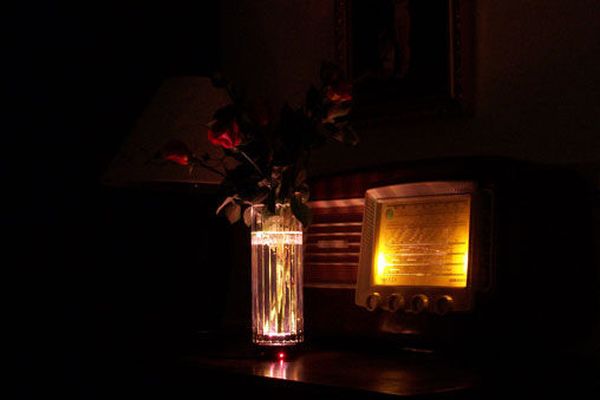
I use this circuit to light a flower vase. The flat case of the box I chose does a good job at balancing the vase.
The pictures provide some ideas.
One day I am possibly buying one of those glass cubes with LASER created 3D shapes inside to go with the lamp. For now glass vases are just fine.

UPDATE : I uploaded V1.1 where at power up the micro outputs the values from memory number 0. Just make sure you store your power up colour in memory number 0 and at power up it will show up. If you’d rather go for lights off, just store all blanks in memory numer 0.
Ciao
LED Mood Light
Hey I’m on the best of Instructables book !

Description

The LED I chose is a Seoul Semiconductors single chip. It is pretty expensive, but it is powerful giving a very bright light. It provides also an excellent colour blending.
It could be replaced by cheaper and probably equivalent ones; when I designed this, it was the only one suitable I could find.
Due to the LED’s high power rating it is absolutely necessary to provide it with a reasonable heat sink like the one you see in the photos; before putting the finished circuit in a case check the LEDs for heat at maximum intensity on all of the three colours. The current limiting resistors I chose match my LED only !

I chose a 10% less than the typical recommended V-I values on the datasheet curves.

Being the circuit in a plastic case it is not safe to pull dissipation any higher while a metallic case with an external dissipation scheme might make safe to pull the LEDs currents a make a more powerful beam.
Different LEDs do have different ratings. Check the datasheets for maximum dissipation and recommendations for your LED.
I purchased my LED online from Distrelec. Farnellinone carries them also.

The drivers are surplus NPN transistors over-dimensioned for the current required. Less powerful TO126 encased NPNs should do fine. As the Transistor are driven with PWM, their dissipation is kept to a minimum so heat sink is not necessary.

The IR receiver is one i savaged from a dead TV toghether with the remote control. The receiver has a metallic screen that should be grounded to 0V. Some newer small-sized ones are from Temic and can be bought from the same sources as above. Practically any receiver works fine, provided that it has 5Volt logic levels (and supply) and has the same (or close) carier frequency as the remote transmitter (typically 38-50kHz). When demolishing a TV or any other remote controlled piece of equipmentm, a good rule is to save both the remote and the receiver. By the way, I love saving transformers, VFD, motors as well, but that’s another story.

This lamp uses an european RC5 standard for Philips TV remotes; Any programmable remote control that supports Philips TVs should be fine, I tried one and it works.
Both remote decoding and PWM generating routines should be understandable from the source code I commented.

The post A remote controlled power RGB LED mood light using PIC16F627A appeared first on PIC Microcontroller.
Low cost OLED module interface using PIC18F452

$
0
0

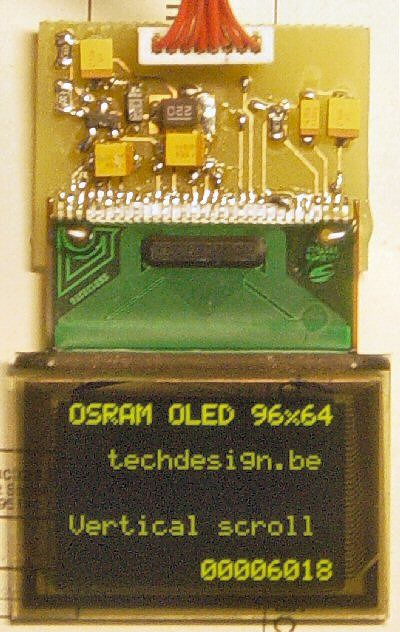
Here are the technical specifications:

  • OLED resolution: 96 x 64 pixels
  • OLED manufacturer: OSRAM.
  • OLED model: Pictiva 1.1 inch OS096064PN11MY0B10 (San Diego.)
  • On-board lcd controller SSD1303, with 31 pins connector, can be soldered directly.
  • Low power operation (less than 15-25mA @3V, depending on contrast/brightness setting)
  • Fast serial interface (only 8 wires needed)
  • Molex miniature connector.
  • OLED: dimensions: 34 x 24 mm (without flexible ribbon)
  • PCB interface: Dimensions: 29 x 22 mm


OLED module interface


This OLED modules can be bought in our online shop. You’ll need the interface described below and a PIC microcontroller to get the OLED  module running.

Here’s a short movie showing a working module (flickering is due to the camera and the movie’s software compression.)


PIC example Source code (CCS C) , pcb layout and schematics (Eagle) available.  Last update: March 24, 2007.

 Interface: Eagle PCB layout: 043 – 004.brd  – March 24, 2007.

 Interface: Eagle Schematics: 043 – 004.sch  – March 24, 2007.


 PIC CCS example: source code: 043_v02.zip for 18f452 @ 20MhZ – March 24, 2007.

 PIC CCS example:Hex file: 043_v02.hex for 18f452 @ 20MhZ – March 24, 2007.


For more detail: Low cost OLED module interface using PIC18F452

The post Low cost OLED module interface using PIC18F452 appeared first on PIC Microcontroller.
Microcontroller with single LED Project in Proteus

$
0
0

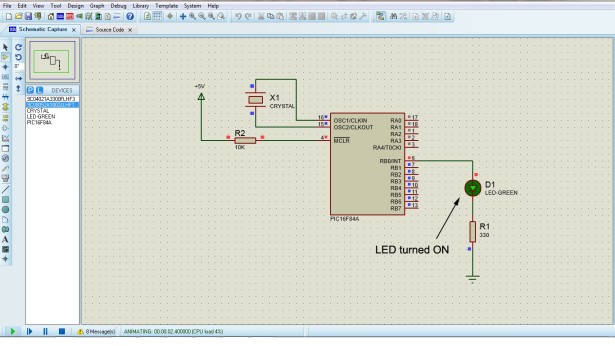
This is a simulation project that shows how to write program in assembly language for PIC16F84A microcontroller that turns on a single LED and use it in Proteus VSM to stimulate the working of the microcontroller controlled LED.

To do this start by creating a new project in Proteus, give some name and save it to some folder.

Click Next. We require a schematic so select Create a schematic from the selected template and choose default or any size you want.Microcontroller with single LED Project in Proteus

Click Next. We do not require a PCB so select Do not create a PCB layout and click next again.

We do require a Firmware so select Create a Firmware Project and select PIC16 as Family, PIC16F84A as Controller, MPASM(MPLAB) as the Compiler.

Clicking next will bring up the source code editor window and the schematic window. Go to the Schematic and add the following components-

  • 9C04021A3300FLHF3 (330ohm resistor)
  • 9C08052A1002JLHFT (10K ohm resistor)
  • CRYSTAL
  • LED-GREEN

The PIC16F84A micro-controller is already added so no need to add that part.

Draw the schematic as shown-

Click on the VCC power and change it to +5V

Now switch over to the Source Code by clicking on the Source Code tab. The Source code editor shows a default template. Delete the template code and Copy the following code below into it.

processor 16f84A
include      <p16f84A.inc>
__config  _XT_OSC & _WDT_OFF & _PWRTE_ON & _CP_OFF

org    0      ; start at address 0
goto    main
;=============================
; space for interrupt handler
;=============================
org        0x04
;=============================
;       main program
;=============================
main:
; Initialize all line in port B for output
movlw    B’00000000′    ; w = 00000000 binary
tris    PORTB        ; Set up port B for output
; Turn on line 0 in port B. All others remain off
movlw    B’00000001′

movwf    PORTB
; Endless loop intentionally hangs up program
wait:
goto    wait

end    Microcontroller with single LED Project in Proteus schematic

Code Explanation

The part “processor 16f84A” tells which microcontroller is being used. The “include  <p16f84A.inc>” part is a directive that tell to use the p16f84A microcontroller include file. The __config directive specifies various configuration aspect of the microcontroller such as the type of the oscillator, whether watch dog timer is on or off, whether the Power-Up timer is on or off and code protection is on/off. Then Org 0 tells the assembler to assemble all subsequent code starting at address 0. The next instruction it reads is the main so the program control goes to main. The instruction movlw    B’00000000′ tells to load working register with 000000000. The instruction tris    PORTB tells to make the Port B direction as output. Then the sequence of instruction movlw    B’00000001′ and movwf PORTB directs to turn on the line 0 of the Port B.


For more detail: Microcontroller with single LED Project in Proteus

The post Microcontroller with single LED Project in Proteus appeared first on PIC Microcontroller.
Aurora 9 bar – The Essence of Aurora using PIC24F08KA101

$
0
0

Aurora 9 bar – The Essence of Aurora

Since the introduction of Aurora 9×18, I received many requests for the kits and PCBs. I’m still quite undecided about making those available for a few reasons. However I really want other LED lovers (ok that might sound too much 🙂 to be able to build one themselves.

So I came up with Aurora 9 bar. It’s a bare essential version of Aurora 9×18. In fact the circuit is almost exactly the same (with a lot less number of LEDs of course). Even the firmware is essentially the same. So it has the same super smooth color fades as Aurora 9×18.

Aurora 9 bar

Concept & Circuit

Aurora 9 bar’s circuit operates in the same exact way Aurora 9×18’s does. Same PWM theme, same refresh rate, etc. Please refer to my Aurora 9×18 Instructablefor the details.Aurora 9 bar took one LED out from each of Aurora 9×18’s 9 circles. Only difference in the circuit is that it uses BJTs instead of MOSFETs for the high-side switch (to save cost). Because there are only 9 LEDs total, the current requirement for the bus controllers is much lower.Everything else is the same. So if you somehow manage to hook up more LEDs to Aurora 9 bar, it will look like Aurora 9×18.

PCB

Aurora 9 bar uses surface-mount technology (SMT). If you’ve never built anything with SMT, this might be a good opportunity to try out. You will most likely realize that there’s nothing to fear about SMT.The high-quality, custom made PCBs, as well as kits are available at reasonable prices. Please view the details at “Kits” section of the forums.

Parts

Here are the list of parts, or BOM. All except two items (LED and switch) are available at Digi-Key (digikey.com), and the rest are at SparkFun Electronics (sparkfun.com).
You can download BOM files that can be uploaded to Digi-Key for quick ordering.
  • 16x 120 Ohm (0603)
  • 21x 1k Ohm (0603)
  • 1x 10k Ohm (0603)
  • 2x 1uF (0603)
  • 1x 10uF (1206)
  • 1x AP7333-33 or AP7313-33 (3.3V linear voltage regulator)
  • 3x MMBT2907A or equivalent PNP transistor
  • 12x MMBT2222A or equivalent NPN transistor
  • 1x PIC24F08KA101 (SSOP)
  • 9x 5mm Tricolor LED (common-cathode) (SparkFun COM-09264 should be identical)
  • 1x 5-way Tactile Switch: COM-10063 (Available at SparkFun Electronics)
  • 1x 5V regulated power supply, 4 NiMH batteries & case, or USB cable
  • 1x 2 pin Molex header (right-angle recommended) (optional)
  • 1x 2 pin Molex connector with corresponding terminals (optional)

Parts Aurora 9 bar

There are many places to purchase LEDs. I source LEDs directly from China via AliExpress. Takes a few days for delivery, but the prices are great. (If you are purchasing a lot of LEDs.)

You can substitute transistors if you have something compatible.

The kits are available at a reasonable price as well. Please view the details at “Kits” section of the forums.

Tools & Supply

  • Tweezers
  • Soldering iron
  • Solder (flux core. go for the highest quality solder you can afford.)
  • Soldering flux (Use high quality flux. Low quality flux causes problems! ChipQuick brand recommended.)
  • Wire cutter (I recommend this one.)
  • Microchip PIC programmer (supports PIC24F08KA and capable of In-circuit programming through a standard 6-pin ICSP connector, such as PICKit, ICD 2, ICD 3)
  • Computer running Windows
  • Magnifier visor or other visual aid device (optional, but highly recommended)
  • Molex crimper (to make your own power supply connector cables)

For more detail: Aurora 9 bar – The Essence of Aurora using PIC24F08KA101

The post Aurora 9 bar – The Essence of Aurora using PIC24F08KA101 appeared first on PIC Microcontroller.
Viewing all 387 articles
Browse latest View live


<script src="https://jsc.adskeeper.com/r/s/rssing.com.1596347.js" async> </script>