Quantcast
Channel: LED Projects - PIC Microcontroller
Viewing all 387 articles
Browse latest View live

15×7 Display using a PIC16F628 Microcontroller

$
0
0

This project is what you have been waiting for.
Remember the scrolling signs you see in shops and on advertising billboards?
Now you can program your own moving sign with all the effects you can think of.
We have provided a blank canvas in the form of a scanning screen 15 LEDs by 7 LEDs and  on this you can put anything you like.
Of course this is not a two-day job. You have to learn how to program and how to get the effects. But when you get something on the screen, you will be able to classify yourself as a  PROGRAMMER.
Writing a program is a bit like writing a book. You have to think about a lot of things and actually invent many features. For instance, the design of each number and letter has to be determined. Then you have to decide how they are going to be stored and accessed. We have used one approach to displaying characters on the screen, but there are many ways to achieve the same result and you can start a-new or use our sub-routines.
The switches can be re-assigned at any stage and they can have more than one function.
It’s all up to you.
The first thing to do is go through the program and determine how each sub-routine operates. Then you can add your own ideas.
But remember this important point: Only add a very small step at a time.
Don’t expect a complex routine to work the first time.
Divide everything into small parts and make sure it works, before adding the next small step.
This is the only way to avoid frustration. You will learn a lot more about how to go about this process in this article and you can come out a successful programmer.
All the big signs are just an advancement on this project and once you have the concepts in place, you can tackle almost anything.

A point to note:
THE VOLTAGE
The voltage on the PIC chip is critical and the author had some random faults develop on the screen when the voltage dropped below 4.5v. As soon as any unusual fault develops, the first thing to do is check (replace) the batteries. The author also had a problem with the PIC chip when the supply was above 5.6v (in another project). So, be warned!
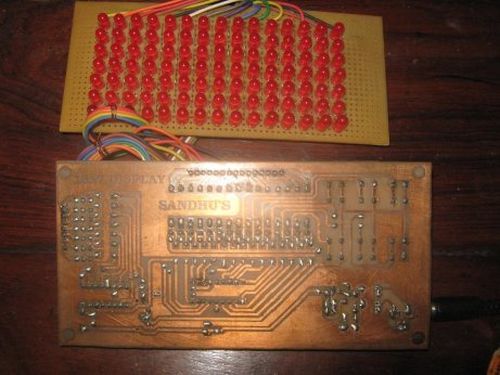
15x7 led Display

THE PC BOARD
This project is provided as a “prototyping project” as no PC board has been produced. The photographs show the project built on a matrix board using surface-mount components and very fine wire.
The final design will require a double-sided board with plate-through holes, especially for the matrix of LEDs, but for the moment you can refer to the photographs and construct the circuit yourself.
Don’t be put off by the appearance of the circuit. It is really just a duplication of a very simple circuit driving a LED that can be built on a matrix board with 0.1″ spacing. Most of the surface-mount components can be positioned so the legs will reach a solder-land and you won’t need a special surface-mount board.  But you will need good eyesight and a fine tipped soldering iron. Simply follow the layout and use the photographs as reference.

Let’s start:

THE CIRCUIT
The circuit looks very complex but it consists of just two chips, 105 LEDs, a set of driver (buffer) transistors and 6 tactile switches. All the transistors and resistors seem to disappear when surface-mount components are used and the whole project can be constructed on matrix board or on a double-sided plate-through hole PC board.
Here is the circuit:

The 4017  is a “decade counter” and this means it has 10 outputs, starting with output pin 3, only one output is HIGH at a time. The 10th output is pin 11 and then the counter starts at pin 3.
The program starts by clocking the 4017 until pin 9 is HIGH. This pin is connected to the input of the PIC chip and the program now knows the state of the 4017.
This is called
SYNCHRONISING. See more on this below.
The ‘628 has two ports, Port A and Port B. Port A has 7 output lines (plus one input-only line) and Port B has 8 output lines. This creates our 15 lines for the screen. The screen is laid out as 15 LEDs “across” and 7 LEDs “down.” The data (or information) is fed in at the top of the screen from the PIC chip to the 15 LEDs and the LEDs are connected to the 0v rail via a transistor that is driven from the 4107 chip.
Each LED has an 82R resistor in series with the drive-line from the PIC chip and when you work out the voltage available and the value of the series resistance, you will find the current is about 30mA.
Since there are 7 rows of LEDs, each row is only turned on for 1/7th of the total time and this is why you need to drive the LEDs with a high current, as they are only getting a pulse for a very short period of time. Pulsing the LEDs like this produces a much brighter result than a constant current as your eye has a delay (or an extension) in seeing the illumination – called PERSISTENCE OF VISION and the end result is a very bright screen.

The top row is turned on for a short period of time as determined by a delay routine and then the drive-lines are turned off.
The information for the next line is then placed on the drive-line (port A and B) and the outputted to the screen. This also clocks the 4017 so the second row of LEDs is illuminated.
The program does not know which row of LEDs is being illuminated during the scanning process and that is why it is necessary to synchronize the two chips when the project is turned on, via a short sub-routine.
For the remainder of the running, the program assumes the two chips remain in synchronization.  There is no reason why this will not be maintained, but it is not checked or verified at any stage. More on this under “SYNCHRONISING ” below.
This assumption is not allowed in an emergency environment but is perfectly suitable in our case.


For more detail: 15×7 Display using a PIC16F628 Microcontroller

Current Project / Post can also be found using:

  • l e d pic
  • led dinamico pic
  • led projects

The post 15×7 Display using a PIC16F628 Microcontroller appeared first on PIC Microcontroller.

How to drive an rgb led using PIC16F877A

$
0
0

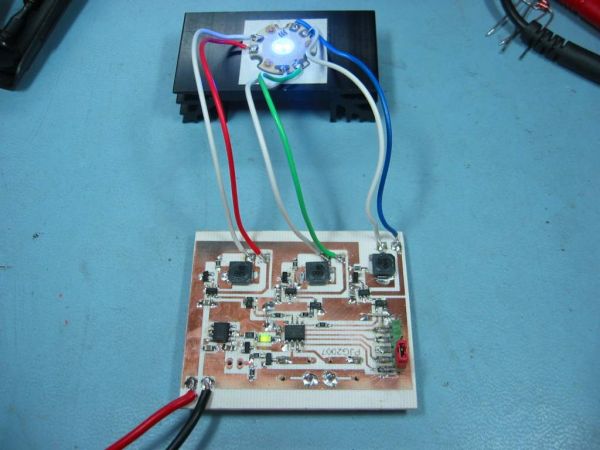
The RGB LED contains three LEDs encased in one shell: Red, Green and Blue (some contain an extra blue led – as blue LEDs generate less output intensity (candela) per mA). It looks like a single white led except that it has four leads – one for the common ground connection and one for each led.

drive an rgb led

Basic operation

The average current through each of the LEDs determines it’s light output i.e. its contribution to the total output color. So by controlling the average current through each LED you can create almost any other color.

Diffuser

By varying the current through each led you can create almost any other color but at close range you only see the individual colors of each LED.

To see the ‘merged’ color view it from a distance or put a diffuser over it. I used a small piece of baking paper – which is transparent enough to let the light through and opaque enough to diffuse the light from the three LEDs. In a proper design you would use a semi-transparent plastic.

Note: Other projects in the web show the output without a diffuser I think the camera settings merge the light acting as a diffuser (they do – using a digital camera gives the same results i.e. It’s not what your eye sees on the bench).

If you make a sign board using these LEDs you won’t need a diffuser as your eye will not be able to distinguish the individual LEDs (if it’s far enough away – it’s exactly the same as a TV pixel).

How it works.

This project uses puls width modulation to drive each of the leds in the RGB led. By changing the duty cycle of each PWM signal you can control the average current flowing through each led creating any color you want. The limit is set by the resoelution of the PWM (set at 256 steps per channel).

The project relies on persistence of vision to make it appear that the led is continuously driven (the PWM signals must be repeated quickly enough so that you do not see any flicker) at a rate greater than 50Hz (approx). Too slow and you begin to see the led flickering.

PWM Software

PIC micros only have one built in PWM module so you need to create three pulse width modulators in software.

This is fairly easy to do using one of the timers in the PIC micro and all that’s needed is an 8 bit timer for an output resolution of 1/256.

Note: It’s fairly difficult to make it work at 4MHz (it probably can be done in assembler or with more effort in ‘C’). So I chose to use a 20MHz crystal just to make it easier.

For more detail: How to drive an rgb led using PIC16F877A

Current Project / Post can also be found using:

  • a DIY microcontroller
  • microcontroller based led projects

The post How to drive an rgb led using PIC16F877A appeared first on PIC Microcontroller.
LEDactus using PIC18F1320 Microcontroller

$
0
0

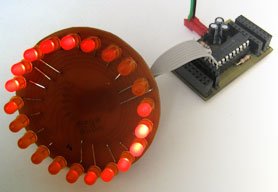
The LEDactus is my version of a dry climate niche dweller like a cactus. LEDactus is immobile and attempts to survive by creating a pleasant display. This is of course in the hopes that passersby will be so entranced that they will build the LEDactus’ progeny.

LEDactus

Initial generations create a simple but pleasing display. Later generations attempt to produce more complex and mesmerizing displays. Finally, in the latest generations, a sense of touch is added to allow the LEDactus to interact with passersby.


The Circuit

In LEDactus I wanted to control a significant number of LEDs. Conventional wisdom says that it requires one I/O line to control one LED. Since the 18F1320 has only 16 I/O lines this could seriously cramp an inventor’s style. The figure below illustrates the standard approach to controlling an LED. In the first case a logic 1 on B0 turns the LED on, and a logic 0 turns it off. The second figure inverts the logic so that a logic 1 on B0 turns off the LED and a logic 0 turns it on. This schematic assumes that, like the 18F1320, the I/O pins are current limited to a value that won’t destroy the LED. If not, you’ll need to insert a series current limiting resistor.

Charlieplexing

Fortunately a clever fellow called Charlie Allen, an engineer at Maxim, thought of a way to control more LEDs with the same number of I/O lines. When an I/O line is configured as an output it sources or sinks current. Since microcontroller I/O lines can be reprogrammed to function as inputs, this adds a third state. This third state is like disconnecting the I/O port from the LED.

In practice, if you have N I/O pins to work with, you can control N x (N-1) LEDs. So a standard 8 bit port could control (8×7) 56 LEDs. With 16 I/O pins you could control (16×15) 240 LEDs.

The method controls LEDs in banks of N-1. Any LEDs in the active bank can be turned on independently. To turn on LEDs in another bank, the first bank is turned off. This means that LEDs are never full on. The fraction of time the LEDs are on, or duty cycle, is (1 / Number of Banks Used). Fortunately, an LED’s brightness does not drop linearly with the duty cycle. Even at 50% duty cycle (half on-half off) the LEDs retain nearly 80% of their perceived brightness.

LEDactus circuit

How Charlieplexing Works

The following diagram illustrates how charlieplexing works with 3 I/O ports.

In this example, I/O ports B0, B1 and B2 are used as bank select lines. We select a bank by setting one of these I/O lines as an output and setting it low (0).

If, for example, we set B0 to low, we use B1 and B2 to control LEDs 1 and 2. If we set either or both of B1 and B2 to high (1), the corresponding LEDs turn on. To turn off the LEDs we cannot however set B1 or B2 to low. This is the bank select condition and might cause LEDs in other banks to turn on as well. Instead, to turn off an LED in a bank we reprogram the controlling I/O line to be an input.


For more detail: LEDactus using PIC18F1320 Microcontroller

The post LEDactus using PIC18F1320 Microcontroller appeared first on PIC Microcontroller.

PIC Based Message wand

$
0
0

The project uses flashing LEDs to present shot message in the air by swinging a wand around above the head.

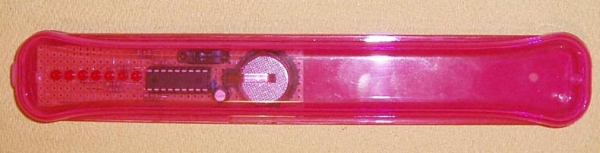
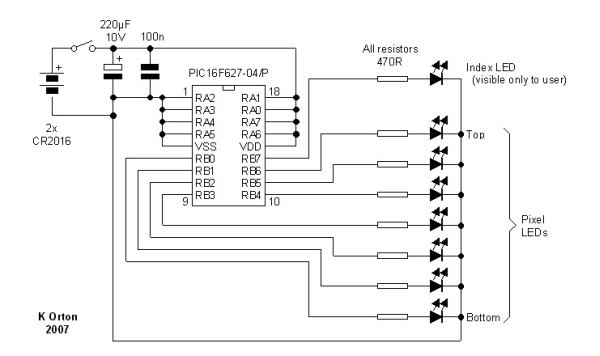
PIC Based Message wandA perfboard is used to construct the circuit that is powered by 2 coin cells type CR2016. The power fluctuations from excessive load on the coin cells can be prevented using the electrolytic capacitor. A toothbrush holder is used to make the message wand since swinging around the exposed sharp edges of circuit boards and batteries is dangerous.

The method of table look-up in a PIC is featured by the message wand program. Depending on the user requirements, the table that holds the message can be modified since it is in the form of pixel data. Synchronization is not used since the message is repeated at a fixed rate of about 3 times per second.

PIC Based Message wand SchematicThe mid-range PIC16F627 microcontroller is used by the message wand where one of its I/O lines is only capable of using a digital output and one is only capable of driving open drain. To ensure the internal oscillator of the PIC is running at about 4MHz, a register bit is implemented and addressed by wand.asm file.

For more detail: PIC Based Message wand

The post PIC Based Message wand appeared first on PIC Microcontroller.
Arduino powered temperature sensing RGB LED nightlight using PICaxe

$
0
0

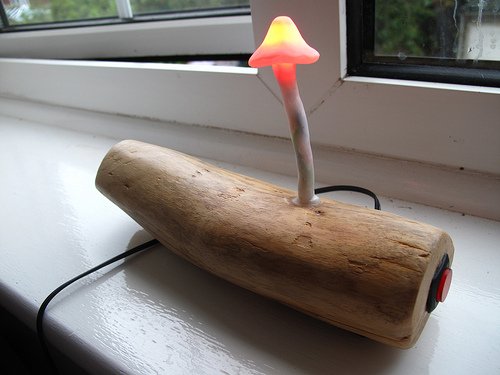
About a year ago I started on a project to make a temperature controlled nightlight. I was inspired by seeing these lovely LED lamps styled as mushrooms growing out of pieces of wood. Those mushrooms were made out of glass, which was somewhat beyond my skills. However I then saw some had used translucent sculpey to make mushroom nightlights on instructables. So with that discovery it seemed like it would be rather simple to do…

temperature sensing RGB LED nightlight

The first job was to solder up a three colour (RGB) LED (a super bright one from oomlout):

I then covered the LED in translucent Fimo:

As Fimo only needs to be heated to about 100C to set it’s ok to do this, as it won’t hurt the LED. Also LEDs don’t normally give out much heat, so covering them is ok. Of course this is a relatively low power (though quite bright) LED as well which helps.

I found a branch on the way home from work, which I cut up and sanded down. This formed the base for the mushroom:

As you can see I also opted for a chunky on/off button, in the style of the original mushroom lamps.

Next I put a small electronics project box into the bottom of the piece of wood and made space for a slide switch and power socket

At the time I decided to try to use a Picaxe 08m chip to control the LED and read from a temperature sensor. The Picaxe 08m has a native function to read the temperature from a DS18B20 One Wire digital temperature sensor. It also had just about enough inputs and outputs to handle controller the three colors of the LED and reading from a slide switch (to make it switch between temperature display and plain nightlight). The individual chips were also pretty cheap, so it seemed like a good plan at the time.

However the size of the circuit and number of components I needed to solder was all a bit too much for me:

temperature sensing RGB LED nightlight circuit

Eventually after much debugging I was able to get some things working – e.g. controlling the colour of the LED, but the temperature sensor just wouldn’t cooperate and always gave a high reading. I also managed to get through a few sensors due to mis-wiring them!

So I decided it was time to start again with the circuit. I bought a better soldering iron (a not too expensive digital temperature controlled one) and started on a new circuit:


For more detail: Arduino powered temperature sensing RGB LED nightlight using PICaxe

Current Project / Post can also be found using:

  • home automation pic microcontroller projects list
  • microcontroller programming that measure patients temperature

The post Arduino powered temperature sensing RGB LED nightlight using PICaxe appeared first on PIC Microcontroller.
A PIC16F819 DYMOCLOCK

$
0
0
I wanted to build a clock as simple as possible :
  • built around a little 18 pins PIC
  • no 7 segment display, only LEDs
  • no decoder, no buffer, no driver for the LED display
  • a cheap temperature sensor

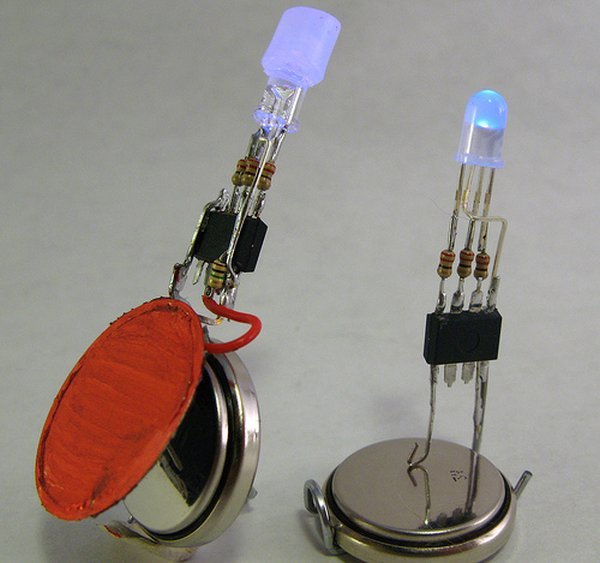
The solution of direct LED driving comes from a Microchip Application Note AN234, and as I’m using 25 mA LEDs, I simply removed all current limiting resistors.

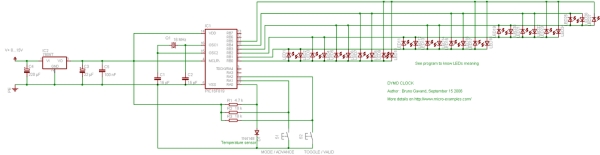
A PIC16F819 DYMOCLOCK A silicon diode is used as temperature sensor, and the rest of the circuit is very classic around a PIC16F819 :
Upper row : hours
Middle row : minutes or seconds or degrees C
Lower row : add it to middle row
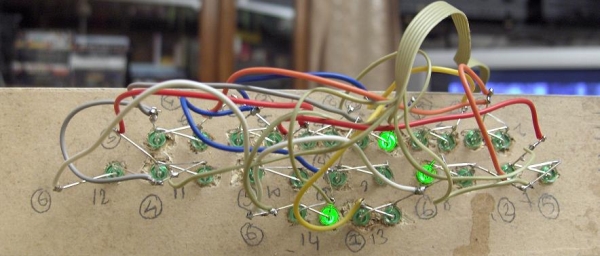
The wiring side of the LEDs is a little bit messy,

some colored wires are helpful !
See the source code for LED numbering.

THE SOURCE CODE
*************************************************************************
 * file         : dymoclock.c
 * project      : Simple LED clock with thermometer
 * author       : Bruno Gavand
 * compiler     : mikroC V6.0.0.0
 * date         : september 15, 2006
 *
 * description  :
 *      This is a 12 hours clock with 27 LEDs display, with a 2°C resolution thermometer
 *
 * target device :
 *      PIC16F819 with 16 Mhz crystal
 *
 * configuration bits :
 *      HS clock
 *      no watchdog
 *      no power up timer
 *      RA5 as MCLR pin
 *      brown out detect
 *      LVP disabled
 *      data EE protect disabled
 *      ICD disabled
 *      CCP1 pin on RB2
 *
  *************************************************************************
 */
/*
 * display modes
 */
#define MODE_HOURMN     0       // display hours:minutes
#define MODE_SS         1       // display seconds
#define MODE_TEMP       2       // display temperature
#define MAX_MODE        3       // number off display modes
/*
 * buttons
 */
#define BUTTON          ((PORTA.F1 == 0)  || (PORTA.F2 == 0))   // at least one
#define BUTTON_MODE     (PORTA.F1 == 0)                         // mode / advance
#define BUTTON_TOGGLE   (PORTA.F2 == 0)                         // toggle / valid
#define BUTTON_SET      ((PORTA.F1 == 0) && (PORTA.F2 == 0))    // both at the same time
#define TEMP_REF        115     // silicon junction offset : 600 mV
#define MAX_TEMP        20      // number of temperature samples
/*
 * LED multiplexing tables
 *
 * LED index   : 1 2 3 4 5  6 7 8  9 10 11 12 13 14 15 16 17 18 19 20 21 22 23 24 25 26 27 28 29 30
 * LED number  : 1 2 3 4 9 10 5 6 11 12 25 30  7  8  5 10 35 40 45 50  2  1 15 20  3  4 55
 * LED hours   : 1 2 3 4 5  6 7 8  9 10 11 12
 * LED min/deg :                               5 10 15 20 25 30 35 40 45 50 55
 * LED 1234    :                                                                1  2  3  4
 */*
 * upper row : hours from 1 to 12
 */
const   unsigned char hhTable[] = { 0, 1, 2, 3, 4, 7, 8, 13, 14, 5, 6, 9, 10 } ;
/*
 * middle row : minutes/seconds/°C from 5 to 55 step 5
 */
const   unsigned char mnTableH[] =
        {
        0, 0, 0, 0, 0,
        15, 15, 15, 15, 15,
        16, 16, 16, 16, 16,
        23, 23, 23, 23, 23,
        24, 24, 24, 24, 24,
        11, 11, 11, 11, 11,
        12, 12, 12, 12, 12,
        17, 17, 17, 17, 17,
        18, 18, 18, 18, 18,
        19, 19, 19, 19, 19,
        20, 20, 20, 20, 20,
        27, 27, 27, 27, 27        } ;/*
 * lower row : increment of minutes/seconds/°C from 1 to 4
 */const   unsigned char mnTableL[] =
A PIC16F819 DYMOCLOCK Schematic        {        0, 22, 21, 25, 26,
        0, 22, 21, 25, 26,
        0, 22, 21, 25, 26,
        0, 22, 21, 25, 26,
        0, 22, 21, 25, 26,
        0, 22, 21, 25, 26,
        0, 22, 21, 25, 26,
        0, 22, 21, 25, 26,
        0, 22, 21, 25, 26,
        0, 22, 21, 25, 26,
        0, 22, 21, 25, 26,
        0, 22, 21, 25, 26
        } ;
/*
 * RAM variables
 */
unsigned char   mode ;                  // display mode
unsigned char   toggleMode ;            // toggle mode flag
unsigned int    scaler = 0 ;            // timer overflow divider
unsigned char   hh = 1 ;                // hours
unsigned char   mn = 1 ;                // minutes
unsigned char   ss = 0 ;                // seconds
int             temp ;                  // temperature in °C
unsigned char   tdeg[MAX_TEMP] ;        // array of temperatures samples

unsigned char   tidx = 0 ;              // index of the temperature sample


For mroe detail: A PIC16F819 DYMOCLOCK 

Current Project / Post can also be found using:

  • pic16f628a led projects

The post A PIC16F819 DYMOCLOCK appeared first on PIC Microcontroller.
Bicycle Persistence of Vision Light Display using PIC16F84

$
0
0

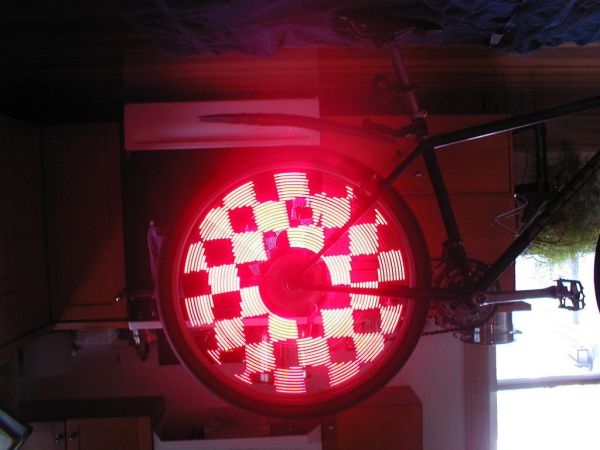
In February of 2007 I spent a little while prototyping a board that turns any bicycle wheel into a moving display billboard using a single string of LEDs. The idea was to do something that would be very visible, turn itself on and off automatically, have enough processing power to dynamically generate bike computer style displays, and have enough memory to store full resolution bitmaps.

bike_light

The first revision was a hand built board using a single ATTiny26 micro, 14 LEDs, a resistor array, and a magnetic reed switch.

Next I drew up a board using PCB and had it printed. The printed board differed in a couple of ways from the original hand-built prototype:

  • More LEDs: 48 LEDs total, 24 on each side of the board. This gives higher resolution patterns, and they can be seen from both sides of the bike. The LEDs are controlled from a series of 74×373 ICs connected to an 8 bit bus on the microcontroller. As opposed to shift registers, all 48 LEDs can be updated in 20-30 microcontroller cycles, leaving plenty of time to spare to figure out what should go there.
  • No Resistors: Turns out the I/V curve of the particular 74x family IC I had maxed out at around 20mA with two fully charged AA or AAA batteries with no series resistor. Yeah!
  • Bigger Micro: While the ATTiny26 is very versatile, the ATTiny861 is a strict superset including 8k of program memory. All the better to store full resolution bitmap patterns in.

And some pictures of the final product: (some have been flipped to account for my lack of a proper bicycle stand)

HERO-1 Robot — April 2004

Zia and I have spent a good amount of time retrofitting a HERO-1 to use a little more modern technology. We replaced the processor board with an Atmel ATMega8535, and some of the peripherals are controlled by ATTiny26’s so that they are all capable of operating simultaneously. I don’t have any code yet, but here are a few pictures of the retro-fitted robot.


For more detail: Bicycle Persistence of Vision Light Display using PIC16F84

Current Project / Post can also be found using:

  • e games using pic
  • home automation projects based on pic microcontroller
  • led microcontroller ic projects
  • microcontroller led light display

The post Bicycle Persistence of Vision Light Display using PIC16F84 appeared first on PIC Microcontroller.
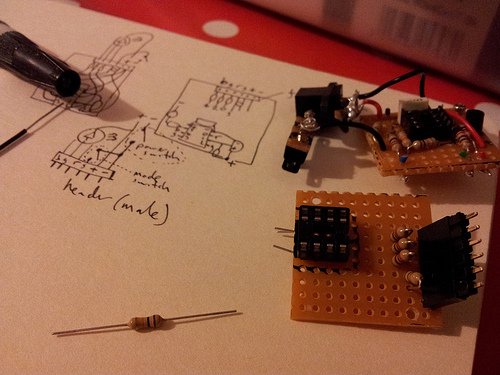
Serial Controlled RGB LED PWM Driver PIC12F629 based PWM controller for RGB LEDs

$
0
0

Description

If you want to build your own multiple RGB LED display that you can control from either a PC or a dedicated controller then this project will let you do just that.

The project on this page came about when while I was developing a more complex intelligent driver. During that work I put together a simple Red/Green/Blue Pulse Width Modulation LED driver that has a serial interface.  The RGB values to control the LED brightness are sent to the PWM driver over this serial interface.

With both the original and revised versions of the RGB PWM driver there was one big shortcoming when you want to have several drivers working together.  Even when they’re running the same sequence, the small differences in the frequency of the internal RC oscillator cause some to run the sequence slightly faster, others slower.  The result, well sometimes it’s quite effective, but mostly it just looks awful.

With the controller / driver presented here it is possible to connect multiple drivers to the same serial cable, all attached units then appear to operate synchronously since they’re all receiving the same control data.  The PCB for the RGB PWM Driver has been designed so that it can be used with both the serial control firmware on this page, or the standalone firmware here

Serial Controlled RGB LED PWM Driver

The serial data can be sent from the serial COM port of a PC or using a small dedicated controller that I’ve put together. The Controller code is based on the standalone RGB driver code described elsewhere on this website.  The controller uses the same format for the sequence data as the standalone RGB driver so any SequenceData.inc files you have for the standalone driver can be used with the Serial RGB Controller.

The pictures below show an RGB Driver placed inside a 6″ opal glass light fitting.  I bought this from a DIY store for £4.99 (see here).  When the LED driver is fitted in the base it illuminates the whole globe.  Because most 5mm LEDs have quite a narrow viewing angle you tend to got ‘hot spots’ in the top but overall it’s very effective and makes for great mood lighting.   (In case it isn’t obvious you do not connect the light fitting to the mains electricity supply when used with the RGB Driver!!!)

Also check this mood light by Pete Rus which is based on the Standalone PIC controller
http://www.instructables.com/id/E5A6O59KDPEUSZO1BK/?ALLSTEPS


How it works

Back to the RGB LED Driver.  Depending on which firmware you program into the PIC this PCB and hardware can operate as either a serial controlled driver or a stand-alone driver (see here). 

Version Firmware
PC Controlled ssrgbdrv.zip
Serial RGB Controller ssrgbdrv.zip
Stand Alone RGB Code rgbsa_inet.zip

Serial Data Format

Serial Data is sent to the RGB PWM Driver using a standard 2400bps asynchronous serial data stream (like you get from the COM port of a PC).  The serial frame format is 1 start bit, 8 data bits, 1 stop bit.   RS232 devices, including the PC COM port, always generate a start bit so when you look at the serial port parameters in Windows you won’t see it as an option.  Use 8N1 for the COM port settings.

 The RGB values for the PWM driver are sent in a five frame packet.

  • The first frame must always contain the value 0x81 (129 decimal)
  • The next three frames contain the 8-bit Red, Green and Blue data for the PWM driver. 
  • The last frame is the checksum.  It should contain the 2’s compliment of the sum of the previous four frames, modulo 256.
    The code snippet below shows the checksum computation in PIC assembler.

movlw     0x81
addfw     RedPWM, W
addfw     GreenPWM, W
addfw     BluePWM, W
sublw     0x00
movwf    
chksum

The Serial RGB Controller will take care of all this for you. However, if you write an application to generate the data from a PC the application itself will need to take care of this.

Controlling from a PC

During development of the Driver I put together a couple of short Perl scripts for testing purposes. The first one takes user entered RGB values and sends them through the PC serial port to the driver.  The second one sends a continuous stream of RGB data to the driver that generates a ‘wave’ effect.  (Both scripts are hard coded to use COM1)

At this point I need to make it clear I am not supporting the Perl scripts.  The ability to send data to the Driver from a PC is a bonus.  If you don’t know Perl or have no previous programming experience you will probably be unable to make use of them.
PLEASE DO NOT e-mail me asking for help with these scripts
I don’t like having to say that, but PIC programming I do for fun; Perl I do not. 

The scripts are written for ActivePerl and require the module Win32::SerialPort. 

Some Perl resources – if you want to learn Perl.

If you write some code for the PC to control the driver boards and you’re prepared to share it, let me know and I’ll be happy to link to it from here.


Addressable version of the Serial controlled RGB PWM driver  (added January 2011)

IMPORTANT: Please be absolutely clear about this: it’s available, it’s free, it does work and has been tested but I will not support it, modify it, or help you implement any application with it. Please don’t email me asking for any support – really.

The project on this webpage is a based on code I wrote for an addressable RGB controller, it’s just a cut down version.  At the time I wrote it I didn’t have any supporting software to send data to the addressable modules, for that reason I didn’t make the addressable code available.  I still don’t have any code other than that I used for my own application.  I actually went on to develop the the Serial Addressable RGB PWM LED/Servo Driver which was much better, if a bit more complex.

However over the last four years I’ve been contacted by email on many occasions asking for an addressable version of this project and I’ve let people have the code I’m now making available here on request.

The packet format is described in detail in the PDF file download: Packet format

The source code for the addressable version of the Serial controlled RGB PWM driver can be download from here


For more detail: Serial Controlled RGB LED PWM Driver PIC12F629 based PWM controller for  RGB LEDs

Current Project / Post can also be found using:

  • micro controller projects for leds
  • Microcontroller led

The post Serial Controlled RGB LED PWM Driver PIC12F629 based PWM controller for RGB LEDs appeared first on PIC Microcontroller.

PIC 16F88 Microcontroller PIC based Tengu

$
0
0

Tengu derives its name from a mythical Japanese creature known for getting into mischief. Our Tengu, however is more earthly in nature.  It responds to voice and sounds and takes on different facial features depending on the intensity of the sound. If no sound is heard for some time, it changes from a happy face to a sad face and then goes to sleep. Gently blowing on his face wakes him back up to his usual happy self.

PIC 16F88 Microcontroller PIC based Tengu The Technical Details:

The project is based on a Microchip PIC 16F88 which is part of their mid range of microcontrollers. The sound is amplified through a pre-amp circuit based on 2N3904 and fed to the RB7/AN6 (pin 13) of the pic microcontroller. The A/D converter on the microcontroller is used to convert the analog signal from the pre-amp. The LED Matrix is directly driven by the pic. In order to be able to display the entire smiley, the LED dot matrix is multiplexed in such a way that only one row out of the seven is active at any given time. However the rows are turned on and off so rapidly, the human eye sees it as a full picture. This effect is called the persistence of vision.

PIC 16F88 Microcontroller PIC based Tengu SchematicIn order to achieve multiplexing, timer 0 on the pic is running at approximately 1 ms timeouts to switch the row that is being displayed on the LED Matrix. Timer 1 is configured as a general purpose timer used to keep track of the time since any noise over the threshold was heard. This is used to change the smiley from a happy to a sad one. The code is written in C using MPLAB and Hi-Tech C compiler ver 9.80.

For more detail: PIC 16F88 Microcontroller PIC based Tengu 

The post PIC 16F88 Microcontroller PIC based Tengu appeared first on PIC Microcontroller.
Strobe Lights Project

$
0
0

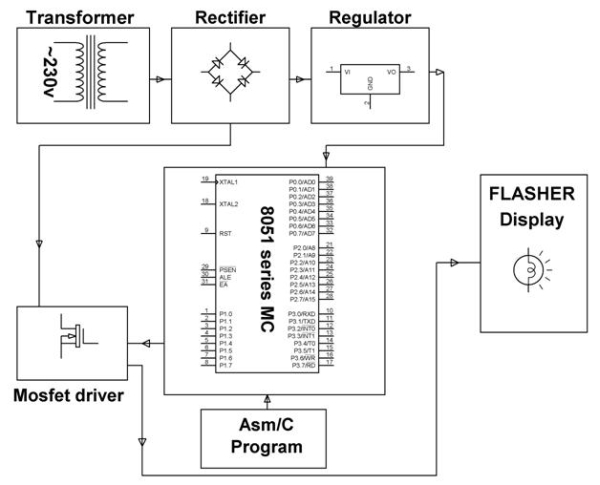
Stroboscopic effects of lights for nightclubs are realized by bringing into play old white Light Emitting Diodes (LEDs) swapping the ejection lanterns/lamps for superior effectiveness at minimal cost. This control is achievable by instantaneously changing the Light Emitting Diodes on & off at elevated volts for small amount of time span. This speedy control of power from complete shine to complete off aids in creating a stroboscopic outcome which is commonly bring into play in discotheque dance floorboards for improved effects.

Strobe Lights Project8051 family’s programmable micro-controller is fit into placed to give such effect being motivated by a MOSFET for group of Light Emitting Diodes. The microcontroller as per schedule produces ON/OFF commands at lofty rate as a result providing the stroboscopic effect of lights. Since the controller provides merely 5volts drive, it’s not achievable for the MOSFET to be constantly be switched ON at that high voltage. A crossing point transistor is made use of amid the controller productivity and the MOSFET for driving the same.

Strobe Lights Project SchematicThe power delivery comprises of a 230/12V step down transformer, this transformer steps down the volt to 12V AC. This is transformed to DC by means of a Bridge rectifier. The ripples are detached by means of a capacitive filter and it’s then synchronized to +5Volts by means of a voltage controller 7805 which is necessary for the functioning of the micro-controller and additional gears.


For more detail: Strobe Lights Project

Current Project / Post can also be found using:

  • using a pic contoller to lash an led
  • led based microprocessor project
  • led microchip
  • LED microcontroller

The post Strobe Lights Project appeared first on PIC Microcontroller.
PIC16F877A LED blink

$
0
0
The Microchip PIC16F877A has 40 pins 33 of them can be input or output. In this simple project I am going to configure this microcontroller to blink a 33 LED each LED is connected to one I/O pin.
PIC16F877A LED blink
The PIC16F877A has 8 analog channels, so we have to configure all these channels as digital output.
The pin RA4 is an open drain output we must add a pull up resistor to turn it on and off.
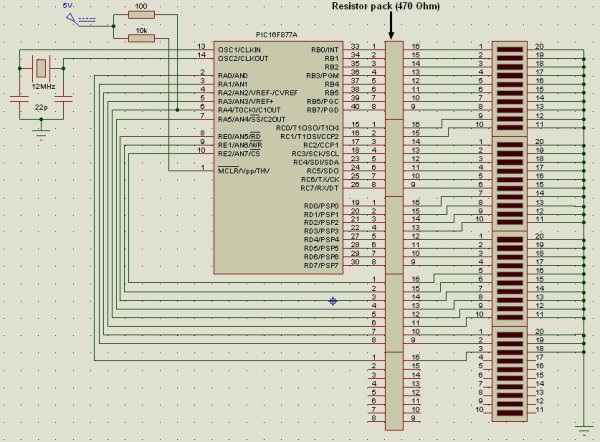
The circuit schematic is shown by the following picture:
The code is written using MikroC PRO for PIC compiler:
 PIC16F877A LED blink Schematic
void main(){  ADCON1 = 0x07;          // Configure all analoge pins as digital  PORTA = 0; TRISA = 0;   // Configure PORTA as output  PORTB = 0; TRISB = 0;   // Configure PORTB as output  PORTC = 0; TRISC = 0;   // Configure PORTC as output  PORTD = 0; TRISD = 0;   // Configure PORTD as output
  PORTE = 0; TRISE = 0;   // Configure PORTE as output  while (1) {  PORTA = ~ PORTA;       // Invert PORTA status   PORTB = ~ PORTB;       // Invert PORTB status   PORTC = ~ PORTC;       // Invert PORTC status   PORTD = ~ PORTD;       // Invert PORTD status   PORTE = ~ PORTE;       // Invert PORTE status   delay_ms(500);   } }

For more detail: PIC16F877A LED blink

Current Project / Post can also be found using:

  • led projects based on PIC microcontroller

The post PIC16F877A LED blink appeared first on PIC Microcontroller.
Red Light for Astronomy Observing using PIC12F683

$
0
0

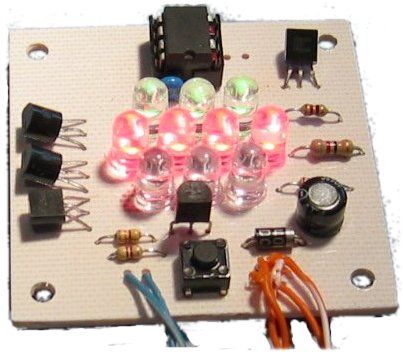
When doing astronomy observing at night preserving night vision is critical. This requires using the minimum amount of light that makes the sky charts readable. What is this minimum level depends on how dark are your surroundings, how much time you have spent in darkness, how well your eyes adapt for night vision, what type of charts are you using, what object are you observing, and so on. My old astronomy light was not very convenient – it only had two brightness levels, “too bright” and “not quite that bright”, and it was eating batteries like crazy. This one is a huge improvement and is a real pleasure to use.
Red Light
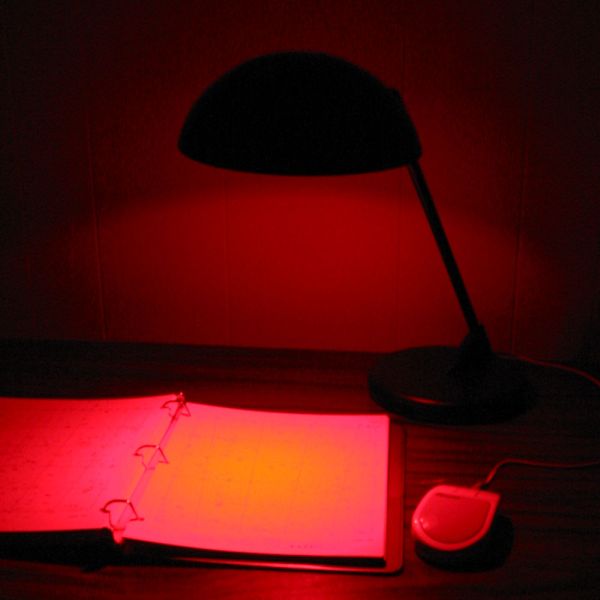
The PIC light has a brightness level that can be adjusted anywhere between comfortably bright and almost invisible with 128 steps of adjustment. Those 128 levels are distributed exponentially, to match the non-linear light sensitivity of the eye. In addition, there is a button for temporary brightness boost. This is convenient in the cases where you want to have the light really low, and bring it up a bit for a second only when you are trying to see some tiny detail on the star charts. The “boost” level is also fully adjustable.

The light consists of two parts – an old desk lamp with a patch of LCDs in place of the bulb, that is connected through an audio jack to a box containing the controller and the battery. I’m using an old computer mouse as controller/battery enclosure – this way, I can have the control buttons in a convenient place next to my charts. Instead of having an on/off switch, the light is turned on simply by plugging the lamp jack into the “mouse” (this required a slight modification of the female jack by bending a bit one of the contacts – you could figure it out by looking at the schematics). When I’m packing the light the mouse part goes into my crowded toolbox – with no on/off switch there is no danger that it will get turned on and I’ll discover the battery drained next time I need it.


For more detail: Red Light for Astronomy Observing using PIC12F683

Current Project / Post can also be found using:

  • why we are using pic instead of 8051 in home automation
  • home automation using pic16f877a
  • microcontrollers and automation
  • mikroc projects motor protection

The post Red Light for Astronomy Observing using PIC12F683 appeared first on PIC Microcontroller.

PicoDetector : a PIC-based simple and cheap metal detector

$
0
0

A short video clip is sometimes better than a long explanation :

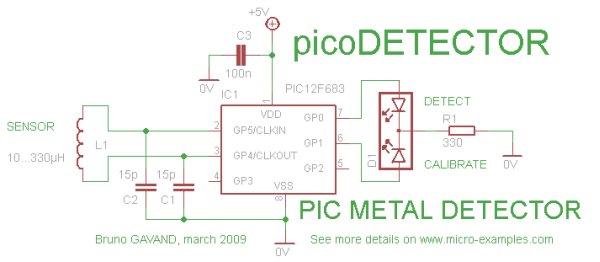
The idea of this circuit is to hack PIC oscillator circuit, by replacing the crystal by a coil : the frequency of the oscillator then depends on presence of metal near the coil, just like in a classic metal detector.

To detect changes of main oscillator frequency, we use the PIC watchdog as internal time reference.

By comparing both oscillators frequencies, we can know if a piece of metal is near the coil, and then light a LED.

It shares the same idea as PicoBat, the ultrasonic bat detector.

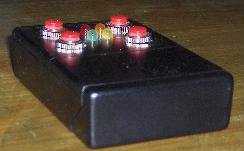
PicoDetector  a PIC-based simple and cheap metal detectorCircuit Schematic

  • Coil L1 replaces crystal in PIC oscillator circuit : try with the coils you have to find the best one ! if calibrate LED blinks on power up, it works.
  • D1 is a dual color LED, replace with two classic LEDs if you don’t have one.

C Source code

/*
 *******************************************************************************
 * picoDetector : an ultra simple and cheap metal detector
 *******************************************************************************
 *
 * Author : Bruno Gavand, april 2009
 * see more details on http://www.micro-examples.com/
 *
 * source code for mikroC PRO compiler V1.65
 * feel free to use this code at your own risks
 *
 * target : PIC12, oscillator in HS mode, watchdog enabled
 *
 * PIC PIN Assignemnt :
 *
 * GP0 : detect LED indicator
 * GP1 : calibrate LED indicator
 * GP2 : NC
 * GP3 : NC
 * GP4, GP5 : inductor
 *
 *******************************************************************************
 */

#define MAXTRY 15       // number of watchdog restart to calibrate loop counter

unsigned char   ctr ;           // number of loops between two watchdog resets
unsigned char   previous ;      // previous value of ctr
unsigned char   calibr ;        // calibration value when oscillator runs free
unsigned char   restarts ;      // number of watchdog restarts
unsigned char   en ;            // enable flag, allows detection

/*
 * main loop
 */
void    main()
        {
        unsigned char   i ;
        

        /*
         * configure GPIO as digital port
         */
        CMCON0 = 7 ;
        ANSEL = 0 ;
        TRISIO = 0 ;
        GPIO = 0 ;

        /*
         * power up ?
         */
        if(STATUS.NOT_TO)
                {
                /*
                 * yes, init variables
                 */
                restarts = 0 ;
                calibr = 1 ;
                }

        /*
         * watchdog reset counter
         */
        if(restarts < 255) restarts++ ;

        /*
         * if counter differs too much from calibration value
         */
        if((previous ^ ctr) > calibr)
                {
                /*
                 * turn detect LED on
                 */
                GPIO.F0 = en ;
                
                /*
                 * if not on power up
                 */
                if(STATUS.NOT_TO == 0)
                        {
                        /*
                         * while in calibration mode
                         */
                        if(restarts < MAXTRY)
                                {
                                /*
                                 * shift calibration value
                                 * and wait a little bit
                                 */
                                calibr <<= 1 ;
                                Delay_ms(5) ;
                                }
                        }
                else
                        {
                        /*
                         * turn detect LED off
                         */
                        GPIO.F0 = 0 ;
                        }
                }

        /*
         * save last counter
         */
        previous = ctr ;

        /*
         * is calibration over ?
         */
        if(restarts > MAXTRY)
                {
                /*
                 * yes, turn calibrate LED off
                 * and set enable flag
                 */
                GPIO.F1 = 0 ;
                en = 1 ;
                }
        else
                {
                /*
                 * no, turn calibrate LED on
                 * and clear enable flag
                 */
                GPIO.F1 = 1 ;
                en = 0 ;
                }

PicoDetector  a PIC-based simple and cheap metal detector schematic
        /*
         * set watchdog prescaler
         */
        OPTION_REG = 0b11111001 ;
        
        /*
         * start counter, to be interrupted by watchdog
         */
        ctr = 0 ;
        for(;;)
               {
               ctr++ ;
               }
        }

For more detail:  PicoDetector : a PIC-based simple and cheap metal detector

The post PicoDetector : a PIC-based simple and cheap metal detector appeared first on PIC Microcontroller.

PIC16F84A MemoSound Game

$
0
0

Game rules

You will have to memorize a melody, made of up to 62 steps.
A step is one of the four tones available in the game system.
In order to help you, each tone is associated to a color LED (yellow, green, orange, red) which lights each time the tone is played.PIC16F84A MemoSound Game
The game system plays the melody, then you have to repeat it correctly by pressing the button of the tone’s LED. At the beginning, the melody has only one step.
If you fail, an error melody is played, the melody is played again and you can try again to repeat it.
If you succeed, a new tone is added to the melody.
The longest melody is 62 step long, will you be able to learn it by heart ?

If you get bored with one melody, press the RB4 and RB5 buttons at the same time, the game system will create a new melody. If you want to modify the melody rythme, press the RB6 and RB7 buttons at the same time, and select a new rythme by pressing a key when the LED is on :
RA0 : very fast
RA1 : fast
RA2 : slow
RA3 : very slow (default)

Circuit Schematic

The game is battery operated, and the circuit is powered with a LP2950CZ-5.0 regulator with some decoupling capacitors. There is no main switch, because the circuit is in sleep mode when nothing happens. A standard 9V battery should work for weeks.

PIC16F84A MemoSound Game
Four switches are connected to the PORTB high nibble to allow wake-up on PORT change of the PIC when the player press a button. There is no pull-up resistors, because internal weak pull-up of the PIC is used.
The RB0 pin of the PIC drives directly a little piezzo speaker.
The PORTA low nibble drives fours LEDs, through current limitation resistors.
A cheap 8Mhz crystal is used to clock the PIC, you could add the two 15pf capacitors from crystal to ground to follow Microchip recommendation, but the PIC works very well without, just do it if you have a lazy PIC that does not start oscillator.

PIC C Source Code

This project is made for a PIC16F84A MCU, but could be changed to any other PIC MCU with only a very few adjustments.


For more detail:  PIC16F84A MemoSound Game

Current Project / Post can also be found using:

  • working of led on microcontroller
  • Led based projects with microcontroller
  • Interfacing micro controller an Led based latest projects

The post PIC16F84A MemoSound Game appeared first on PIC Microcontroller.

0-9999 seconds count down timer using PIC12F683 microcontroller

$
0
0
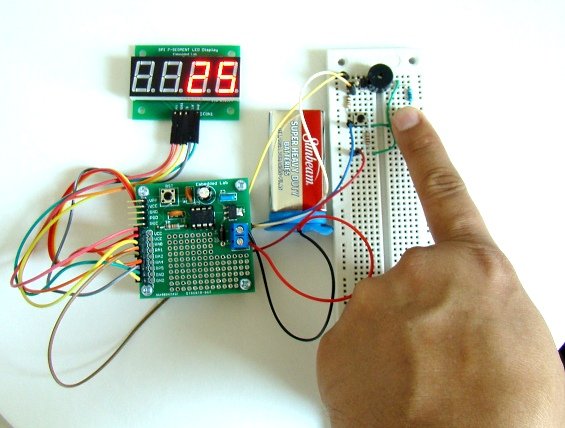
The goal of this project is to construct a simple 0-9999 seconds count down timer with an alarm and a display. The time is set through two tact switches and the count down seconds are displayed on a 4-digit seven segment LED display. The project uses PIC12F683 microcontroller for all I/O and timing operations and MAX7219 IC for driving the seven segment LED module. The time out condition is indicated by an audible alarm from a buzzer.
0-9999 seconds count down timer using PIC12F683 microcontrollerCircuit diagram

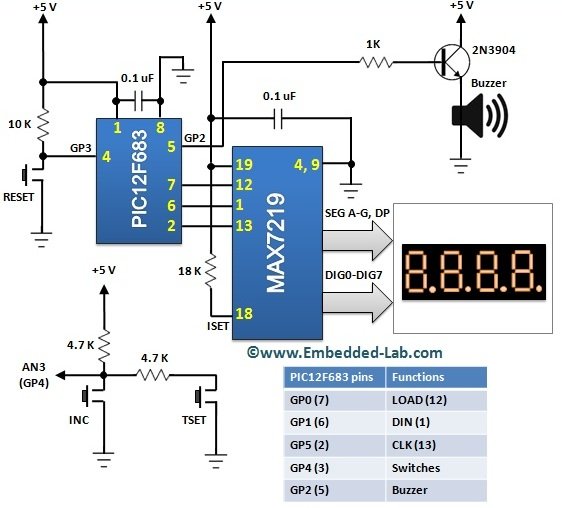
The complete circuit diagram of this project is shown below. Two tact switches (named INC and TSET) are used for setting time and turning the timer on. These switches are connected in parallel and their inputs are read through the AN3 ADC channel of PIC12F683 microcontroller. You can see from the circuit diagram how these two tact switches give rise to different analog voltages when pressed. When INC is pressed, the input voltage to AN3 pin is 0. But if TSET is pressed, the input to AN3 ADC channel would be around 2.5V (two 4.7K resistors make a voltage divider network). And if none of them are pressed the ADC input is pulled up close to 5V. Therefore, based on the value of 10-bit ADC count, it is possible to detect and identify if any of the two switches is pressed. The buzzer is driven by a PWM signal generated at the GP2 output pin of PIC12F683. The display part uses a 4-digit seven segment (common cathode type) LED module which is driven by the MAX7219 IC. If you are not familiar with MAX7219 device, please read my earlier project Serial four digit 7-segment LED display module for further detail on that.

0-9999 seconds count down timer using PIC12F683 microcontroller

Software

The firmware is developed in C and compiled with mikroC Pro for PIC compiler. The driver routine for MAX7219 is taken from my previous project Serial four digit 7-segment LED display module. A 5KHz PWM signal is generated at the CCP1 output pin for the audible alarm when the timer is out. The overall operation of this timer project is described in the next section. That will help you to understand how the firmware for this project works. Here’s the complete source code for this project.


For more detail: 0-9999 seconds count down timer using PIC12F683 microcontroller

The post 0-9999 seconds count down timer using PIC12F683 microcontroller appeared first on PIC Microcontroller.


Chromation Systems RGB LED Tube Light

$
0
0

Built utilizing a 24 Channel High Current USB LED Controller to control 12 volt RGB LED Light Strip, in 8 separate groups. Each group has individual 8-bit PWM which can create over 16 million colors. And is driven at full current for maximum color saturation and accuracy. Using the ColorMotion Compatible Firmware, various colors patterns and effects can be created in the software and the uploaded to the device for it to run by itself, without a computer.
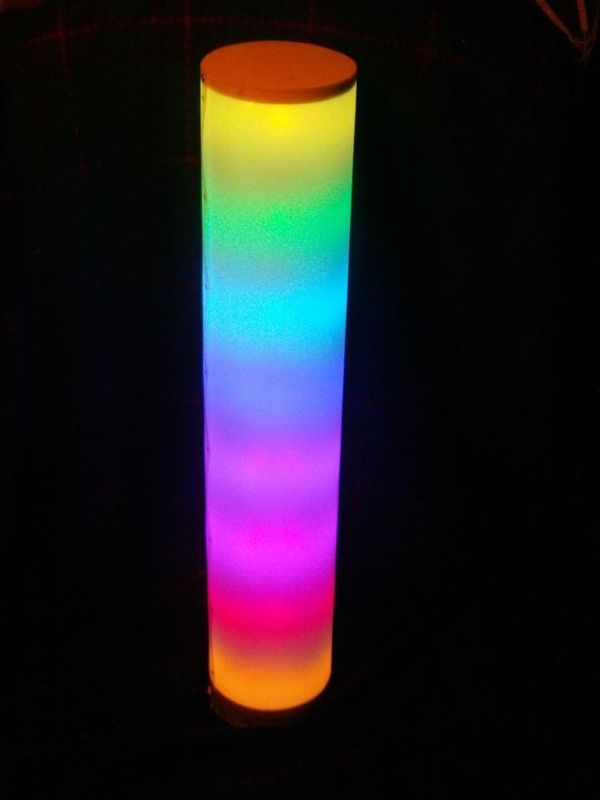
Chromation Systems RGB LED Tube Light
This device contains 8 groups of 2 segments(6 RGB LEDs) of 12v RGB LED Strip spaced out on a 2″ ID white PVC pipe, encircled in a 6″ diameter tube of white/cloudy plastic. Supported by two 6″ plywood discs. Its fairly simple and creates very eye catching effects. A favorite of everyone who sees it.

Electronic Kits including a 24 Channel High Current USB LED Controller Kit, 16 sections of 12v RGB LED StripDual-Voltage 12v & 5v PSU with Panel mount DC jack, and all the required Wire, is available for purchase. RGB LED Tube Light, 8 Channel , Electronics Kit

Or get a Full kit, with all the required electronics, the PVC Pipe, the Plastic Sheeting, the end caps all ready to use. RGB LED Tube Light, 8 Channel, Full Kit

Step 1: Supplies & Tools

Major Components in Project

Kits with all the electronic parts, including: 24 Channel High Current LED Controller Kit, 16 sections(3 RGB LEDs per) of 12v RGB LED strip, Dual-Voltage PSU with Panel mount DC jack, and Wire Can be Found in The Store

Or get a Full kit, with all the electronic parts listed above, the PVC pipe, the Plastic Sheeting, the end caps ready to use. Find it Here

Electronic Parts:

Power Supply: There are some options here, but you need at least 12v @ 1A and 5v @ 500ma

  1. Dual PSU with 12v @ 1A and 5v @ 500ma Power Supply(included with the full kit) Like This One
  2. 12v PSU @ 2A or more and a 5v step-down circuit or a DC/DC Converter

Hardware Parts:

  • 2″ ID PVC Pipe, white is best, got it from Home Depot, 10ft for ~$6, cut to 30.5″ if following exactly, otherwise measure!
  • 2x 1/2″ thick, 6″ Diameter Plywood disc endcaps
  • 32″ x 19.25″ x 50mil thick, HDPE Cloudy Plastic Sheet**
  • 1/8th Pope Rivets, I used white ones.
  • White Spray Paint
  • Aluminum Tape, or adhesive reflective film.

** This might be hard to find, I bought some 48″x24″ sheets through a wholesale distributor. I have no idea where else it could be found.
There are many things that could be utilized, such as semi-translucent paper(rice paper?) or some other type of plastic.

Tools:

  • Jigsaw or bandsaw
  • Sander or Sandpaper
  • Soldering Iron
  • Power Drill or Drill Press
  • Razor or Rotary cutter to cut the plastic sheeting.
  • Sizzors
  • Pop Rivet Gun and Rivets(I used white ones)

Step 2: Prepare the Pipe

Prepare the Pipe

Skeleton: A 2″ ID PVC pipe with an OD of about 2.35″ was used for support. Two segments of RGB Light strip can be cut so they butt together perfectly when wrapped on the outside of the tube. Two types of end caps are attached to the ends of the pipe that the plastic will be wrapped onto. The pipe’s length is less than the overall length so a space can be left for the controller and for the end caps. Allow 1″ for the controller, and one of the end caps will allow the pipe to recess into it, so it will be about 0.25″ deep. 32″ total light = 30.5″ pipe

  • Cut the pipe to length, try to get the cut end straight as possible, the pipe should be able to stand on one of the ends by itself.

Prepare the Pipe:

  • Find the flattest end of the pipe, that will be End Cap 2, the other end will be the controller end, mark it with a C or something.
  • Clean off the pipe with some soapy water, rubbing alchohol or other cleaner/degreaser
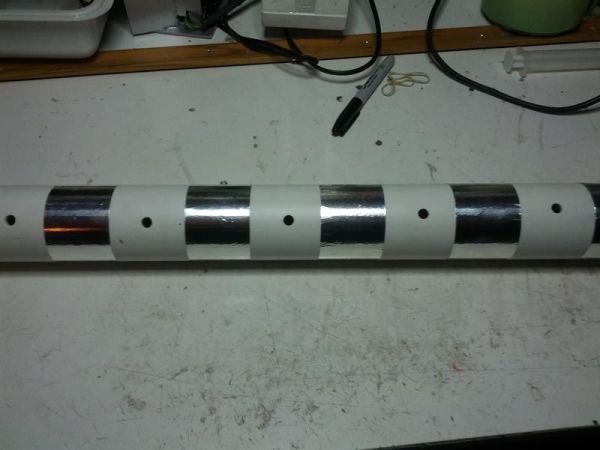
  • Mark the LED strip spacing with a sharpie, see the diagram for details
  • Cut 8 pieces of 8″ aluminum tape
  • Apply the tape on center to your spacing marksDrill a 1/4″ – 3/16″ hole in between the tape, 7 holes total

LED Strip:

  • Either Re mark the LED strip positions, or you will have to guess to place it.
  • Cut off 2 sections of RGB LED strip
  • Wrap it around, on the center of each piece of tape. Some brands can be cut and the ends will butt up to each other, but on other brands that are a bit to long, wrap the LED strip at a slight angle.
  • Apply all 8 sections of RGB LED Strip and press them down firmly.

Step 3: Wiring the LED Strip

Run Anode Wires: Each LED strip’s “+” or +12v lines need to be all connected in parallel(all share) and connected to the +12v input from the power supply jack.

  • Using some black or white wire(any color other than Red, Green or Blue) start connecting all the “+” positions on all 8 sections of LED strip together. Keep the wire tight, don’t let them have to much slack. Make sure the solder connections are good, shiny not dull.

RGB Line Wiring: Simple enough run wires from the RGB postions on the LED strips down to the end with the controller.

  • Starting from the hole in the pipe closest to the controller.
  • Feed down some 3 conductor RGB wire, until it comes out the end. Stiff wire can be pushed down, but other wire may need to be fed with a tool such as the bolt-grabber pictured, or some other method.
  • Have the wire hang out the end at least 4″, so there will be slack to connect them to the controller
  • From the hole where the wire was fed down from, pull the wire tight (so you still have 4″ out the end) and position it over to it’s LED strips solder pads, and cut all 3 strands.
  • Strip those ends and solder them to the LED strip
  • Label the wire channel 1 – 8
  • Repeat, running 8 sets of wires down the pipe to the controller.

Final Anode Wires: It is recommended to run 2 different anode wires to supply the +12v from the power supply jack.

  • From the top most hole, run a wire down to the controller end, leave 4″ or so and cut
  • Solder that wire to on of the LED strips anodes.
  • Repeat with another wire, but run it to on of the LED strips closer the controller

Step 4: End Caps

End Caps:

  • Layout and rough cut with a jigsaw, bandsaw or handsaw, two plywood discs 6″ in diameter
  • Finish the discs so they are as round as possible, use disc sanders, files and sand paper to do this
  • One disc gets a 2.36″(the OD of the pipe) diameter circle cut out of the middle using a 2.25″ hole saw, this is End Cap 1
  • The other is left as it is, End Cap 2
  • Paint both discs white, make sure to get the sides well. Painting the sides white will help hide them when the device is lit.

Finish the End Caps:

  • End Cap 2 Needs to get attached to the far end from the controller onto the pipe.
  • Either use a 2 1/4″ hole saw on some 5/8″ MDF to get a circle, and glue it on center to End Cap 2.
  • Or bolt a small block of wood inside the pipe so it sits flush to the end of the pipe, to have something to screw into from the end.

Make Faux Bottom: The fake bottom(end cap) is made out of 125mil polystyrene, but acrylic or hardboard could be substituted.

  • Cut out of 6″ diameter disc.
  • The plastic end cap and End Cap 1 need to have 3 holes drilled at the same time so they line up, these will be used to conceal the controller in the end compartment.
  • Place the plastic disc on top of End Cap 1, line them up
  • Mark 3 evenly spaced holes, 1/4″ in from the edge around the outer edge
  • Drill a 1/16″ or so hole through the faux bottom into End Cap 1(doesn’t need to go through)
  • Pick the best side and counter sink the holes on the faux bottom.

Attach End Caps:

  • End Cap 2(with the circle of MDF) goes on end farthest from the controller, seat it all the way down.
  • Drill 3 holes through the PVC pipe into MDF circle, and screw in with small coarse threaded screws.
  • Depending on the hole drilled through End Cap 1, you may need to apply some electrical tape to the pipe so that it will be snug when its attached. Loosely twist it as you wrap to make it thicker then wrap it once over normally.


For more detail: Chromation Systems RGB LED Tube Light

The post Chromation Systems RGB LED Tube Light appeared first on PIC Microcontroller.

PIC 12F675 Microcontroller Tutorial.

$
0
0
A tutorial on the 12F675 PIC microcontroller which shows you how to program and use it with a series of projects starting out with a simple LED flasher and progressing on to more advanced projects.To use the tutorial files you need to have a PIC programmer with an ICSP output connector and the components shown in each tutorial. You don’t have to install the compiler as hex file is contained in the downloadable zip file. If you do want to re-compile the source code the compiler is free for the small amounts of code used here as they all generate hex output files that are below the 2k limit.
PIC 12F675 Microcontroller Tutorial12F675

The 12F675 microcontroller is packaged in an 8 pin chip and even though it is tiny it is packed with peripherals. It even has a 10bit ADC built in (this is the same ADC that you can find on the 16F877A and 16F88 used elsewhere on this site). So learning about this peripheral is also useful for these other parts.  The 12F675 has 1024 words of program memory, 64 Bytes of RAM and 128 Bytes of EEPROM, an internal oscillator, timers an ADC and a comparator.

12F675 Microcontroller Features

The following bubble diagram shows the major peripherals and features of the 12F675 in a visual format:

12F675 Microcontroller Programming

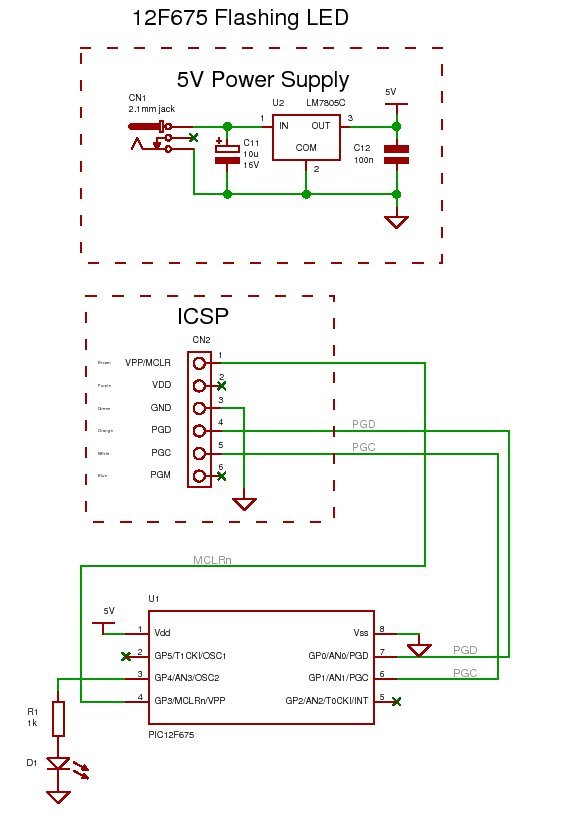
You can program the microcontroller using an ICSP programmer (you can use it for any PIC chip). ICSP connections are shown in the diagram below.
To use it you will need software running on the PC : ICPROG.  This lets you flash the hex file generated by the compiler into the 12F675

PIC 12F675 Microcontroller Tutorial schematic12F675 Microcontroller Power Supply

If you don’t have a bench power supply then you should use the following standard circuit. All you will need is a wall power supply block with dc output (greater than 8V and no more than 35V) or a 9V battery to plug into CN1.  You would not want to use that high voltage for very long if using reasonable current as the 7805 would have to get rid of the excess power as heat.  Say you used 100mA dropping 35V to 5V gives P=VxI = 30 *0.1 = 3W – a huge power output – the 7805 would get very hot and go into thermal shutdown!


Current Project / Post can also be found using:

  • led based projects pdf

The post PIC 12F675 Microcontroller Tutorial. appeared first on PIC Microcontroller.
Cooper Bills (csb88) and Anish Borkar (ab673)

$
0
0

Introduction

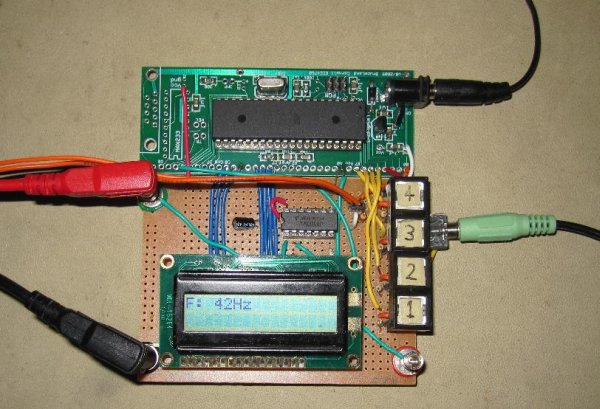
The Handy Lab Buddy is a tool every ECE should have. The four features of this tool include a talking voltmeter, logic probe, voltage averager, and frequency measurer. As a cheap and accurate device that outputs whatever being measured through speakers, it’s one of its kind and an essential tool for lab work.

Summary

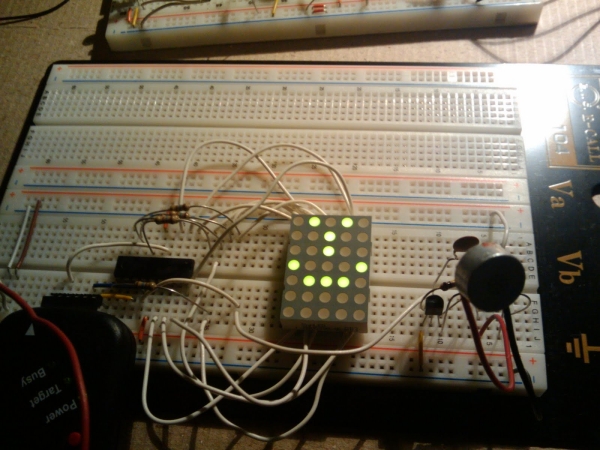
Have you ever tried to debug a circuit and just wished your voltmeter would talk to you? Or have you ever been too lazy to turn on and calibrate the oscilloscope to measure the frequency? Well, this is the device for you. There are four operating modes of the Handy Lab Buddy. The first mode is a voltmeter that measures voltages up to 5V and says the voltage measured through speakers. The second mode is a logic probe that beeps once in a low tone if the output voltage is low and beeps twice in a higher tone if the output voltage is high. The third mode, a feature unique to this device, is a voltage averager that takes multiple samples in succession (perhaps a noisy voltage signal) and calculates the max, min, and mean voltage and speaks the values over a speaker. The fourth and final mode measures frequency with great accuracy from about 10 Hz to 100 kHz and speaks the value over a speaker. A device capable of all these functions and a “talking” ability at a very cheap cost is not available in the market today and is very useful to the ordinary engineer not wanting to invest in an oscilloscope. As very enthusiastic electrical engineers, we decided to build this device – simply for our own benefit, as it helps tremendously when debugging circuits.

We used quite a few features of the Atmel Mega644 MCU to implement this system, such as speech generation and output, multiple ADC conversions, the output of the pulse width modulator (PWM), and some others.Cooper Bills csb88 and Anish Borkar ab673

High Level Design

Rationale and Sources:

In all honesty, this was a secondary project idea for us, originally suggested by Bruce Land. Our original project idea, the Electronic Dartboard (discussed later), had tremendous problems with the hardware in the later weeks of the design cycle that forced us to abandon it. As our working efficiency and debugging experience increased dramatically in those frustrating few weeks, we managed to start and finish this new project within the final days of the semester.

Background Math:

The first big challenge for us was to get sound bites from AT&T and convert them for appropriate use for the MCU. Using the speech generation document by Bruce Land, we utilized his MATLAB programs to downsample from 16 kHz to 8 kHz and create header C files. The compression used in the MATLAB program was a differential pulse-code modulation (DPCM) with a 4:1 compression which sends 2:1 derivative samples.

To calculate the voltage generated, we had to use the built-in analog to digital converter in the MCU. Simple bit conversions were done, and we had to divide the 10-bit digital voltage output by 1024 over VREF (5V) to get a floating point value for the voltage. For the logic probe, the same thing was done, except an additional comparison was made to a threshold. The third feature, calculating the min, max, and average of samples of voltages, used pretty much the same principle as above except used additional variables to store the previous mean, min, max and sample number of samples. Frequency is measured using an elegant combination of software and hardware. Our frequency hardware first filters out the DC component of any input, then reapplies a DC bias, resulting in an AC waveform around the biasing point of our high frequency inverter. The output of this inverter is then stabilized. The final wave is thus a clean square wave, which is then used to trigger the external interrupt on the microcontroller. The software then responds to the interrupt, first synching the timers to the waveform, then measuring the the period of the waveform. Finally, the period is converted into frequency. Using this method, we can reliably measure frequencies from 10Hz to 100,000kHz.

There were two ISRs, one of them controlled the part of the speech played using a table, based on a timer, and the other, an external interrupt, controls triggers when to measure the time elapsed from the previous trigger, to measure frequency.

The user-interface of the Handy Lab Buddy is as demonstrated above. In the first two modes, after the analog voltage measurement is done, the signal needs to only go through an ADC before output to the LCD and to the speakers. For mode three, the voltage averager, the user presses the button on the probe when he/she is ready to take samples, then releases it to stop taking samples. The display shows the final output and it is automatically spoken. The fourth mode, frequency measurment, the user first has to change the banana plug connection to the frequency measurement pin (because of circuit isolation, described later in detail), then the signal passes through an inverter circuit to digitize the analog signal, which then triggers the external frequency ISR on the microcontroller (described later). After measurement in software, it is outputted onto the LCD and speakers. The four buttons that determine the modes are operated by a basic debounce state machine.

Hardware/Software Tradeoffs:

The biggest tradeoff during this design project was our decision to completely scrap our original idea and use this one. Our original idea was to create an Electronic Dartboard, where a player would draw concentric circles on a whiteboard, a infrared camera (removed form a WiiMote) would then be calibrated to the circles and display them on an LCD. Then, the user would “shoot” an IR dart (laser) at the whiteboard, which the WiiMote camera would have picked up and drawn the location on the LCD. However, the WiiMote IR camera was not reliable enough outside of it’s original controller. On top of that, we concluded the large LCD we were planning to use was fried after much testing. We worked on these getting these two hardware components to work by going to lab a lot of extra times overthree weeks to no avail. Thus, due to faulty hardware and being incredibly pressed for time, we decided to switch to this project, which our professor had initially suggested in class. In retrospect, we’re glad we made that decision, as we were able to come out with a complete, working product in a short span of time. The detailed schematics and code for the old project are described later.

One tradeoff we faced was during the design of our frequency measurer. We wondered how to calculate the frequency. One way of doing it was to use an Fast Fourier Transform algorithm as linked on the course website. However, we realized that the DFT/FFT would take up too much processing power and memory because of the look up tables. Besides, our frequency measurement only needs to measure the most prominent frequency, and the DFT/FFT would be doing unnecessary computation. Thus, we decided to take more of a hardware based approach, by digitizing the signal by passing it through an inverter, then using an interrupt to calculate the frequency.

Relationship to Standards:

There were no relevant IEEE, ISO, ANSI, or DIN standards related to this project.

Existing Patents, Copyrights, Trademarks:

There were no existing patents or trademarks associated with our project. We did utilize Bruce Land’s code for the implementation of the LCD and drivers, and his MATLAB code for converting .wav files from TextToSpeech to .h files.Cooper Bills csb88 and Anish Borkar ab673 schematic

Project Design

Hardware Design:

The hardware design for the Handy Lab Buddy was rather simple. To program the Atmel ATMega644 Microcontroller, the STK500 development board was used. The Mega644 MCU was then put on the Custom PC Board, provided by the lab. Soldering components onto the PC Board had to be done with careful precision, as the pins were small and very compactly laid out.

Our other significant pieces of hardware in this project were the 2-line LCD display in lab, the 4 buttons, a speaker, an inverter, and probes (with another button). The overall interfacing of the MCU with the rest of the hardware is shown below in the schematic.

Buttons

Buttons 1-4 were connected to port B7 to B4 (respectively) of the MCU. The top pin was grounded, while each of the other pins had a 10kΩ connected to Vcc. The resistor was needed there because when a button is pressed, the wire is shorted – to prevent this a resistor was placed there. These buttons operated on a debounce state machine, described later in the Software Design section.

Another button was used as an interface for the voice output . This was also connected to a 10kΩ resistor to Vcc, and to port B0. When this button was pressed, depending on what mode the system was in, the system would speak whatever was on the LCD screen.

Frequency, Inverter, and Protector Circuit:

If a signal was to be measured for it’s frequency, it needed to go through a circuit first to be processed. First of all, the diode/resistor connected to Vcc in the schematic was just to protect the MCU port A0 from being fried in case a voltage greater than 5V is fed into port A0. The signal picked up by the probe goes through a 0.4uF total capcitance array to filter out DC values, then gets DC shifted by the voltage divider, before going through the inverter to shift the center voltage of the signal. The purpose of the inverter is to output a square wave from any periodic signal given. There were a few ways of accomplishing this, one using an inverter or another using a Schmitt Trigger op amp circuit. We chose the inverter because there was no analog circuitry to worry about. Thus, the “analog” wave gets converted to a digital wave, as it converts every point on the wave below the 2.5V threshold to a logic 0 and above the threshold to a logic 1. The output of this input is then stabilized by two 22 pF capacitors. The final wave going into port D3 is a clean square wave used to trigger the external interrupt of the microcontroller.

Speakers:

The speakers are not shown in the schematic. They were simply connected via a headphone jack from port B3 (output of the PWM) to ground.

Liquid Crystal Display:

The LCD used in this project was simply the 16-pin LCD used in ECE 4760 Spring 2010 Lab 1. The pin assignments are as in the schematic.

Microcontroller Operation:

The Atmel ATMega644 microcontroller was the control module of the device. Port A0 was the ADC used to implement the first three modes. Port D3 was used to implement the frequency mode. Port B0 was the button on the probe, that made the speaker output a voice signal, which was coming from port B3. Ports C0-C2 and C4-C7 were used for the LCD. The diagram shows how the microcontroller was laid out on the custom PCB board. The photograph after the probes section shows the completed target board connected to the rest of the circuit. Two 1 uF capacitors were also used to connect Vcc and Gnd to remove any external noise in the circuit as a whole.

For more detail:  Cooper Bills (csb88) and Anish Borkar (ab673)

The post Cooper Bills (csb88) and Anish Borkar (ab673) appeared first on PIC Microcontroller.
PIC16F877A timer0 code + Proteus simulation

$
0
0

This PIC16F877A microcontroller tutorial answers the question,
” How to use timer0 of PIC16F877A and how to handle its interrupts? “

Using PIC16 simulator (Proteus) you can verify this PIC timer0 code and change it according to your needs. This code is written in C language using MPLAB with HI-TECH C compiler. You can download this code from the ‘Downloads‘ section at the bottom of this page.

It is assumed that you know how to blink an LED with PIC16F877A microcontroller. If you don’t then please read this page first, before proceeding with this article.

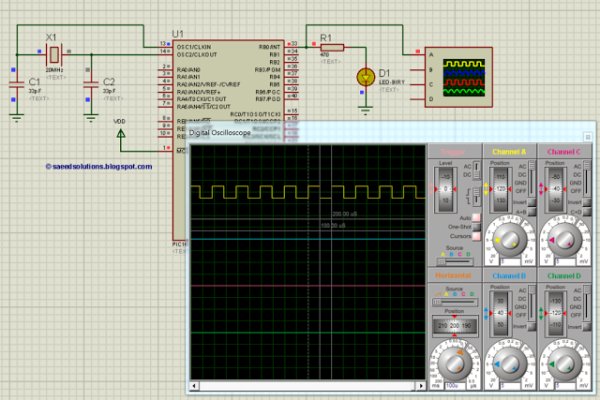
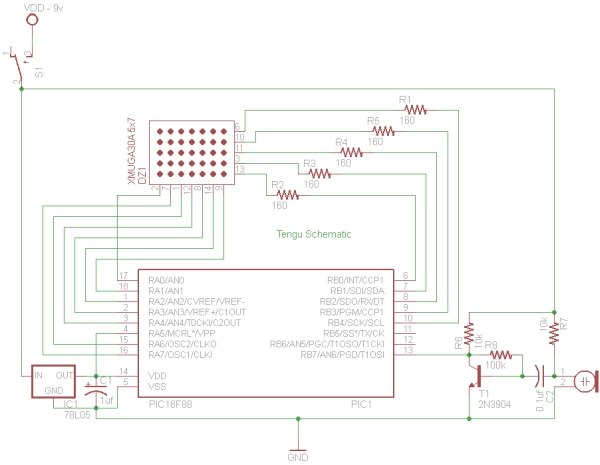
The following diagram (made in Proteus) shows the PIC microcontroller circuit diagram.

PIC16F877A timer0 code + Proteus simulation

In this circuit, PIC16F877A is running on external crystal of 20MHz value. RB0 pin is toggled every time timer0 expires and executes it’s ISR[1] code. In the above figure, it is clear that after approximately every 100usec, RB0 pin is toggled i-e timer0 expires. You can easily change this value in the code.

Code

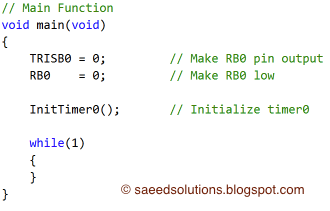
The main function code is shown below.

Main function for timer0 of PIC16F877A

In the main function, firstly TRISB0 is made zero to make RB0 pin an output pin, also RB0 pin is made zero. After that, InitTimer0() function is called which initializes timer0. Rest of the work is done in timer0 interrupt service routine. Every time timer0 expires RB0 pin is toggled.

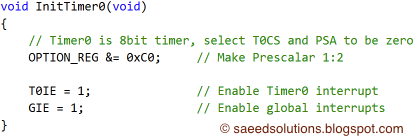
The code used to initialize timer0 is shown below.

InitTimer0 function code for PIC16F877A
  In this function, OPTION_REG is initialized to make timer0 prescalar to be 1:2. Timer0 is an 8bit timer, so it expires after reaching a value of 255. When timer0 prescalar is made 1:2 then it means that timer0 value will increment after every two clock cycles. Since PIC16F877 is running at 5MIPS[2] speed, this means that timer0 will expire after every 256*2/5 = 102 usec[3]. T0IE bit enables timer0 interrupts and GIE bit enables global interrupts.

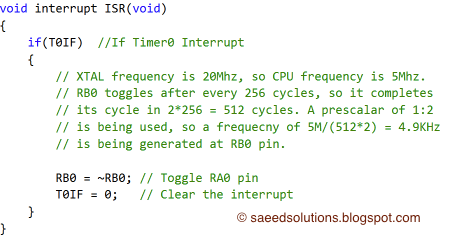
PIC16F877A timer0 code + Proteus simulation schematicTimer0 interrupt service routine code is shown below.

Timer0 interrupt service routine
  Whenever timer0 expires, then an interrupt is generated which executes the function shown above in the Figure 4. In this function, RB0 pin is toggled every time and timer0 interrupt flag is cleared. This means that in Figure 1 when ever RB0 pin toggles than timer0 interrupt has occurred.

This is just an example code for timer0 of PIC16F877A microcontroller. You can modify it to fulfill your circuit requirements.


For more detail: PIC16F877A timer0 code + Proteus simulation

The post PIC16F877A timer0 code + Proteus simulation appeared first on PIC Microcontroller.
How to take input with PIC18F4550 Microcontroller

$
0
0

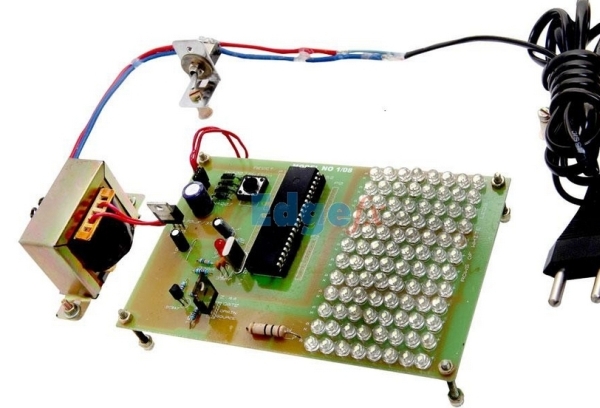
Any microcontroller based system typically has an input and a corresponding output. Taking simple output with a PIC microcontroller has been explained in LED blinking with PIC18F4550. This article explains how to provide an input to the controller and get a corresponding output using PIC18F4550.

PIC18F4550 has a total of 35 I/O (input-output) pins which are distributed among 5 Ports. Each Port of a PIC microcontroller corresponds to three 8-bit registers (TRIS, PORT & LAT) which should be configured to use the Port for general I/O purpose. For more details, refer LED blinking using PIC.

 LED-Switch
To configure a particular port/pin as input, the corresponding TRIS register/TRIS bit should be set to high (1). For output, the relevant TRIS register/bit should be set to low (0).
For example, for PortD
·         To set the entire PortD as input
TRISD
Bit 7
Bit 6
Bit 5
Bit 4
Bit 3
Bit 2
Bit 1
Bit 0
Value
1
1
1
1
1
1
1
1
 
·         To set only 3rd pin (RD2) of PortD as input
TRISD
Bit 7
Bit 6
Bit 5
Bit 4
Bit 3
Bit 2
Bit 1
Bit 0
Value
1
 

·         To set  1st pin (RD0) as output and 4th pin (RD3) of PortD as input


For more detail: How to take input with PIC18F4550 Microcontroller

Current Project / Post can also be found using:

  • different led programs on pic controller
  • Led and pic mcu
  • led based microcontroller project
  • pic microcontroller application led flasher

The post How to take input with PIC18F4550 Microcontroller appeared first on PIC Microcontroller.
Viewing all 387 articles
Browse latest View live


<script src="https://jsc.adskeeper.com/r/s/rssing.com.1596347.js" async> </script>