Quantcast
Channel: LED Projects - PIC Microcontroller
Viewing all 387 articles
Browse latest View live

Electronic Die using PIC16F84 microcontroller

$
0
0

Built using a PIC16F84, about 4 hours worth of code and a few bits on a breadboard. This was the first time I’ve worked with PIC’s so it was a learning exercise. I started with the ‘Hello World’ microcontroller equivalent i.e.  Blinking LED, then tried the ‘Knight Rider’ sequencing LEDs, and then hacked this together. The code is written and assembled using the Microchip MPLAP IDE V5.70.  I only did this as an exercise to familiarise myself with PIC assembler, but having got it working I decided I wanted it smaller and as I had just acquired some 12F675s I took the original 16F84 code and developed it further to work with the 12F675.

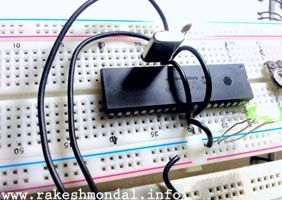
bread board


For those of you who don’t know, and to save you the trouble of sending me an email to point out your  ignorance, dice is the plural of die see here

LED die using PIC16F84 Die on bread board, and Programmer (the neat PCB to left) with Die breadboard foreground and my circa 1985 Computer PSU, modified to get supply for PIC programmer. The assembler code was written to work, not as an example I’m afraid, so no apologies for the quality.  I  haven’t done any further work with this since I decided the 8pin PIC12F675 was better suited for building a miniature die.  You should also note that if you do build a die using the 16F84 code below it is flawed in that it throws with unequal probability. 

LED die using PIC12F675. Starting with the 16F84 code above I’ve modified and developed it further to run on an 8 pin 12F675 device.  This device has an internal 4Mhz oscillator so it needs no external support components and results in this minimum part die. I got this PIC for £0.99p so I reckon you can build the whole thing for about £2.50.  You don’t need a power switch since the PIC ‘sleeps’ between throws and uses just a few micro Amps in this state.

  • PCB Artwork
    Three months after I built these prototypes I finally got round to producing a PCB for the die.  The artwork is available from the link below.  Rather than using discrete resistors the PCB layout uses a 9 pin 270R SIL resistor pack (Actually only needs an 8 pin one, the PCB will accommodate either).  When you fit the button cell battery holder, check to make sure it doesn’t short out any of the component leads behind it.  You do need to use high efficiency LEDs with this otherwise they won’t be bright enough and if you increase the current by reducing the value of the resistor pack it will impact on battery life.

The artwork above is the second revision of the PCB.  The photo’s below show the die built on the first PCB version I did. This is pretty much identical to the second, I just manually tweaked some of the auto routed tracks and removed the connector for an external power connector.
Top image. Bottom image

  • Operation
    When the die first starts after power is applied it initialise the device and then goes to sleep until the SW1 ‘roll’ button is pressed.  While the button is pressed the display is blank. On releasing the button the LEDs ‘spin’ for about 5 seconds. The ‘throw’ is then display for 20 seconds at the end of which the LEDs fade down and turn off over about 2 seconds.  If the throw button is pressed during this time, the die throws again, otherwise after 22 seconds the die goes back to sleep.  I’ve built four of these die, all running from CR2032 3V lithium cells.  One of these which I keep on my desk is still working on the original battery after 15 months.

Here’s an Ultra Small Die that I’ve built using a 12F675.  This would be ideal for a surface mount design but I haven’t gone that far with it.  This is built on an tiny bit of strip board, with some careful assembly and creative use of a baked bean can I’ve got down to the size of a 50 pence piece. 

  • Front View,
  • Rear View before attaching battery holder
  • Completed with battery holder attached (made from lid of Baked Bean can) attached. 
  • Third one with SM battery holder, PIC soldered directly into circuit.


For more detail: Electronic Die using PIC16F84 microcontroller

The post Electronic Die using PIC16F84 microcontroller appeared first on PIC Microcontroller.


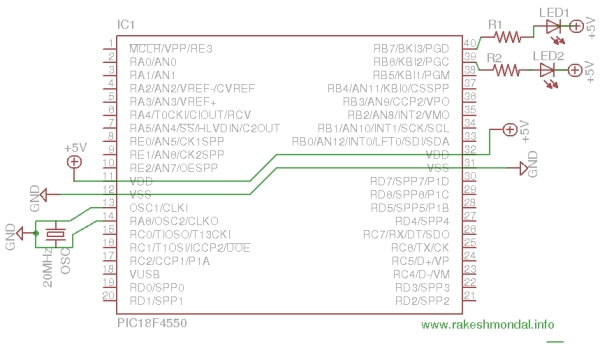
How to interface LEDs with PIC18F4550 Microcontroller

$
0
0

It is necessary to understand basic I/O operations of PIC18F4550 before dealing with its complexities. This article presents a way to take simple output from a PIC microcontroller. This learning would also help in interfacing of external devices with the controller. Here the output from the microcontroller is taken on a set of LEDs which are made to blink in an alternate fashion.

Interfacing-LED-with-PIC

PIC18F4550 has a total of 35 I/O (input-output) pins which are distributed among 5 Ports. The following table shows the names and numbers of I/O pins of these 5 ports:

Port Name
Number of Pins
Pins
PORTA
7
RA0-RA6
PORTB
8
RB0-RB7
PORTC
7
RC0-RC2, RC4-RC7
PORTD
8
RD0-RD7
PORTE
4
RE0-RE3
As opposed to a basic 8051 microcontroller like AT89C51 which has most of the port pins serving single function, the port pins of a PIC microcontroller are multiplexed to serve more than one purpose.
The 35 I/O pins of PIC18F4550 are also multiplexed with one or more alternative functions of controller’s various peripherals. Each Port of a PIC microcontroller corresponds to three 8-bit registers which should be configured to use the Port for general I/O purpose. These registers are:
1.            TRISx: This is a data direction register which sets the direction of each port pin as input or output.
2.            PORTx: This register stores the input level of pins (High or Low). When a pin configured as input, the input signal from external source is read from PORTx register.
3.            LATx: This is output latch register. The data which has to be sent to external hardware as output is stored in LATx register.
Port Description:
PORTA:
PortA has 7 pins which can be used as both input as well as output pin. The 7th bit is missing from all the three registers. The input and output given to this port are of 8-bit but the 8th bit is internally masked.
Bit 7
Bit 6
Bit 5
Bit 4
Bit 3
Bit 2
Bit 1
Bit 0
TRISA
-
TRISA6
TRISA5
TRISA4
TRISA3
TRISA2
TRISA1
TRISA0
PORTA
-
RA6
RA5
RA4
RA3
RA2
RA1
RA0
LATA
-
LATA6
LATA5
LATA4
LATA3
LATA2
LATA1
LATA0
PORTB:
PortB has 8 pins which can all be used for both input and output operation.
Bit 7
Bit 6
Bit 5
Bit 4
Bit 3
Bit 2
Bit 1
Bit 0
TRISB
TRISB7
TRISB6
TRISB5
TRISB4
TRISB3
TRISB2
TRISB1
TRISB0
PORTB
RB7
RB6
RB5
RB4
RB3
RB2
RB1
RB0
LATB
LATB7
LATB6
LATB5
LATB4
LATB3
LATB2
LATB1
LATB0
PORTC:
PortC has 7 I/O pins. In PortC, Bit 3 is missing in hardware and Pins 4 & 5 can only be used as input pins. There are no 4th & 5th latch bits in LATC register, so these bits are internally masked during 8-bit write operation on PortC.

The post How to interface LEDs with PIC18F4550 Microcontroller appeared first on PIC Microcontroller.

SKY WRITER using PIC12F629 Microcontroller

$
0
0

We have seen many projects using a set of LEDs to produce words “in the air,” but none have the clever feature we have included.
Most of the projects are “shaken in the air” and produce messages that are “all over the place.” But if the words are jumping they are difficult to read.
Our project solves this. It produces words that re-appear in the same position so they are easy to read.

SKY WRITER

The secret is called REGISTRATION.
Our design detects the start of the sweep and starts to display the letters.
This is due to the inclusion of a switch called an INERTIA SWITCH that detects rapid deceleration and starts the display. More about this later.

THE CIRCUIT
The circuit is very simple. All the work is done by the micro. We have produced two different prototypes to show the effect using surface-mount LEDs and super high-bright white LEDs with two LEDs per output and this is really effective.  

THE INERTIA SWITCH
There are two types of inertia switch. One is a weight on a spring and the other is a ball riding up an incline.
We have used both and they work equally-well and it’s just a matter of which type you want to use.

To make the inertia switch yourself, it is a small ferrule on a wire. A length of tinned copper wire wound around it and pulled tight and acts as a spring to keep the contacts open.  These contacts are connected to pin 4 of the microcontroller.
You can check the operation of this switch by connecting a LED and resistor to the supply and waving the PC board. You will find the LED illuminates at almost the exact same place “in space” making it an ideal registration-mark for aligning the words.
Once you have a reliable starting-point for creating the display, you can make almost any effect using the 5 LEDs. There are almost no limits as the display can be 100 or more pixels long, and 5 pixels high.
You can change the wording and add more features. To do this you need a programmer and software. For details on this, see Pick A PIC Project.

The table we have used in the program occupies nearly all the space available (for a table), however you can add other features by studying some of our other projects.

The circuit has two super high-bright LEDs on each output to give a very impressive display. The “inertia switch is shown as the blue rectangular component. It has a ball-bearing that hits both the top and bottom conductors (without jamming) when the ball rolls in one direction. The plastic molding prevents the ball touching both conductors when it rolls in the opposite direction.


For more detail: SKY WRITER using PIC12F629 Microcontroller

The post SKY WRITER using PIC12F629 Microcontroller appeared first on PIC Microcontroller.

12 DIGIT RUNNING SIGN using PIC16F628

$
0
0

It’s 1970 and a 12 digit LED Display for pocket calculators has just been released.
Nation Semiconductors are in the forefront of designing miniature displays for calculators and have a range from 2-digit to 16-digit displays.
The actual 7-segment displays are so small it takes a bubble magnifier in front of the LEDs to see the digits. We have used one of these in this project.

Fast forward to 2011. These displays are now obsolete and we can find them in surplus stores for a few dollars.
In this project we use one to produce a LED display. It has two features. The characters can be static or “running” and the display can be seen at night.

12 DIGIT RUNNING SIGN

HOW THE CIRCUIT WORKS
The circuit consists of a number of “Building Blocks.”
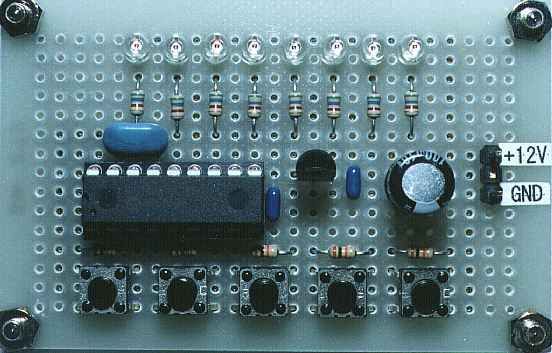
The main blocks are the LED display, the micro, the 4017 IC and the 5-buttons.

The display is scanned (multiplexed) but not in the normal way.
Normally the segments are accessed and the common cathode for the first display is turned on to produce a run-of-12 and each display would get 8% of the total time.
In other words the digits are illuminated from left-to-right and this is done quickly so that they all appear to be lit at the same time.
But we can improve on this by a factor of 50% by connecting all segment A’s together, all B segments together etc and take all the cathodes to 0v rail via separate lines. In this way we can access the segments via a run-of-eight and provide 12% illumination for each segment. This will result in a brighter display.
This is how the display is configured internally and how the display is intended to be accessed.
In this method of driving the display, only one segment of each digit is turned on at any time and this means the “common” only requires about 25mA “sinking capability.” This requirement can be handled via the micro, while the emitter-follower from the 4017 drives all 12 segments (such as segment “A”) at the same time.
We supply 25mA (actually sink 25mA) via the micro but when this is divided by a run-of-eight, the average current is only 3mA to each segment. However this is sufficient to produce a bright display.
The 4017 must be synchronised with the data being delivered to the display from the micro, otherwise the wrong segments will be illuminated and the correct image will not appear.
Synchronisation is done by monitoring “output 8″ – the 9th output of the 4017 IC and when it is high, we can clock the 4017 to the first output, ready for the start of the scanning routine.
The 4017 is a “shifting chip” in which one output of the 10 is HIGH at a time. We use this to access the 8 segments and the 9th output is taken to the micro to produce co-ordination between the two chips.
The 5 keys on a single input/output line is polled for activity by calling the Sw sub-routine and if a button is pressed, the program goes to the sub-routine associated with the button.
To find which key has been pressed, a 100n capacitor is charged via output RA6 of the micro. The line is then turned into an input and polled to see if the capacitor discharges. If one of the buttons is pressed it will get discharged before a 20mS time-interval and the routine knows a button is pressed.
The capacitor is now charged again and the line is turned into an input and the time taken for the capacitor to discharge, via the button being pressed, is detected.
The resistor values have been chosen to produce different timings and the sub-routine detects the correct button.
The micro has two 8-bit ports. 4 lines from port A and 8 lines from port B have been used to take the common cathodes of each digit to 0v.
The micro will allow 25mA to flow though the common cathode of each digit and this is sufficient to produce a bright display via the multiplexing routine we have used.
All the rest of the features of this project are in the program.
The numbers and letters for the display are contained in a table and only a few of the letters are missing as they cannot be reproduced.

HOW THE PROGRAM WORKS
This program consists of sub-routines and these are placed in alphabetical order so they can be easily located when working on the program.
All the code was created and tested by creating one sub-routine at a time and if a problem develops, you can add a halt instruction to the program (goto $) and see how a particular part of the code operates.
The micro starts at location 000 and carries out the Start-Up routine.
It then goes to Main where it finds a number of instructions to call sub-routines. One of the sub-routines is the switch or button routine where it checks to see if a button has been pressed.
The most difficult code to generate was the timing for the 5 buttons.
We had to work out the timing (delay value) and resistor value for each button. We created a sub-routine where button 1 turned on segment A, button 2 turned on segment B etc. We then added a 100k pot and a separate button. By turning the pot, a particular segment was illuminated. You will find this sub-routine as “Sw” in the final program. We then found the resistance where one segment turned off and the next segment turned on.  These became the limits for each segment (by measuring the resistance of the pot) and we chose a resistor mid-way between the two values.
A button can be pressed at any time and it is detected by charging a 100n capacitor while the button is pressed and measuring the time for the cap to discharge via a resistor connected to the button.
Each button has a different resistance and a loop of 2mS is executed. When a LOW is detected, a count-value is created and this corresponds to a button.

For more detail: 12 DIGIT RUNNING SIGN using PIC16F628

The post 12 DIGIT RUNNING SIGN using PIC16F628 appeared first on PIC Microcontroller.

Small 3-wheel ROBOT with PIC16F84 brain & InfraRed eyes.

$
0
0

General description

erberes is a small three wheel robot that avoids obstacles which it senses with its active infrared sensors.

Each rear wheel has its own motor, the single front wheel is not powered. The robot steers “like a tank” by rotating the rear wheels in opposite direction.

The sensors are built with infrared LEDs which are running at 36kHz and two 36 kHz remote control receiver modules.
When the 36 kHz infrared light from the LEDs is reflected by an object, one of the receiver modules will be triggered, and the PIC16F84 µController will steer the ROBOT away from the objects by reversing one of the motors.

Small 3-wheel ROBOT with PIC16F84 brain & InfraRed eyes. Mechanics

Two electric toy ducks were sacrificed for this project.
The motors, axes and axe-holders from the toy ducks are glued on a piece of circuit board which acts as a base plate.
The rotation speed of the motors is reduced by the “worm-wheel” of the motor axes which drive the cogs of the wheel axes.

The circuit is built on another piece of circuit board which is identical to the base plate.
The circuit is placed on top of the base plate.
The 3.6 Volt battery pack (from a cordless phone) is also glued to the base plate.

Circuit description

The circuit behind CERBERES can be divided in 3 parts:

  1. A double motor drive to drive two small electric motors forward / reverse / full stop.
  2. Two infrared emitters and receivers to sense objects.
  3. A “brain” which is a PIC 16F84 µController which will drive the motors in reaction to the sensor readings.

The Motor Drive circuit

Both motors are driven by an identical full bridge circuit. The circuit of Motor1 will be used to explain the functionality.
Motor1 is driven by a full bridge built with transistors Q1, Q2, Q3 and Q4.
This full bridge is able to drive the DC motor forward backward and full stop by driving the base
connections of  Q1/Q4 and Q2/Q3 as in the table below:

base Q1/Q4 base Q2/Q3 Motor1 action
0 Volt 0 Volt STOP
0 Volt 5 Volt REVERSE
5 Volt 0 Volt FORWARD
5 Volt 5 Volt STOP

The transistors are switched as “emitter followers” which results in a voltage loss of 2 x 0.6 Volts. In this case the
voltage drop was very useful because the the motors from the toy ducks were much too fast at
Cerberes’ battery voltage of 3.6Volts.

The base drive of the transistors limits the output current to about 1-2 Amps typical at 3.6Volts:
The maximum current from the PIC µController is 20mA at 5Volt , the typical Hfe of the BD43 /436 is 130;
this results in a  typical maximum current of 20mA x 130 = 2.6 Amps at 5 Volt supply.
When the low operating voltage of 3.6 V is taken into account the max PIC current is even lower: about 1-2 Ampere.

When using other transistors, take into account that a Hfe of 100 or more is required.
The motors from the toy ducks use about 1 Ampere at 2.4 Volts The battery pack has a capacity of about 300mAh
resulting in a typical operating time of about 9 minutes!

Small 3-wheel ROBOT with PIC16F84 brain & InfraRed eyes SchematicThe Infrared Sensors

In the schematic above, LM393 comparator U1A is used as a 36 kHz oscillator. The frequency is adjusted to exactly 36 kHz
with (multiturn) potentiometer P1.
U1B is a buffer which picks up he oscillator signal without influencung the frequency setting.
The signal is passed on to Q9 which switches two Infrared Leds (e.g. from a remote control) at 36 kHz.
The LM393 is used because it can operate at very low voltages down to 2 Volt , a standard opamp can not be used here!

U3 & U4 are standard SFH506 36kHz infrared receivers which are normally used yo pick up IR signals from
an IR remote control.


For more detail: Small 3-wheel ROBOT with PIC16F84 brain & InfraRed eyes. 

The post Small 3-wheel ROBOT with PIC16F84 brain & InfraRed eyes. appeared first on PIC Microcontroller.

Low cost LCD module interface with optional LED backlight using PIC18F452

$
0
0

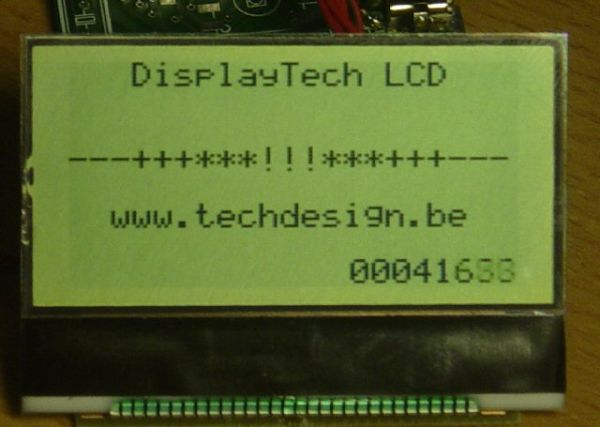
Here are the technical specifications:

  • LCD resolution: 128 x 64 pixels
  • LCD manufacturer: DisplayTech.
  • LCD model 1: 64128COG-FA-BC (no backlight)
  • LCD model 2: 64128G-FC-BW-3 (white LED backlight)
  • On-glass lcd controller KS0713, with 30 pins connector.
  • Very low power operation (less than 1mA @3V)
  • Fast serial interface (only 8 wires needed)
  • Molex miniature connector.
  • LCD: dimensions: 56 x 41 mm
  • PCB interface: Dimensions: 44 x 18 mm

LCD module


These two LCD modules can be bought in our online shop. You’ll need the interface described below and a PIC microcontroller to get these LCD modules running.

PIC example Source code (CCS C) , pcb layout and schematics (Eagle) available.  Last update: March 24, 2007.

PIC software example: routines

ccs routine example explanation
LCD initialization dt_lcd_init(); init parameters needed after power on
Clear screen dt_lcd_clear_screen(); resets all pixels, needed after power on
Cursor position set dt_lcd_gotoxy(0,5); goto cursur location x= 0..127 PIXEL COLUMNS // y= 0..7 CHAR. ROWS
Write text to LCD printf(dt_lcd_printchar,” DisplayTech LCD”); show simple unformatted text


Downloads: right-click & save as

Interface: Eagle PCB layout: 042 – 004.brd  – March 24, 2007.

 Interface: Eagle Schematics: 042 – 004.sch  – March 24, 2007.


 PIC CCS example: source code: 042_v01.zip for 18f452 @ 20MhZ – March 24, 2007.

 PIC CCS example:Hex file: 042_v01.hex for 18f452 @ 20MhZ – March 24, 2007.


For more detail: Low cost LCD module interface with optional LED backlight using PIC18F452


The post Low cost LCD module interface with optional LED backlight using PIC18F452 appeared first on PIC Microcontroller.

Homemade temperature LED display for PC using PIC16F876

$
0
0

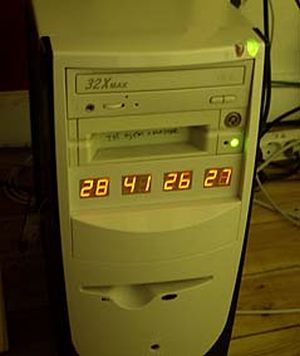
Since I started my watercooling prejoect, I have been verry interested in how well it perform,
the only way is to measure all temperatures before and after,
The motherboard temperature sensors is useless unacurate, so I’m using LM50B

temperature LED display
By using this LM50B sensor I get 1 C of real accuracy
I use a PIC16F876 to drive a four two digits LED displays, the PIC16 has 4 analog inputs with 10 bits resolution,
now I can display 4 temperatures at the same time to monitor performance :-)
I monitor CPU, Chipset, GFX card, Harddisks.

Here is the schematic good old handdrawn original..
Here is the schematic Re-Drawn Maybe you like this better :-) OK, comments for the circuit:
You can use any number of LED displays: 2, 4, 6, or all 8, depending on how many temperatures you want to display,
LED display type must me common cathode, FET can be any N-FET type you have, I have used IRF530 I had on stock,
NPN transistors can also be used if you dont have fets, then remember to mount a 1k resistor on each base inpus.
Each sensor input connector is protected using a 1k resistor, so you can connect sensors with power on,
nothing will burn if you connect it wrong.
Only calibration requred is the refference voltage, it need to be exactly 2.5600 volt, I have used a super stable regulator,
but an LM317 can also be used to make 2.56 volt with if that is what you have. DOWNLOAD The HEX file for the PIC16F876.
The 5 volt supply is taken from a free harddrive power connector, no need to regulate it, 4.8 to 5.2 will work fine.
This complete circuit with 8 all digits consume about 100mA. Good Luck.


For more detail: Homemade temperature LED display for PC using PIC16F876

The post Homemade temperature LED display for PC using PIC16F876 appeared first on PIC Microcontroller.

LED flasher using PIC16C84 Microcontroller

$
0
0

This is my first simple PIC program. It will flash an LED continuously at approximately 1Hz. It is a very simple loop that delays for 500 milliseconds (half a second) with the LED on, and then delays for 500ms with the LED off. Thus, the LED flashes at 1 Hz!

PIC LED flasher
The schematic for this circuit shows that the wiring is simple: connect a crystal oscillator across pins 15 and 16 and add the capacitors to ground. Wire a 4k7 resistor to the MCLR reset pin 4 so the PIC will reset itself at startup. Then connect the LED via a resistor to pin 17.

When a 4 Mhz cryztal is used with PIC 16C84, the LED will flash at 1 Hz.

This program is available as:

title  "Flash - Flash an LED on an off at 1Hz"

; Mark Crosbie  8/22/98
;
;  The Program simply sets up Bit 0 of Port "A" to Output and then
;  loops, setting the value alternatively low and high
;
;  Hardware Notes:
;   Reset is tied through a 4.7K Resistor to Vcc and PWRT is Enabled
;   A 220 Ohm Resistor and LED is attached to PORTA.0 and Vcc
;

  LIST P=16C84, R=DEC
  errorlevel 0,-305
  INCLUDE "P16C84.inc"

;  Registers
Temp    equ     12              ;  16 Bit Dlay Variable

 __CONFIG _CP_OFF & _WDT_OFF & _XT_OSC & _PWRTE_ON

;  Mainline of Flash
  org 0
  clrf   PORTA                  ;  Clear all the Bits in Port "a"
  clrf   STATUS
  bsf    STATUS, RP0            ;  Goto Bank 1 to set Port Direction
  bcf    TRISA, 0               ;  Set RA0 to Output
  bcf    STATUS, RP0            ;  Go back to Bank 0

Loop
  movlw 1                       ;  Turn on the LED on Port A
  movwf PORTA                   ;

  call   Dlay                   ;  Delay Before Changing Values

  movlw 0                       ;  Turn off the LED on Port A
  movwf PORTA                   ;

  call   Dlay                   ;  Delay Before Changing Values

  goto Loop

;  Dlay Routine - Delay a Half Second before Returning

For more detail: LED flasher using PIC16C84 Microcontroller

The post LED flasher using PIC16C84 Microcontroller appeared first on PIC Microcontroller.


Blink LED with XC8 compiler using external Oscillator

$
0
0

In the simple tutorial we are going to blink few simple led with PIC18F microcontroller, using an external 20MHz crystal oscillator and the ‘__Delay ()’ function of XC8 Compiler. Most of the previous tutorials here dealt with internal oscillator of pic18F4550 where mostly the delays were generated with simple for loops. However those who wish to directly use the default __delay function, it becomes an instant pain as the __Delay () function no longer accepts the variable data unlike the old C18 Compiler.

This simple tutorial is made on few requests and queries I recently received through mails, regarding the delay problems in xc8 compiler, along with configuration of the compiler directives used by pic18F4550 when it comes to using external oscillator. Hence I decided to put it together as tutorial to blink a simple led using external 20 MHZ Crystal oscillator on pic18F4550 with XC8 compiler and Mplab x ide

Blink LED with XC8 compiler using external OscillatorThe 20 MHz crystal oscillator is interfaced with two 22p capacitor as explained in the oscillator section in the pic18F4550 datasheet. Please download the latest version of datasheet for pic18F4550 from the microchip website. A 0.1u cap is also added close to microcontroller.

The basic logic is to turn the led on and then turn off by setting registers, with some good delay in-between them, enough to catch the effect by human eye. There are many ways to generate such delays, such as using delays.h, making your own delay loops, etc.

The theory goes as, if you want to use xc8 delay function then you have include delays.h as a header (preprocessor) and then include __delay_us(); or __delay_ms(); (with double underscore) anywhere you wish to include a delay, with your desired constant value of delay such as ” __delay_ms(500);” which theoretically sounds simple , unlike my methods in previous tutorials where I have always generated delays in the code with simple “for loops”, enclosed within in a function prototype, which could be called anytime you wish to generate a delay in the main() code.

However if you wish to generate the delays in the code with like c18 Compiler, then you have certain limitations with xc8 compiler such as, limit of delays value and inability to assign a variable to delay function. For example __delays_ms(a) where int a is a variable (say the value generated by an ADC ). This is not possible with the new xc8 compiler to define variable delay value “directly”.

Blink LED with XC8 compiler using external Oscillator schematicVariable delay value issue can be solved by creating a loop, and inclosing the __delay_ms or __delay_us function inside the loop. The number of cycles you would wish to call the loop with delay function in it can be a variable.

Another limitation is the value of the delay. The code I wrote below generates a delay of approximately 200ms, where for 20 MHz I have defined _XTAL_FREQ 20000000UL. Please note that XTAL_FREQ doesn’t really sets the frequency of the hardware, but it’s still required for __delay_ms. If you directly write the milliseconds values as __delay_ms(200); then immediately the compiler would throw an error on compiling the code. For the code below, the xc8 compiler doesn’t want to accept the ms value greater than 39. Hence creating for loop again can be helpful when the ms value can’t be more then 39 for _XTAL_FREQ 20000000UL.

For more detail: Blink LED with XC8 compiler using external Oscillator

Current Project / Post can also be found using:

  • pic18f4550 led projects
  • how to generate different led blinks sequences pic micro controller
  • led and micro controller
  • led interfacing using pic 18 microcontroller

The post Blink LED with XC8 compiler using external Oscillator appeared first on PIC Microcontroller.

Picaxe LED night light

$
0
0

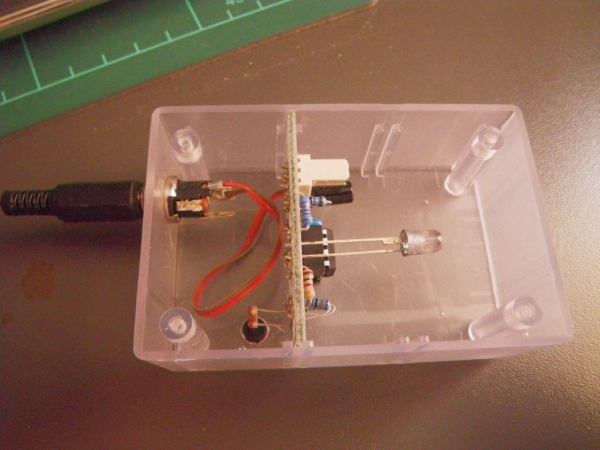
This is a little night-light that comes on when it gets dark, to illuminate dark rooms or hallways. I’m sure you can buy these cheaply ready made but it’s more fun to make your own, and this way it can be customised exactly how you want it.

Power efficiency

The unit is very efficient – I use 4x AA NiMH batteries which last over a month in typical use. The circuit uses a high-brightness LED, but driven at a lower current. The firmware makes use of the Picaxe’s “SLEEP” command, so that the CPU is only running for a fraction of the total uptime.

Picaxe LED night light
Cost

I don’t want to put a dollar figure on the parts, because each user will have different sources for their parts (I’ll provide some links later). By fabricating my own circuit board I built the whole thing for under ten US dollars.

Step 1: Design

Circuit
It’s a pretty simple circuit, based on an 8 pin Picaxe 08M. This was what I had on hand, you could also use the newer 08M2.

It uses an LDR and a 1M2 resistor to form a voltage divider on pin 1 of the Picaxe. There’s an orange LED connected to pin 4 of the Picaxe via a 1k2 resistor. This limits the current through the LED to about 5mA. This reduces the LED brightness, but it’s still sufficient to provide a dim light if your eyes are adjusted to the darkness (I use it in my hallway so I can avoid tripping over at night, but not wake the household by turning on the main light)

Pulldown resistors are used on the unused Picaxe pins – it’s good practice not to allow I/O pins on a microcontroller to “float” and I think it also reduces current consumption very slightly. I used 110k resistors for the pulldowns, because I had a lot on hand. You could use anything around 100k.

The LED is driven straight from the Picaxe so it’s important to limit the total current from this pin to under 20mA.

The cicruit draws less than 1mA when the LED is off, and about 5.5mA when the LED is on. I run mine from 4 AA NiMH rechargeable batteries (which supply about 5V) which last about a month on average, before I need to recharge them.

Software
The software spends most of its time in “sleep” mode, and only wakes up every 2.3s to check the state of the LDR. Before reading the LDR, it turns off the LED so that its light output doesn’t affect the reading. The reading happens so quickly the LED can hardly be seen to flicker when it is very briefly turned off. In order to avoid the LED turning on and off repeatedly around dusk, some hysteresis is built into the code. This is done very roughly by calculating an average value for the ambient light, so that changes in the ambient light take a while to propagate in the code. The raw ADC reading is also divided by 10 to minimise noise.

The code I have attached works on the Picaxe 08M. You should be able to convert it to run on the 08M2 by using the wizard built-in to the Picaxe software

Picaxe LED night light
Hardware
CPU: Picaxe 08M.
LDR: Simliar to Philips ORP12. I used the RD3480 from www.jaycar.com.au
LED: high-brightness 5mm amber LED. I used the ZD0295 from www.jaycar.com.au
PCB: A custom board I designed in Eagle and etched myself. All the design files are attached to this Instructable
Case: I designed the above PCB to mount in a HB6005 clear plastic case from www.jaycar.com.au
Capacitors: 1x 100uF 16v; 1x 100nF, 50v.
Resistors: 1x 1M2; 2x 110k; 1x 22k; 1x 10k; 1x 1k2. all are 1/4w meetal film types (but it probably doesn’t matter)
Miscellaneous: Power socket, battery holder (the circuit requires 5V – I used 4x 1.2V AA rechargeable batteries), programming header, about 15cm of insulated hookup wire

If there’s a lot of interest for this circuit, I’ll get a batch of PCBs and make a kit available.

Downloads

Below are the Eagle files for the schematic and PCB. There’s also a full-size PDF of the PCB tracks if you’re etching your own PCB.
For more detail: Picaxe LED night light

Current Project / Post can also be found using:

  • light detector by pic16 project
  • microcontroller based led project

The post Picaxe LED night light appeared first on PIC Microcontroller.

LED Microcontroller Debug Module using PIC18F4420

$
0
0

When it comes to debugging a microcontroller circuit, there aren’t a lot of simple options.  Since a microcontroller circuit might have multiple things going on at the same time, measuring voltages with a DMM isn’t an option.  Using an computerized In-Circuit-Debugger solution is expensive and elaborate, and time-consuming to set up.   People often resort to connecting banks of LEDs to the circuit, but this also takes time and if wired incorrectly, might mislead you about the issues you are trying to solve.

Enter the Microcontroller Debug Module (MDM).  It is a device which simply transplants the microcontroller (MCU) to a separate unit, away from the breadboard.  It is connected by a 40-pin ribbon cable to a small PCB which takes the place of the MCU on the breadboard, transposing each pin directly.  No circuit modifications are required for the operation of the MDM.  On the module are 74LS541 8-bit Line Driver ICs which drives indicator LEDs for each of the 8 bits on each of the data ports on the MCU.  This chip delivers current for the LEDs without affecting the pin of the MCU itself.  The pin and the breadboard circuit have no idea the chip is there.

My microcontrollers of choice are PIC18 family 28 and 40 pin PICs which I have designed this unit to be pin-compatible for.  Your unit can be designed for Arduino Atmel chips or any MCU you wish to use.

This Instructable is mostly intended to inspire ideas and some circuit pieces to help you develop a MDM for your own favorite family of MCU.

Also Please note the schematic and board layout are regarding Revision 0.3, it is far more advanced and has numerous corrections/features added to it, compared to Rev 0.1, which is photographed.

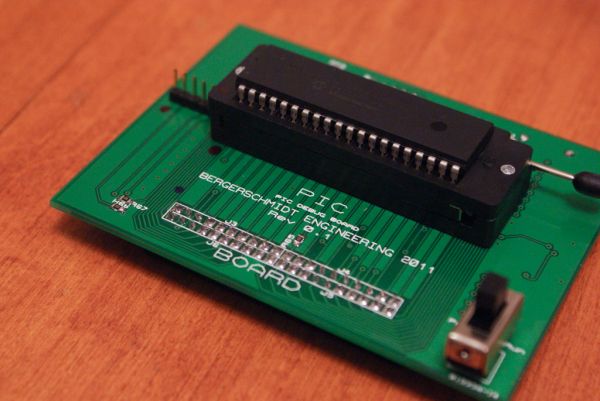
PIC Board

Step 1: Schematic Design

The schematic is large but fairly simple and can be broken down into some smaller parts.

  • J2 is the 40-pin PIC socket, which connects pin-for-pin to the 40-pin IDE connector
  • J8 is the 28-pin PIC socket, which will rest in between the 40-pin socket
  • J3-J6 are arranged to form a 20×2 IDE cable connection for connecting the MDM to the PIC substitute board
  • J7 is a header for running the MDM in a stand-alone configuration without power from the breadboard circuit

Each port has a 74LS541 connected to it which buffers and supplies current for 16 LEDs.  A red LED has its cathode connected to the output pin and its anode ultimately connected to a +5V rail, and a green LED has its anode connected to the same output pin with its cathode connected to ground.  The result is that when the PIC pin goes high, the corresponding 74LS541 pin does the same.  When the pin is high the red LED has +5V on both sides of it, and thus will not light, but the green LED has +5V of potential on it now, and will light.  When the pin is low then the red LED now has +5V of potential across it, and the green LED has GND on both sides of it and will not light.  If the pin is rapidly switching from high to low, it will appear as if both LEDs are illuminated.  Both LEDs would appear lit only in the event that the MCU pin is rapidly changing states, or if the 74LM541 has been disabled.

DSW1 is a DIP switch bank that allows the user to disable or enable the LED output ports if they so wish to.  It will reduce the brightness of the port LEDs if you are not using that port for anything, or if the port is being used as an analog input port.  When the pin is Tri-state then both LEDs will light up at 50% brightness.  Due to limitations of the 74LS541, when the MCU pin is displaying tri-state, it will display as high.  The only time that the output of the 74LS541 will go tri-state is when the enable/disable switch for that chip is enabled.

An oscillator is included on the board, and I recommend it be used because the crystal should be as close to the MCU as possible, and it is not a good idea for it to have to go through a ribbon cable to get there.  It might also cause unwanted noise in the rest of the circuit and could affect ADC readings.

an ICSP header is included on the board, and can be enabled/disabled from the MCU pins with SW1.

Please press the “i” symbol at the top corner of each image to view it in full, readable resolution.  Thank you


For more detail: LED Microcontroller Debug Module using PIC18F4420

The post LED Microcontroller Debug Module using PIC18F4420 appeared first on PIC Microcontroller.

Universal High-Power LED Driver with 3D-printable Case using PIC16F1823

$
0
0

*** There’s a firmware update. Please check out! ***

LEDs are taking over conventional lighting every day. High-power LEDs over 1W are becoming more and more affordable, and I wanted to start using them to replace the lighting fixtures around me. However I realize that finding and configuring the power supply was a bit of a pain, since I wanted to use different LEDs in different configurations depending on what the lighting was for. Power supply needs to regulate the current that goes though the LEDs. With higher current that high-power LEDs require, active constant current circuit is the only practical option. Commercially available buck regulators are easy to use, however, they are usually made for a specific current and voltage range. For me that means having to purchase variety of buck drivers.

LED Driver

Also, most of LED drivers lack dimming function, or have poorly functioning dimmers. I think dimming is essential for modern lighting, and I want smooth control of brightness.
So I decided to develop a universal, dimmerable high-power LED controller. It has taken me four months to develop this controller. Although it’s still in development, I think it’s quite useful to all DYI’ers with LED lighting projects.

I made this an Open Source project. Both hardware and software are open – please use, and extend this project and share the knowledge. A 3D printable enclosure as well as couple of LED mounting hardware is also available as Open Source, download-able at Thingverse. Together you can really kick start LED conversion of your household lighting!

Here’s the list of main features:

  • Inductor “switch mode” controller for high energy efficiency.
  • Wide supply voltage range of 5 to 18V (can go higher, but not tested). Great with batteries as well as AC adapters.
  • Up to 20W maximum output power (can go higher with active cooling). (at supply voltage 12V or above)
  • Constant current (pulsed) – configurable up to 3A peak current.
  • Selectable between buck-boost and boost mode.
  • Analog style dimmer control (smooth, flicker-free continuous adjustment)
  • IR remote receiver – controllable via Sony IR remote control
  • Digitally controlled dimming – via external microcontroller including Arduino.
  • Master/slave gang dimming – connect multiple units together and control the dimming from any one of the units.
  • High frequency pulse drive – 32kHz to 175kHz – no flicker even in video!

This circuit is a relatively straightforward implementation of switch mode voltage converter. An inductor works to convert electric energy into magnetic energy, then it converts back to electric energy. By controlling the charge time you can control the output voltage.
My implementation is a bit different from typical boost or buck-boost circuit in that, instead of rectifying the output voltage, the output voltage drives LEDs directly (pulsed drive). This implementation provides a few advantages:

  • Reduced part count.
  • Higher overall energy efficiency (because rectifier has voltage loss)
  • Better dimming characteristic.

In practice, you can connect 1 to 20 LEDs to the controller. Depending on the supply voltage you can choose between buck-boost or boost mode.

Buck-boost mode can supply output voltage lower and higher than the input voltage. However, efficiency suffers at higher output voltage, so boost mode should be used when you need higher output voltage than input.

Boost mode can only supply output voltage higher than input. As LEDs need minimum voltage (usually about 2V per LED) to start lighting, boost mode is effective when supply voltage is below 2 x (number of LEDs).

More on configuration later…

Peeking into the Output

I think looking at the waveforms will give you the best understanding of how this circuit drives the LEDs. As you can see in the picture, the unit is hooked up to an oscilloscope. Using two inputs, output voltage and the inductor/LED current are shown simultaneously.
The squarish wave is the voltage, and triangular wave is the current.
Notice how at the low power/dimmed level, both the current and the duty rate are low. As you increase the power level, both the current and the duty rate increases. This scheme results in a very wide dimming range with minimum color shift.


For more detail: Universal High-Power LED Driver with 3D-printable Case using PIC16F1823

The post Universal High-Power LED Driver with 3D-printable Case using PIC16F1823 appeared first on PIC Microcontroller.

Universal High-Power LED Driver – Firmware update using PIC16F1823

$
0
0

Here’s the updated firmware for my Universal High-Power LED Driver.

This version has on-board current set up function, so you can change the drive current without re-programming the PIC microcontroller.

You can either download the ZIP file containing the while project, or just the HEX file.
LED Driver
After upgrading your firmware, you can change the drive current of the LEDs connected to the driver by using the buttons on board.
Here are the steps:

  1. Connect the LEDs and power up the unit.
  2. Turn the dimmer knob all the way to the left/counter-clockwise. LEDs will be dim.
  3. Push both buttons and hold for a second, until the status LED starts blinking.
  4. The number of blinks shows the current level: 1=350mA, 2=700mA, 3=1,000mA, 4=1,400mA (apox.).
  5. Push right button to up the current, left button to lower the current. (You can move the dimmer knob to see how the LEDs light up during this process.)
  6. Push both buttons again for a second to get out of the config mode. Status LED will stop blinking.
  7. The setting is now stored in the non-volatile memory (EEPROM).

You can change the current setting as many times as you want


For more detail: Universal High-Power LED Driver – Firmware update using PIC16F1823

The post Universal High-Power LED Driver – Firmware update using PIC16F1823 appeared first on PIC Microcontroller.

RGB LED Mood Light Standalone PWM controller for RGB LEDs using PIC12F629

$
0
0

This project is an update to the original RGB LED PWM Driver.  The new version allows the use of either 5mm LEDs or the square bodied Superflux / Piranah style LEDs.  The circuit now uses bipolar transistors rather than MOSFETs which make it more suitable for novice constructors and for the first time this project is available as a kit with all parts required to assemble the PCB including the superflux LEDs. (power supply not included)

RGB LED Mood Light

Full schematic and construction details are shown on this page, as well as the firmware download for those who want to create their own effects or build their own version from the schematic.  If you’re not into programming the kit includes a PIC microcontroller pre-programmed with the firmware and a number of mood lighting effects.

Circuit Description

The circuit itself is fairly straightforward.  Diode D1 provides reverse polarity protection for the board in case the power supply is connected backwards.  C1/C2 and IC2 take the incoming 12 volt supply and provide a regulated 5 volt supply required by the PIC microcontroller.

The red, green and blue LEDs are arranged in three parallel strings of three LEDs.  Resistors R1, 2 and 3 limit the current through the LEDs to a safe value when using a 12 volt power supply. The low side of each LED string connects to a BC547 NPN transistor which is used to switch the LEDs on and off.  These transistors are in turn controlled by the PIC microcontroller which drives each of the red, green and blue channel transistors with a PWM signal to control the average brightness of the LEDs.  Switch S1 is used to select different effect sequences.   The firmware program running on the PIC microcontroller is the smart part of the circuit and determines what colours are generated and how they fade from one colour to the next.

The three colours of LEDs are positioned on the PCB in an irregular arrangement to improve the colour mixing effect when placed behind / inside a diffuser such as a frosted glass globe.

The controller uses (RGB) Red, Green and Blue high brightness LEDs that are pulse width modulated (PWM) to vary the intensity of each colour LED.  This allows effectively any colour to be generated with rapid changing strobe effects, fast and slow colour fades as well as static colours.   The data used to set and change the colours is held in an easy to edit file so if you don’t like the sequences provided with it, you can modify the sequence data include file yourself and reprogram with your own sequences. (you will need a PIC programmer and some practical knowledge of microcontrollers and programming if you want to do this.)

The dimensions of the PCB are 50mm x 50mm. 

The PCB supplied with the kit is professionally manufactured thru-plated with solder mask top and bottom and screen print overlay on FR4 laminate with RoHS finish.

If you want to etch your own PCB you can use the artwork above.  Unless you are able to thru-plate your own PCB you will need to solder component leads top and bottom where required. Also look for the single via on the board that will need to be wired through.

The ready made PCB supplied in the kit has through plated holes so this does not apply.

The kit available from the Picprojects On-line store contains all the parts required to build the RGB LED Moodlight.  This includes all the components, quality FR4 double sided PCB, Superflux LEDs and a PIC12F629 microcontroller pre-programmed with the firmware.

12 volt power supply is not included in the kit

A 2.1mm chassis mount DC power jack and 100mm of red/black wire are available as an option


For more detail: RGB LED Mood Light Standalone PWM controller for  RGB LEDs using PIC12F629

The post RGB LED Mood Light Standalone PWM controller for RGB LEDs using PIC12F629 appeared first on PIC Microcontroller.

3 LED Bike Light for PIC10F200

$
0
0

Description

This project is a multi-function LED bike (cycle) light using 3 LEDs.

It is based on a PIC10F200 baseline microcontroller, running from a supply voltage of 2 to 5 volts.  In standby mode it consumes a current of less than 1µA making it perfect for battery powered operation.

It uses three individually driven high brightness LEDs, and a single push button switch for turning the light on/off and changing operating modes when on.

The features written into the program for this project address what I consider to be three shortcomings of LED bike lights on the market today.

  1. they can easily be turned on accidentally
  2. they require you to cycle through all the modes to turn them off
  3. you may have to cycle though several modes to get the one you want after switching it on

To deal with point 1 this light requires the mode button to be held for >2 seconds to enter / exit standby mode. This helps prevent it from being accidentally turned on when removed from the bike and stowed in a pocket or bag.

When the light is powered-on, a short press of the mode button cycles through all available modes. The default firmware supplied features seven modes and as long as the power to the circuit isn’t removed, it will come out of standby and run the last selected mode.

3 LED Bike Light

Disclaimer:
The legality of this bike light for on-road use depends on the laws and regulations in the  country of use.  It should be assumed it is not legal to use it on the road unless you have establish yourself that the use of such a device is permitted.


Schematic

Two schematics are shown, one for the PIC10F20x 8-pin PDIP package, the other for the 6-pin SOT-23 package.  The two parts have different pin outs.

Resistor values are shown as 100R and these are conservative values for use from a 3 to 4.5 volt battery supply and high brightness red LEDs.  The actual value used should be selected based on the supply voltage, the type of LEDs used and if powered from a battery the desired battery life. 

Running from a 3 volt supply (2 x AAA batteries) you could use 68R resistor with red LEDs and 10R with white LEDs.  

Resistor value notation.
100R means 100 ohms, 4K7 would be 4,700 ohms

Circuit / Firmware Description

There are two functionally identical versions of the project presented on this page; a small easy to assemble version using the 8-pin PDIP version of the PIC10F20x and a very small version based on the SOT23 package PIC and surface mount components. 

The circuit drives 3 LEDs from the I/O pins of the PIC microcontroller.  A single push button switch provides standby/power-on function as well as mode selection.

The circuit can operate from a voltage in the range 2 to 5 volts although you will need to take into account the forward voltage drop of the LEDs used; red LEDs typically need at least 2 volts, white LEDs 3 volts.  Current consumption in operation depends on the LEDs used and the choice of current limiting resistors.  Typically it will be in the range of 10 to 30mA.  In standby current consumption drops to less than 1µA making it well suited to battery operation.  The 100nF capacitor is used for decoupling of the power supply to the PIC.

The LED functions are defined by a lookup table in the PIC’s program firmware.  If you have access to a PIC programmer and want to edit or modify these you can download the source code (see bottom of this page).


For more detail: 3 LED Bike Light for PIC10F200

Current Project / Post can also be found using:

  • home automation using bluetooth pic code

The post 3 LED Bike Light for PIC10F200 appeared first on PIC Microcontroller.


How to Glow an LED using PWM with PIC Microcontroller

$
0
0

Pulse Width Modulation (PWM) is a technique in which the width of a pulse is modulated keeping the time period of the wave constant. One cycle has a fixed time period called ‘Period’ and a varying on time called ‘Duty cycle’. The entire wave can have two voltages levels either logic 0 or logic 1.

The PWM wave is very useful in the digital systems, since this can be used to generate different voltage values other than the logic 0 or logic 1 values. This feature is making use in so many digital systems like DC motor control, audio devices, simple decoration light controls etc.

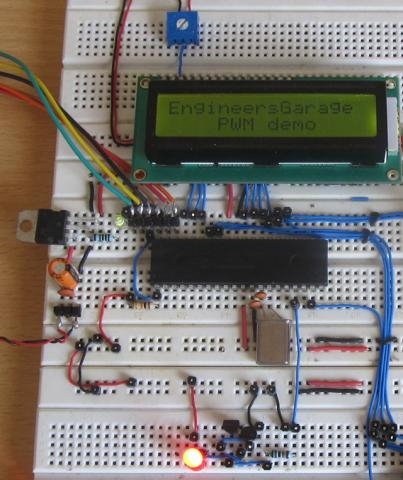
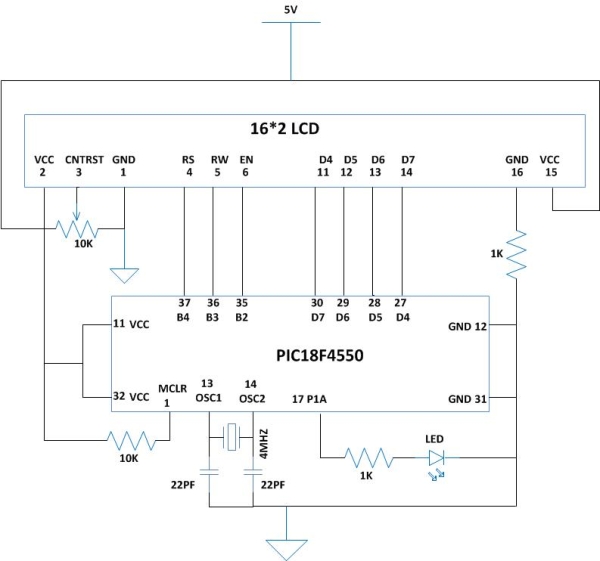
The PIC18F4550 has an inbuilt PWM module which can generate continuous PWM waves. The Period and the duty cycle of the PWMwave can be adjusted in program. This project explores the PWM module of the PIC18F4550 and tries to glow an LED with varying intensities, which shows that it is possible to generate any required voltage at a pin of a digital microcontroller with the help of PWM waves.

PWM is a digital wave that can be generated using digital circuits which are not capable of generating analog voltages. With the help of the modulation of the width of a pulse in a period of the wave, they can generate any required voltage with the help of a proper filter circuits. Thus the PWM wave is always associated with a filter circuit which has been designed according to the timing details of the pulse.

How to Glow an LED using PWM with PIC MicrocontrollerThe filter could be any device which can generate the equivalent voltage of a PWM voltage. It normally consists of Low-pass filters, amplifiers, load drivers etc. They generate the voltage and fed that voltage to the load device. In certain cases where the load itself can act as a filter generating the voltage from the PWM wave and drive itself using that voltage. The example of such a devices which can itself act as a PWM filter is DC motor. In this particular project also there is no filter circuit since the aim is to vary the intensity of a glowing LED only. It doesn’t mean that the LED can act as a filter; rather it is the persistence of vision that makes one feel that the intensity of the LED is varying. In this case the LED is glowing normally for the logic1 and logic0 voltages of a PWM, but the variation in the ON time make one feel that the intensity is varying. Here the persistence of vision plays the key role and the filter device is nothing but our eyes itself.

The PIC18F4550 has four PWM output channels and they are P1A, P1B, P1C and P1D. All of them are capable of generating PWM waves at a time. In this project only one of the PWM channels are using. The P1A is the PWM channel in this particular project.

As shown in the above figure the ‘Period’ of all the wave remains the same but their ‘Duty-cycle’ varies.

The period of the wave is the sum of the ‘ON time + OFF time’. Duty-cycle is the percentage of time period for which the logic1 voltage exists in a cycle (ON time), starting from the beginning of the cycle.

The PWM is that kind of a wave in which the ON time and OFF time can vary in a cycle but the sum of ‘ON time + OFF time’ remains constant for every cycle.

The period and the duty cycle for a PWM wave can be calculated generally using the following equations;

Period = ON time + OFF time

Duty-cycle = ON time / (ON time + OFF time) = ON time / Period

As shown in the figure, the first PWM wave has a Duty-cycle of 50% which means the on-time is exactly half of that the period of the wave. The second wave has 10% Duty-cycleand the third wave has 90% Duty-cycle. When applied to a proper filter the 50% duty cycle can produce half of the maximum voltage of the pulse. If the maximum voltage (logic 1 voltage) of the pulse is 5V then the 50% duty cycle wave can produce a continuous 2.5V. The 10% duty cycle wave can produce nearly 0 voltages and the 90% duty cycle wave can produce nearly 5V.Thus the wave when applied to a filter can continuously produce a voltage which is the average of the voltage in a single period.

Increasing the Duty-cycle will increase the voltage at the filter device’s output and decreasing the Duty-cycle will decrease the voltage as well

The filter could be anything like a capacitor or inductor. Even though if there is no filter most of the device can generate a corresponding output with a PWM wave resembles that the device is operating at the average voltage of that PWM wave. The LED in this project is the simplest example for such a kind of device.

The registers:

The registers which help in generating the Period and the Duty cycle of the PWM module in a PIC18F4550 are CPR1, PR2 and TMR2. The TMR2 and the PR2 are the timer value and the Pre-scalar value registers of the Timer2 module. They are used to generate the Period of the PWM wave. The CCPR1 is a 10 bit register which can be used to set the duty cycle of the PWM wave.

Suppose one have written the required values into the PR2 and the CCPR1 registers for the Period and Duty cycle of the PWM wave. The TMR2 value is always set to zero once the PWM module is enabled. Once the module is enabled then with each clock the timer2 receives, the value in the TMR2 increases. Hence these registers act like up-counters. This value in the TMR2 register is always under a comparison with the values in the PR2 register and the CCPR1 register like as shown in the following figure;

As per the above figure, the Duty-cycle (on-time) is available until the TMR2 value exceeds the CCPR1 value, since the Duty-cycle is the output of the comparator which compares the TMR2 value with the CCPR1 value. The Period of the wave is available further until the value in the TMR2 exceeds the PR2 value since the Period is the output of the comparator which compares the TMR2 value with the PR2 value

Once the value in the TMR2 exceeds that of the PR2 then the TMR2 is cleared to zero and starts counting again. Hence continuous PWM wave with specified duty cycle and Period is available at the PWM output pin. Once can rewrite the CCPR1 value any time to change the duty cycle of the PWM wave so as to change the voltage which the wave is generating at the filter device connected to the PWM pin of the microcontroller.

The Period of the PWM wave in PIC18F4550 given by;

PWM Period = [(PR2) + 1] * 4 * TOSC * (TMR2 Pre-scale Value)

The Duty cycle of the PWM wave in PIC18F4550 is given by;

PWM Duty Cycle = (CCPR1 * TOSC * (TMR2 Pre-scale Value)

CCP1CON

This is the register which controls the PWM operation in PIC18F4550. It can be used to configure the PWM output channels and enable the PWM module in the required mode and can also be used to set the lower two bits of the duty cycle value.

{C}{C}{C}{C}{C}

{C}{C}{C}{C}{C}

Output Configuration bits Duty Cycle Bit 1 Duty Cycle Bit 0 Mode Select bits
7 6 5 4 3 2 1 0

The output configuration bits can be written to select the ‘single-output’, ‘full bridge’, ‘half bridge ‘or ‘full-bridge’ output reverse modes with the four PWM channels. This particular project uses the single-output PWM at P1A channel.

The output configuration can be done as shown in the following table;

Output Configuration bits

Description
P1M1 P1M0
0 0 Single output: P1A modulated; P1B, P1C, P1D assigned as port pins
0 1 Full-bridge output forward: P1D modulated; P1A active; P1B, P1C inactive
1 0 Half-bridge output: P1A, P1B modulated with dead-band control; P1C, P1D assigned as port pins
1 1 Full-bridge output reverse: P1B modulated; P1C active; P1A, P1D inactive

Duty cycle bit 1 and Duty cycle bit 0 are the two lower bits of the CPR1 register which can be used to set the duty cycle of the PWM waveform.

The Mode select bits can be used to select the modes of the PWM of the four PWM output channels. The four possible output modes are shown in the following table;

Mode Select bits Description
CCP1M3 CCP1M2 CCP1M1 CCP1M0
1 1 0 0 P1A, P1C Active-High; P1B, P1D active-high
1 1 0 1 P1A, P1C Active-High; P1B, P1D active-low
1 1 1 0 P1A, P1C Active-Low; P1B, P1D active-high
1 1 1 1 P1A, P1C Active-Low; P1B, P1D active-low

In this project the output configuration bits are selected so as to select single output with P1A, and mode select bits so as to get P1A, P1B, P1C and P1D as active-high, which means they will be high during the duty cycle.

Hence the value of the CCP1CON register can be written as;

CCP1CON = 0x0C

T2CON

This register of the timer2 module can be written to set the timer pre-scalar and post-scalars and also to turn on/off the timer2.

{C}{C}{C}{C}{C}

{C}{C}{C}{C}{C}

Unimplemented Post-scale Select bits Timer2 On bit Pre-scale Select bits
0 1 2 3 4 5 6 7

The MSB is unimplemented. The following four bits can be used to set the post-scalar as shown below;

Post-scale Select bits

Description
T2OUTPS3 T2OUTPS2 T2OUTPS1 T2OUTPS0
0 0 0 0 1:1 Post-scale
0 0 0 1 1:2 Post-scale
0 0 1 0 1:3 Post-scale
0 0 1 1 1:4 Post-scale
0 1 0 0 1:5 Post-scale
0 1 0 1 1:6 Post-scale
0 1 1 0 1:7 Post-scale
0 1 1 1 1:8 Post-scale
1 0 0 0 1:9 Post-scale
1 0 0 1 1:10 Post-scale
1 0 1 0 1:11 Post-scale
1 0 1 1 1:12 Post-scale
1 1 0 0 1:13 Post-scale
1 1 0 1 1:14 Post-scale
1 1 1 0 1:15 Post-scale
1 1 1 1 1:16 Post-scale
How to Glow an LED using PWM with PIC Microcontroller Schematic#include <p18f4550.h>
#include <timers.h>
//======================= chip config ===================//
#pragma config PLLDIV = 1
#pragma config CPUDIV = OSC1_PLL2
#pragma config FOSC = HSPLL_HS
#pragma config USBDIV = 1
#pragma config IESO = OFF
#pragma config PWRT = OFF
#pragma config BOR = OFF
#pragma config VREGEN = OFF
#pragma config WDT = OFF
#pragma config WDTPS = 32768
#pragma config CCP2MX = ON
#pragma config PBADEN = OFF
#pragma config LPT1OSC = OFF
#pragma config MCLRE = ON
#pragma config STVREN = ON
#pragma config LVP = OFF
#pragma config ICPRT = OFF
#pragma config XINST = OFF
#pragma config DEBUG = OFF
#pragma config WRTD = OFF
//======================= chip config ===================//
//LCD Control pins
#define rs PORTBbits.RB4
#define rw PORTBbits.RB3
#define en PORTBbits.RB2
//LCD Data pins
#define lcdport PORTD
#define lcd_port_dir TRISD
void lcd_clear ( void );
void lcd_2nd_line ( void );
void lcd_1st_line ( void );
void lcd_ini ( void );
void dis_cmd ( unsigned char cmd_value );
void dis_data ( unsigned char data_value );
void lcdcmd ( unsigned char cmdout );
void lcddata ( unsigned char dataout );
void delay_ms ( int delay );
//============================ TIMER 0 ISR =================================//
#pragma interrupt tmr0_interrupt
void tmr0_interrupt(void)
{
static unsigned char i = 30;
static int count_up_down = 1;
  if ( count_up_down )
  {
i ++;
// method to write the value of ‘i’ into the 10bit CCPR1 register //
CCP1CON |= ( i << 5 ) & 0x03;
CCPR1L = i >> 2;
// method to write the value of ‘i’ into the 10bit CCPR1 register //
    if ( i == 70 )
count_up_down = 0;
else;}else
{i –;CCP1CON |= ( i << 5 ) & 0x03;
CCPR1L = i >> 2;
if ( i == 30 )
count_up_down = 1;else;}
INTCONbits.TMR0IF=0;                            // clearing the timer0 overflow bit}
//============================ TIMER 0 ISR =================================//
void main ( void )
{unsigned char data1 [] = “EngineersGarage”;
unsigned char data2 [] = ”    PWM demo   “;
int i = 0;
OSCCON = 0x0C;                            // set CPU Frequency as 8 MHz
 lcd_ini (); // LCD initialization
 delay_ms ( 200 );


For more detail: How to Glow an LED using PWM with PIC Microcontroller

Current Project / Post can also be found using:

  • rgb led driver using pic

The post How to Glow an LED using PWM with PIC Microcontroller appeared first on PIC Microcontroller.
Getting Started with MPLAB XC8 Compiler – LED Blinking

$
0
0

In this tutorial we will learn How to Blink an LED with PIC Microcontroller using MPAB XC8 Compiler. Recently Microchip released a series of development tools including MPLAB X IDE and MPAB XC Compilers. MPLAB X IDE is a software that runs on a computer intended to develop applications for Microchip’s Microcontrollers and Digital Signal Controllers. It can be used with Windows, Mac and Linux Operating Systems. It is called an Integrated Development Environment as it provides comprehensive facilities to the developers. Unlike previous  versions of MPLAB, MPLAB X IDE is based on open source NetBeans IDE by Oracle.

Getting Started with MPLAB XC8 Compiler – LED BlinkingMPLAB XC Compilers are general solutions for all Microchip PIC Microcontrollers and it can be used for any Project. It replaces all MPLAB C and Hi-Tech C compilers. Microchip recommends every developers to use MPLAB XC Compilers. These compilers integrates with MPLAB X IDE to provide full graphics front end.

In this example project we will blink an LED using PIC 16F877A Microcontroller. For that we will use MPLAB X IDE and MPLAB XC8 Compiler. You can download MPLAB X IDE and XC8 Compiler from the respective pages.

You should install Java before installing MPLAB X.

  • Download and Install MPLAB X IDE.
  • Download and Install MPLAB XC8 Compiler.

MPLAB XC8 Programming

  • Input Outputs pins of a PIC Microcontroller is divided into different PORTS containing a group of GPIO (General Purpose Input Output) pins.
  • Since PIC 16F877A is an 8-bit microcontroller, each PORT contains 8 Input Output pins.
  • In 16F Microcontrollers, each port is associated with two registers : TRIS and PORT. Eg : TRISB, PORTB, TRISD, PORTD.
  • TRIS stands for Tri-State, it determines the direction of each GPIO pins. Logic 1 at a particular bit of TRIS register makes the corresponding pin Input while Logic 0 at a particular bit makes the corresponding pin Output.
  • All Input pins will be in Hi-Impedance state.
  • PORT Register is used to Read Data from or Write Data to Input Output pins.
  • For an Output pin (TRIS bit is 0), Logic 1 at PORT register makes the corresponding pin Logic High (VDD) and Logic 0 at PORT register makes the corresponding pin Logic Low (VSS).
  • Since PIC 16F877A is a 5V device, VDD = 5V and VSS = 0V.
  • PORT Read operation reads the Physical State (actual Voltage Level) of IO pins. If an IO pin is at a potential near to VDD, corresponding PORT bit will be Logic 1 and if it at a potential near to VSS, corresponding PORT bit will be Logic 0.

Writing Registers

You can write to PORT and TRIS Registers entirely or bit by bit.

Writing Bit by Bit :

TRISC0 = 1; //Makes 0th bit of PORTC Input
TRISC5 = 0; //Makes 5th bit of PORTC Output
RB3 = 1; //Makes 3ed bit of PORTB at Logic High
RB7 = 0; //Makes 7th bit of PORTB at Logic Low

Getting Started with MPLAB XC8 Compiler – LED Blinking SchematicWriting Entire Register

You should be familiar with following C Programming concepts.

  • A number with a prefix ‘0b’ indicates a binary number.
  • A number with a prefix ‘0’ indicates an octal number.
  • A number with a prefix ‘0x’ indicates a hexadecimal number.
  • A number without prefix is a decimal number.

Let’s see some examples…

Decimal Binary Octal Hexadecimal
0 0b00000000 00 0x00
1 0b00000001 01 0x01
128 0b10000000 0200 0x80
255 0b11111111 0377 0xFF
PORTB = 0xFF; //Makes all pins of PORTB Logic High
TRISC = 0x00; //Makes all pins of TRISC Output
PORTD = 128; //Makes 7th bit of PORTD Logic High

For more detail: Getting Started with MPLAB XC8 Compiler – LED Blinking

The post Getting Started with MPLAB XC8 Compiler – LED Blinking appeared first on PIC Microcontroller.
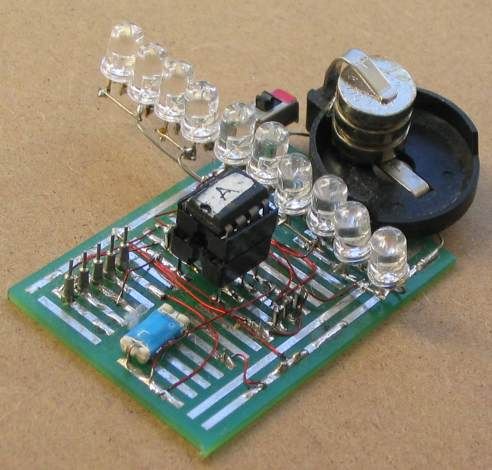
Complete Intro To PIC’s – Make an LED Flash Video

$
0
0

As the title suggests, this guide is targeted for those who are new to the world of PIC microcontrollers. I cover the basics from hardware to software along with programming the device and a few hints along the way.

I do assume a little bit of electronics knowledge – eg, reading circuit diagrams – I’m guessing if someone has the knowledge to Google “Intro To PIC’s” then they know something about basic electronics…

Current Project / Post can also be found using:

  • led mode selector microcontroller

The post Complete Intro To PIC’s – Make an LED Flash Video appeared first on PIC Microcontroller.
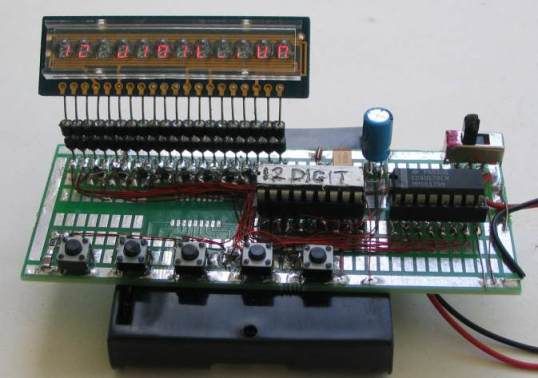
20 LED BADGE using PIC12F629 Microcontroller

$
0
0

This project drives a number of LEDs via a very clever circuit.
There are 3 ways to dive a LED from an output of a micro.
The simplest is called “dump.”
This is where the LED is connected directly to the output via a resistor and when the output is HIGH, the LED illuminates. But if the micro has 5 outputs, only 5 LEDs can be illuminated.
A LED will only illuminate when the voltage is applied in the right direction.
We can take advantage of this and connect 2 LEDs across each other with one LED in the opposite direction.
When voltage is applied, one LED will illuminate and when the voltage is reversed, the other LED will illuminate. This will allow us to illuminate more than 5 LEDs.
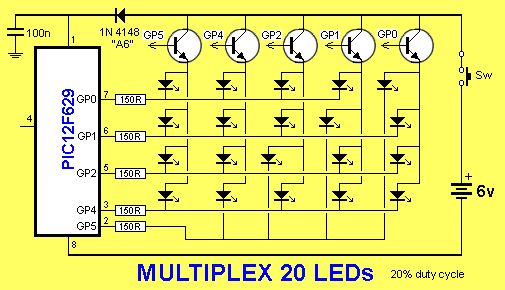
But if the LED-pairs are connected to the outputs as shown in the diagram below, up to 20 LEDs can be driven from 5 lines. However only 2 LEDs can be on at any one time and these LEDs produce full brightness.
If you turn on the wrong set of output lines, more LEDs will illuminate but the 25mA capability of each line will be shared between the LEDs.
Since only two LEDs can be on at the same time, the duty cycle is 10%.

20 LED BADGE

Another way to drive 20 LEDs is via MULTIPLEXING.
This is the same as SCANNING.
To turn on LEDs 11,2,3,4,  the drive lines are made LOW and the fifth line is taken to a transistor. When the fifth line is taken HIGH, the transistor supplies rail voltage to the 4 LEDs and they illuminate. They are then turned off and 4 outputs drive LEDs 5,6,7,8. The fifth output (GP4) drives the transistor.
In this way 4 LEDs are turned on at a time and each LED gets a 20% duty cycle.
The result is a display that is brighter than Charlieplexing.

THE PROGRAM
Build the circuit so that the transistors and LEDs are in exactly the same places as the symbols on the circuit diagram.
This is very important as the display as the display will be “scanned.” In other words each column will be turned on for a short period of time and then the next column will be turned on.
If you do this fast enough, all the LEDs will appear to be turned on at the same time.
There is a reason why we have to scan the display.
Although each LED can be turned on and off individually, we cannot turn on some combinations of LEDs will turning on other LEDs that have the same lines that feed them. For example, we cannot turn on LEDs 1,4,5,8 at the same time, because to turn on LED4 GP5 has to be LOW and to turn on LED5 GP4 has to be HIGH. Rather than deal with all these conflicts, we scan the columns.
To show this feature, the first program you should burn into the chip is the “Column Test” routine:
Here are the files:
ColumnTest.asm
ColumnTest.hex


For more detail: 20 LED BADGE using PIC12F629 Microcontroller

The post 20 LED BADGE using PIC12F629 Microcontroller appeared first on PIC Microcontroller.
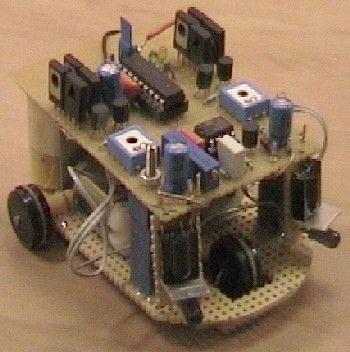
PIC16F877 LED blinking code and Proteus simulation

$
0
0

This post provides the code to make an LED blink using PIC16F877 microcontroller. This code is written in C language using MPLAB with HI-TECH C compiler. This code is intended to be the first step in learning how to use PIC16F877 microcontroller in your projects. You can download this code from the ‘Downloads‘ section at the bottom of this page.

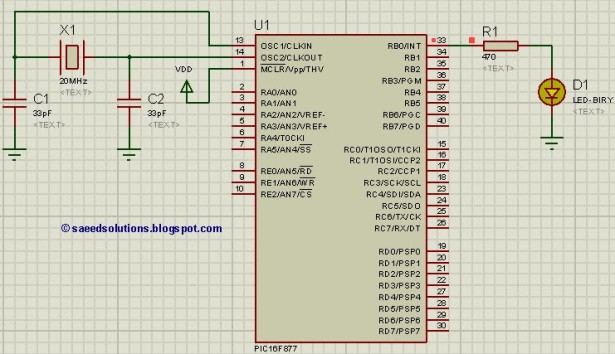
Following figure shows the minimum circuit required to make an LED blink with PIC16F877.

PIC16F877 LED blinking schematic

In this figure, first thing to note is that there is a crystal of 20MHz used with PIC16F877[1]. You can use any crystal from 0 to 20MHz with PIC16F877. MCLR master reset pin is pulled high to keep PIC16F877 out of reset. RB0 pin is being toggled in the code.

Code

The code for making LED blink using PIC16F877 is shown below.

Downloads

LED blinking code using PIC16F877 was compiled in MPLAB v8.85 with HI-TECH C v9.83 compiler and simulation was made in Proteus v7.10. To download code and Proteus simulation click here.


For more detail: PIC16F877 LED blinking code and Proteus simulation

The post PIC16F877 LED blinking code and Proteus simulation appeared first on PIC Microcontroller.
Viewing all 387 articles
Browse latest View live